AI Background Removal Tools: Quick and Easy Image Editing

How AI Background Removal Works
AI background removal tools use semantic segmentation models that have been trained to distinguish between the foreground subject and the background in an image. The model analyzes every pixel and assigns it a probability of belonging to either the subject or the background. Pixels with high subject probability are kept, and background pixels are made transparent. Modern models handle complex edges like hair, fur, and transparent objects with impressive accuracy, though they still occasionally struggle with subjects that blend into the background.
The technology has improved dramatically in the past two years. Early background removal tools produced jagged, obvious cutouts that looked artificial. Current tools produce clean edges that are difficult to distinguish from manually masked images. For most commercial and personal use cases, the quality is now sufficient to skip manual editing entirely.
The Best Free Background Removal Tools
remove.bg is the most well-known background removal tool and delivers consistently high-quality results. Upload any image and get a clean cutout in under five seconds. The tool handles people, products, animals, and vehicles particularly well. The free tier allows one high-resolution download per day, which is sufficient for casual users. Paid plans start at $9 per month for 40 credits, with each credit processing one image.

Adobe Express Background Remover is completely free and produces quality comparable to remove.bg. It is integrated into Adobe's online editor, so you can immediately add a new background, apply filters, or adjust the image after removing the background. No account is required for basic use, and there is no daily limit on the number of images you can process. This makes it the best free option for users who need to process multiple images.
Photoroom offers both a web app and a mobile app for background removal. Its standout feature is the ability to automatically replace the removed background with a new scene. Choose from hundreds of template backgrounds organized by category: studio, outdoor, office, lifestyle, and abstract. Photoroom also includes a batch processing feature that removes backgrounds from multiple images simultaneously. The free plan includes basic features with a watermark. The Pro plan at $10 per month removes the watermark and adds premium templates.
Tools for Professional and High-Volume Use
Slazzer is designed for e-commerce businesses that need to process hundreds or thousands of product images. It offers a bulk upload feature, API access for integration into e-commerce platforms, and custom model training for specific product categories. Slazzer's API processes images in under three seconds, making it practical for real-time applications. Pricing is based on volume, starting at $10 per month for 40 images and scaling down to $0.03 per image at high volumes.
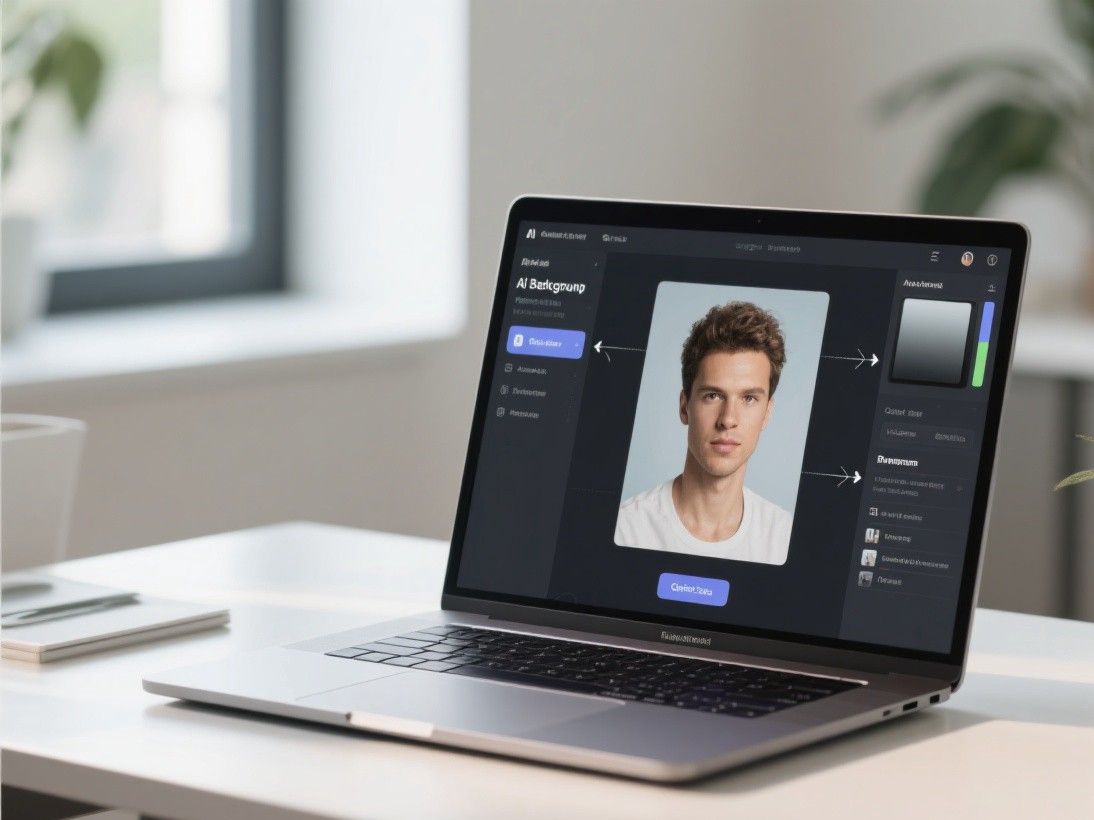
Canva Background Remover is the best option for users who are already working in Canva's design environment. It is available on Canva Pro ($13 per month) and processes images with one click. The advantage is that you can immediately place the cutout into a design, add text, apply effects, and export in multiple formats without switching tools. For social media managers and marketers who live in Canva, this integration saves significant time.
Photoshop's Remove Background Tool uses Adobe's Sensei AI and is available in both the desktop and web versions of Photoshop. It produces the highest quality cutouts of any tool we tested, particularly for complex subjects like hair, lace, and semi-transparent objects. The desktop version includes a "Refine Edge" brush that lets you manually correct any areas where the AI made mistakes. This combination of AI speed and manual precision makes it the best option for professional designers who need pixel-perfect results.
Testing Results: Which Tool Is Most Accurate?
We tested six tools on a set of 50 images that included portraits, product photos, animals, vehicles, and complex scenes with multiple subjects. Each image was evaluated on edge accuracy, detail preservation, and handling of challenging areas like hair and transparent objects.
Photoshop's Remove Background achieved the highest accuracy score at 94%, followed by remove.bg at 91% and Adobe Express at 89%. Canva and Photoroom both scored 87%, while Slazzer scored 85%. The differences were most noticeable on images with complex hair or fur, where Photoshop and remove.bg preserved fine details that other tools smoothed over.
For speed, Adobe Express was the fastest at an average of 2.3 seconds per image, followed by remove.bg at 3.1 seconds and Photoroom at 4.2 seconds. All six tools were fast enough for practical use, with even the slowest option processing images in under ten seconds.
Common Challenges and How to Handle Them
Even the best AI tools occasionally produce imperfect results. Here are the most common issues and how to fix them. Hair detail loss: AI tools sometimes smooth out fine hair strands, making the cutout look unnatural. If this happens, use Photoshop's Refine Edge brush to manually restore the hair detail. Alternatively, try a different tool, as some models handle hair better than others.
Semi-transparent objects: Glass, water, and sheer fabric are challenging because the subject and background blend together. No AI tool handles these perfectly. For the best results, use Photoshop's Select Subject feature with manual refinement, or shoot the product against a solid background that contrasts with the transparent areas.
Multiple subjects: When an image contains several people or objects, the AI might remove the background around some subjects but not others. Most tools let you mark which subject to keep. In remove.bg, use the "Edit" feature to manually mark areas to include or exclude. In Photoshop, use the Object Selection tool to choose specific subjects before removing the background.

Replacing Backgrounds Effectively
After removing the background, choosing the right replacement is important for a natural-looking result. Match the lighting direction between the subject and the new background. If the subject was photographed with light coming from the left, choose a background with similar lighting. Adjust the color temperature and saturation of the subject to match the new background. A subject photographed in warm indoor lighting will look out of place on a cool blue outdoor background unless you adjust the tones. Add a subtle drop shadow behind the subject to ground it in the new scene. Without a shadow, subjects often look like they are floating above the background.