AI Photo Enhancement Tools: Restore and Improve Old Photos

What AI Photo Enhancement Can Actually Do
AI photo enhancement tools perform several distinct functions: upscaling (increasing resolution), sharpening (improving detail and clarity), noise reduction (removing graininess), color correction (fixing exposure and white balance), and restoration (repairing damage in old photos). Some tools specialize in one function, while others combine multiple capabilities. Understanding which tool does what helps you choose the right one for your specific photo problem.
The technology behind these tools has advanced significantly. Modern AI upscalers do not simply interpolate pixels like traditional enlargement methods. They use generative models that synthesize new detail, adding texture and sharpness that did not exist in the original image. This means a 500x500 pixel photo can be upscaled to 2000x2000 pixels and look genuinely sharp, not just stretched. The same principle applies to face enhancement, where AI can add realistic detail to blurry or low-resolution faces.
Best Tools for Photo Upscaling
Topaz Photo AI is the most comprehensive AI photo enhancement tool. It combines upscaling, sharpening, and noise reduction in a single application. The upscaling feature can enlarge images by up to 6x while adding realistic detail. Topaz uses different AI models for different types of images: one for photos of people, one for landscapes, one for graphics and illustrations, and one for low-quality source images. Selecting the right model for your image type produces significantly better results than using a universal solution approach.
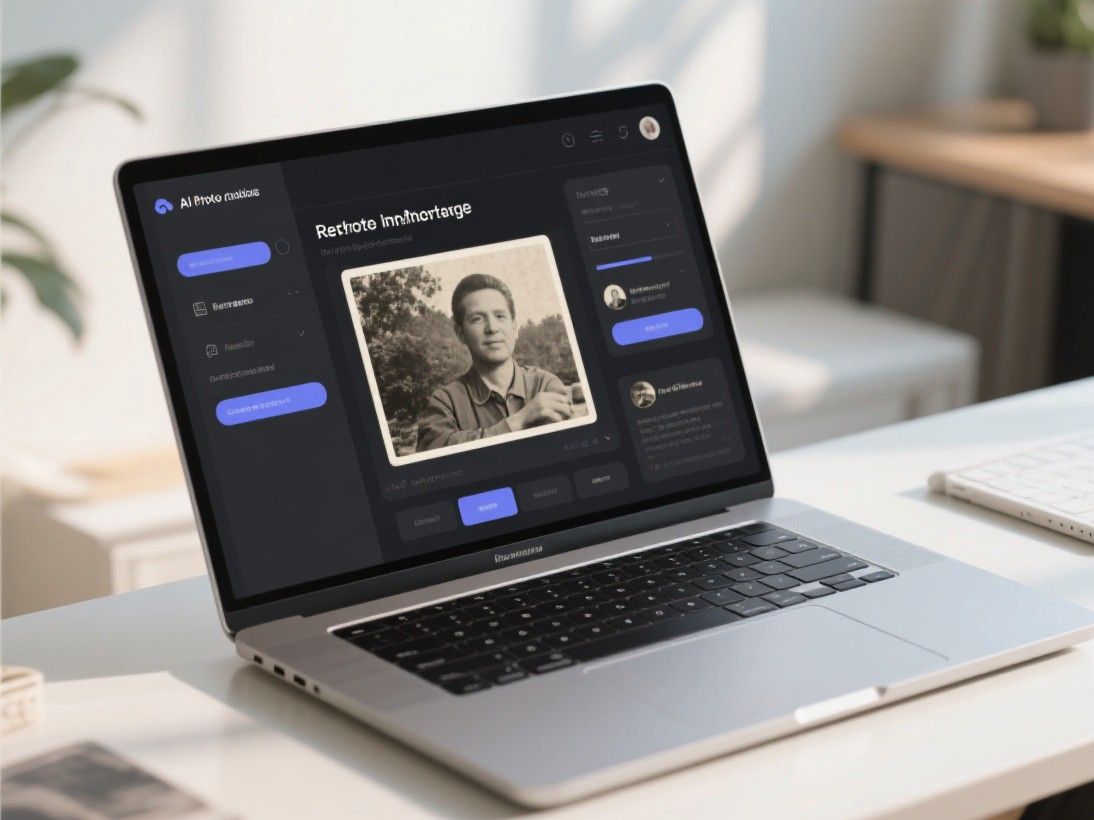
Topaz Photo AI is available as a standalone application or a plugin for Photoshop and Lightroom. A one-time license costs $199, which includes one year of updates. After the first year, you can continue using the software but will not receive new AI models or features. For photographers who regularly need to upscale images, this is a worthwhile investment.
Upscayl is a free, open-source upscaler that runs locally on your computer. It uses several AI models including Real-ESRGAN, which produces impressive results for general photo upscaling. Upscayl is not as polished as Topaz and offers fewer model options, but the price of free makes it the best option for casual users who only need to upscale occasionally. It is available for Windows, Mac, and Linux.
Let's Enhance is a web-based upscaler that does not require any software installation. Upload your image, select an upscaling factor (2x, 4x, 8x, or 16x), and download the result. Let's Enhance offers specific modes for photos, art, and text, optimizing the upscaling algorithm for each type. The free tier allows 10 credits per month. Paid plans start at $9 per month for 100 credits.
Best Tools for Old Photo Restoration
Remini is the best tool for enhancing faces in old or low-quality photos. It uses a specialized AI model trained on millions of face images to add realistic detail to blurry, pixelated, or damaged faces. Remini can turn a grainy 50x50 pixel face thumbnail into a clear, detailed portrait. The results are not always perfectly accurate to the original person's appearance, but they are remarkably convincing and are widely used for restoring old family photos.
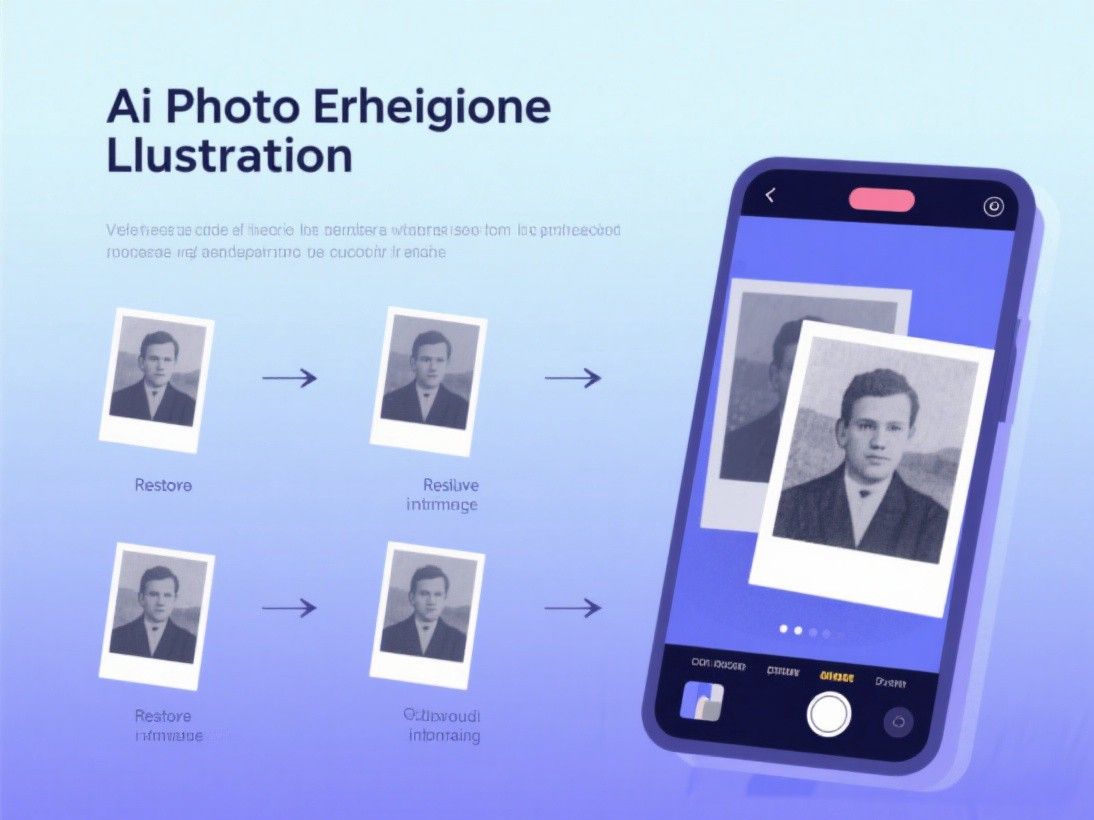
Remini is available as a web app and mobile app. The web version costs $10 per month for 100 photo credits. The mobile app offers a subscription at $7.99 per week or $24.99 per year. For restoring a batch of old family photos, the web version is more practical.
VanceAI offers a dedicated "Old Photo Restoration" tool that handles multiple types of damage simultaneously. It repairs scratches, tears, and stains, removes noise and grain, enhances colors that have faded over time, and sharpens blurry areas. The tool works best on black-and-white photos from the early to mid-20th century. VanceAI offers a credit-based pricing system, with restoration costing 1 credit per image. Plans start at $4.95 for 100 credits.
Palette.fm specializes in colorizing black-and-white photos. Its AI analyzes the content of the image and applies realistic colors based on its understanding of what objects, materials, and scenes should look like. The results are surprisingly accurate for outdoor scenes, clothing, and skin tones. You can also manually adjust colors by placing color hints on specific areas of the image. The free tier allows a limited number of colorizations. The Pro plan at $12 per month includes unlimited colorizations and higher resolution output.
Best Tools for General Photo Enhancement
Adobe Lightroom with AI includes AI-powered masking, which automatically identifies subjects, skies, and backgrounds for selective editing. The "Super Resolution" feature doubles the resolution of RAW files using AI detail enhancement. The "Denoise AI" feature removes noise while preserving detail. And the "Adaptive Presets" use AI to apply edits tailored to the specific content of each photo. Lightroom is available as part of the Adobe Photography Plan at $10 per month, which also includes Photoshop.
Luminar Neo is a photo editor built around AI features. Its "Enhance AI" adjusts exposure, contrast, and color balance automatically. "Structure AI" enhances detail and texture selectively. "Face AI" detects and enhances faces with adjustments for skin smoothing, eye brightening, and lip saturation. "Sky AI" replaces skies with realistic options. Luminar Neo is available as a one-time purchase of $149 or a subscription at $4.92 per month.
Tips for Getting the Best Enhancement Results
Start with the highest quality source image available. AI enhancement cannot create detail that does not exist in the original. If you have a choice between a small original and a larger but heavily compressed version, the small original usually produces better results because it retains more actual detail. For old printed photos, scan them at the highest resolution your scanner supports (600 DPI minimum) before applying AI enhancement.
Apply enhancements in the right order. First, restore and repair any damage. Second, reduce noise and grain. Third, sharpen and enhance detail. Fourth, correct color and exposure. Fifth, upscale if needed. Applying these steps in a different order can produce inferior results because each step affects the image data that the next step works with.
Be realistic about what AI can do. AI enhancement adds plausible detail, not accurate detail. An upscaled photo of a distant building will show windows and architectural details, but those details are generated by the AI, not recovered from the original image. For personal memories and creative projects, this is perfectly fine. For forensic, legal, or journalistic applications, AI-enhanced images should be clearly labeled as enhanced and not treated as accurate representations of the original scene.