How to Automate Repetitive Tasks With AI Workflow Tools
Identifying Tasks Worth Automating
Not every repetitive task should be automated. The best candidates for automation are tasks that follow a predictable pattern, require minimal judgment, consume more than two hours per week, and involve digital tools that offer API access or integrations. Common examples include data entry, report generation, email sorting, social media posting, invoice processing, lead qualification, and file organization.
Tasks that require nuanced decision-making, creative judgment, or complex human interaction are poor candidates for full automation. However, even these tasks often have components that can be partially automated. A hiring manager still needs to make the final decision on candidates, but AI can screen resumes, schedule interviews, and send follow-up emails automatically.
To identify automation opportunities in your own workflow, track your activities for one week. Write down every task that takes more than fifteen minutes and note whether it follows a pattern. At the end of the week, highlight the tasks that are both repetitive and time-consuming. These are your automation priorities.
Zapier: The Most Versatile Automation Platform
Zapier connects over 6,000 apps and lets you create automated workflows called "Zaps" without writing code. A Zap consists of a trigger (an event that starts the workflow) and one or more actions (the tasks that execute automatically). For example: when a new lead fills out a form on your website (trigger), add them to your CRM (action 1), send a welcome email (action 2), and notify the sales team in Slack (action 3).

Zapier's AI features have expanded significantly. The "AI Actions" feature lets you include AI-powered steps in your Zaps. You can use ChatGPT to summarize incoming emails, classify support tickets by topic, generate responses to customer inquiries, or extract data from documents. These AI actions turn simple trigger-action workflows into intelligent processes that can handle unstructured data.
Zapier's pricing is based on the number of tasks executed per month. The Free plan allows 100 tasks with single-step Zaps. The Starter plan at $20 per month includes 750 tasks and multi-step Zaps. The Professional plan at $49 per month adds 2,000 tasks, unlimited Zaps, and access to premium apps. For most small businesses, the Starter or Professional plan covers the most valuable automations.
Make (formerly Integromat): Visual Workflow Builder
Make takes a more visual approach to automation. Instead of the linear trigger-action model used by Zapier, Make provides a canvas where you build workflows by connecting modules in any configuration. This allows for complex logic including branching paths, loops, error handling, and data transformation. If your automation needs conditional logic (if this, then that; otherwise, something else), Make handles it more elegantly than Zapier.
Make also offers more granular control over data formatting. You can manipulate text, dates, numbers, and arrays within the workflow without needing a separate tool. The HTTP module lets you make API calls to any service, even those without a pre-built integration. This makes Make the better choice for technical users who need to connect to custom or obscure services.
Pricing is based on operations (individual steps within a workflow). The Free plan includes 1,000 operations per month. The Core plan at $9 per month provides 10,000 operations. The Pro plan at $16 per month increases this to 10,000 operations with priority execution and more advanced features.
Microsoft Power Automate: For Microsoft 365 Users
If your organization uses Microsoft 365, Power Automate is the most practical automation tool because it integrates natively with Outlook, Excel, SharePoint, Teams, and OneDrive. Setting up automations within the Microsoft ecosystem requires fewer configuration steps because the authentication and data connections are already established.
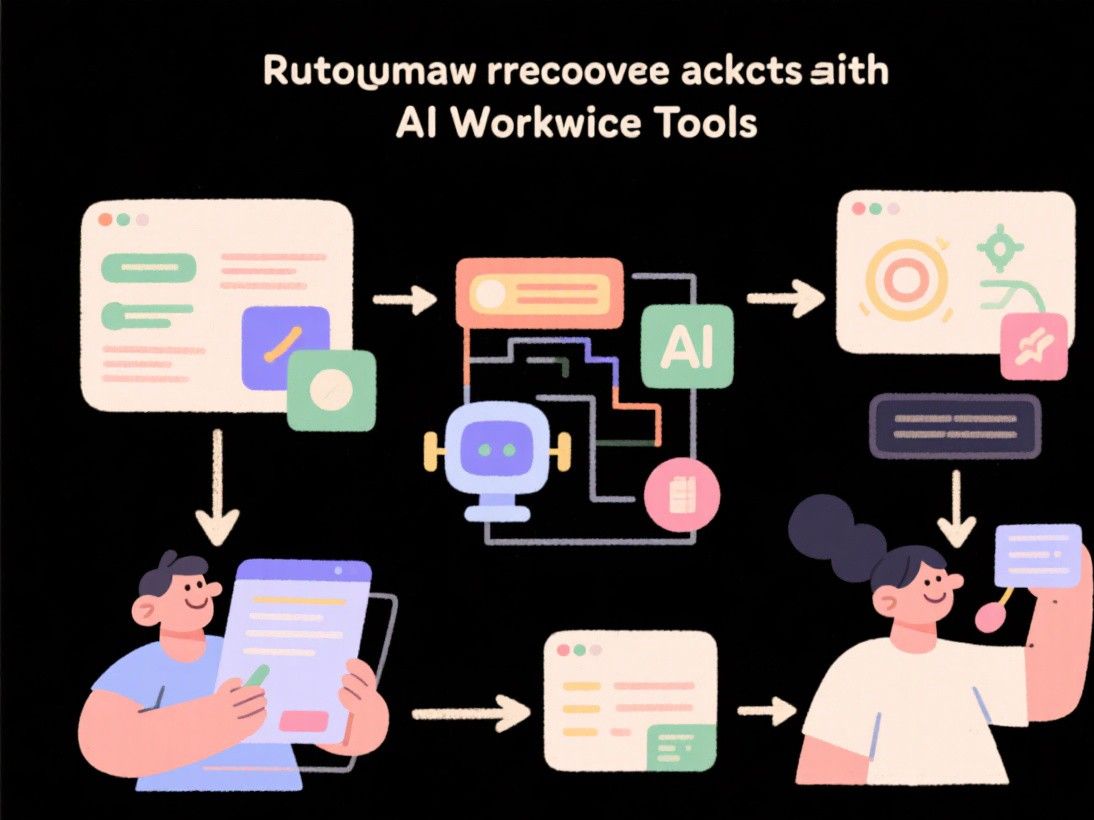
Power Automate's AI Builder adds intelligent document processing, text classification, and prediction capabilities. You can train it to extract specific data from invoices, purchase orders, or contracts. The AI Builder also includes a pre-built invoice processing model that can extract vendor name, invoice number, date, line items, and total amount from scanned invoices without any training.
Power Automate is included with most Microsoft 365 business plans. The premium plan, which adds AI Builder credits and premium connectors, costs $15 per user per month. For organizations already invested in the Microsoft ecosystem, Power Automate offers the lowest-friction path to workflow automation.
Practical Automation Examples That Save Real Time
Automated lead qualification: When a new lead submits a form, use an AI step to analyze their company size, industry, and stated needs. Score the lead based on your ideal customer profile. High-scoring leads are routed to sales with a notification. Low-scoring leads are added to a nurture email sequence. This automation saves 30-60 minutes per day for sales teams that receive more than 20 leads daily.
Weekly report generation: Every Monday morning, an automation pulls data from your analytics dashboard, CRM, and project management tool. It compiles the data into a formatted report and emails it to stakeholders. With AI, the automation can also generate a written summary of the key metrics and trends. This replaces two to three hours of manual report compilation.
Invoice processing: When an invoice arrives in your email, an automation extracts the vendor details, amounts, and due date using AI document processing. It creates an entry in your accounting software, routes it for approval based on the amount, and schedules a payment. This reduces invoice processing time from 15 minutes per invoice to under two minutes.
Content repurposing: When you publish a new blog post, an automation generates a LinkedIn post, three tweets, an Instagram caption, and a newsletter summary using AI. It schedules the posts across platforms and adds them to your content calendar. This turns a one-hour repurposing task into a completely automated process.

Common Pitfalls to Avoid
The most common automation mistake is over-automating. Start with two or three simple workflows and refine them before adding more. Complex automations that try to handle too many edge cases are fragile and break frequently. Build incrementally, test thoroughly, and monitor your automations weekly to catch errors before they cause problems. Also, always include error handling in your workflows. What happens if an API call fails, a file is missing, or the data format changes? Set up fallback actions and notifications so you are aware of failures immediately rather than discovering them days later.