Best Online Photo Editors Compared: Which One Should You Use?
Understanding Affinity Designer vs. Affinity Photo
Before diving in, an important distinction: Affinity Designer is a vector and raster hybrid editor, not a direct Photoshop replacement. For pixel-level photo editing (RAW processing, frequency separation, advanced retouching), Affinity Photo is the correct Affinity alternative to Photoshop. Affinity Designer handles vector graphics (logos, icons, illustrations, UI design) with raster capabilities (pixel layers, raster brushes, blend modes). Many designers use both: Affinity Designer for graphic design work and Affinity Photo for photo editing. Both are available as a bundle (Affinity V2 Universal License) for $169.99 (one-time purchase, no subscription).
The Interface: Familiar but Different
Affinity Designer's interface will feel familiar to anyone who has used Illustrator or Photoshop. The toolbar is on the left, the context toolbar is at the top, the layers panel is on the right, and the canvas fills the center. However, Affinity Designer adds a unique feature: the Persona bar at the top left, which switches between three workspaces: Designer Persona (vector tools), Pixel Persona (raster tools), and Export Persona (slicing and export settings).
The Designer Persona provides vector tools: the Pen tool, Node tool (for editing anchor points), Shape tools, Boolean operations, text tools, and vector brushes. The Pixel Persona provides raster tools: the Paint Brush, Eraser, Clone Stamp, Dodge and Burn, Blur and Sharpen, and the Flood Fill tool. Switching between Personas is instant, and you can use both vector and raster elements in the same document. This hybrid approach is unique to Affinity Designer—neither Illustrator nor Photoshop offers this level of integration between vector and raster editing.
Vector Design: Creating Logos and Icons
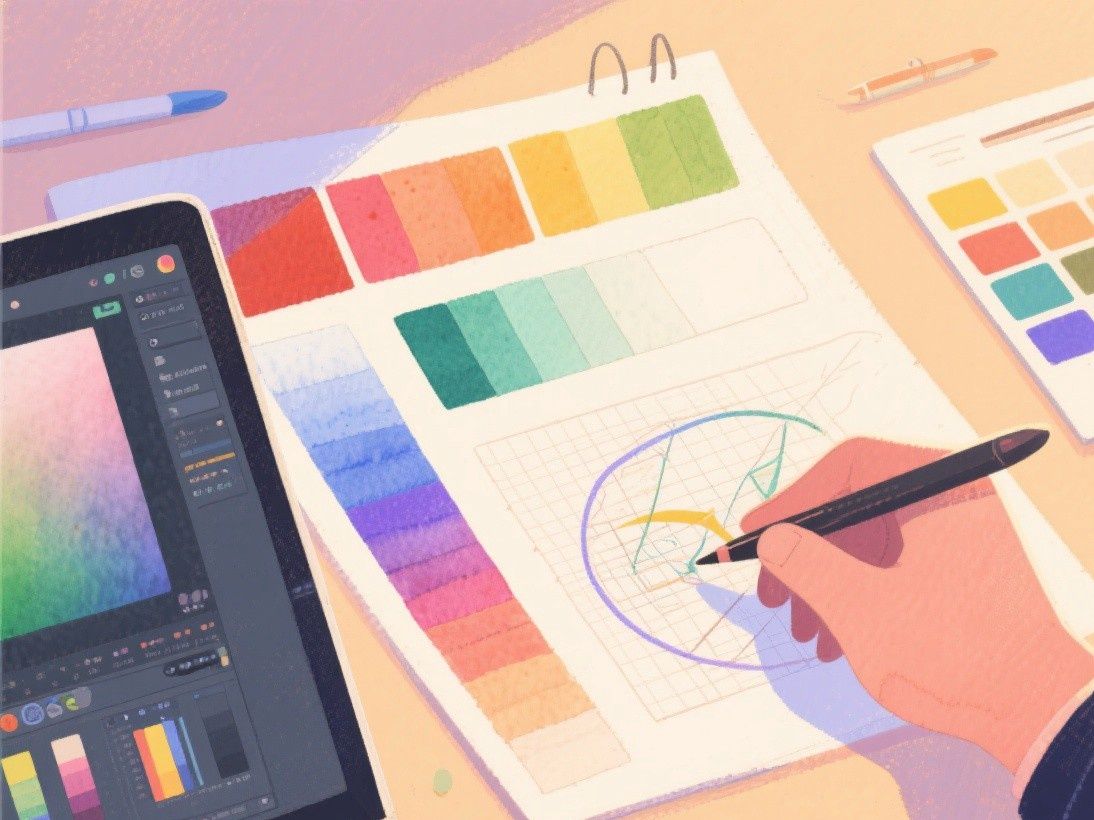
For logo design, Affinity Designer's vector tools are comprehensive. The Pen tool creates precise paths with bezier handles. The Node tool provides detailed control over anchor points: convert between smooth and corner points, align nodes, snap to grid, and adjust handle lengths. The Corner tool lets you round corners on any shape by dragging, with independent control over each corner's radius.
Boolean operations (Union, Subtract, Intersect, Divide, XOR) combine shapes into complex forms. The "Divide" operation is particularly useful—it splits overlapping shapes into separate pieces, which you can then color individually. This technique is essential for creating multi-color logos and complex illustrations.
Affinity Designer's snapping system is more precise than Illustrator's. The "Force Pixel Alignment" option snaps all elements to whole pixels, which produces crisper edges for screen designs. The "Snap to Grid," "Snap to Guides," and "Snap to Object" options can be toggled independently, giving you fine-grained control over alignment behavior.
Pixel Editing: Photo Manipulation Within Designer
Switch to the Pixel Persona to access raster editing tools. The Paint Brush tool supports pressure sensitivity when used with a drawing tablet, and the brush engine includes customizable dynamics (size, opacity, hardness, flow) that respond to pen pressure, tilt, and velocity. Affinity Designer includes a set of raster brushes (watercolor, oil, charcoal, pencil) that simulate traditional media.
The Pixel Persona also includes adjustment layers (Brightness/Contrast, Levels, Curves, HSL, Color Balance, Vibrancy) that work non-destructively on pixel layers. You can stack multiple adjustments and edit or remove them at any time. This is comparable to Photoshop's adjustment layers and significantly more capable than what most vector editors offer for raster editing.
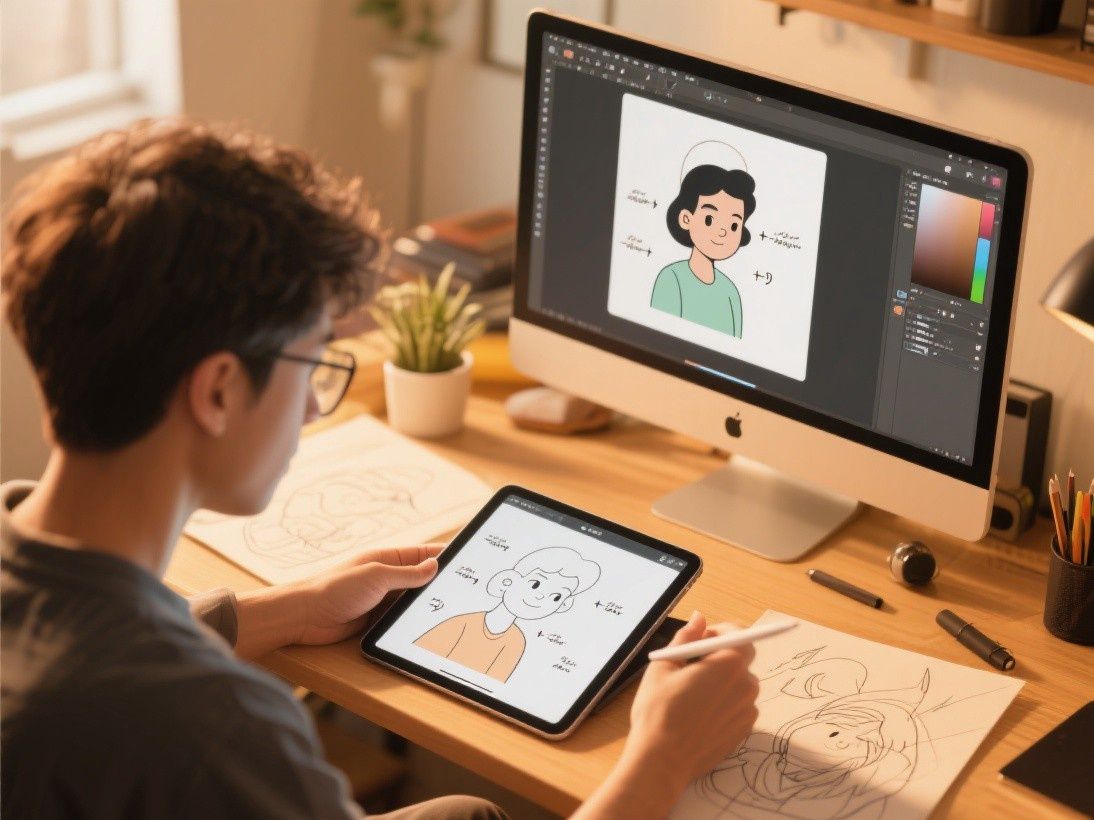
Working With PSD Files
Affinity Designer can open PSD files while preserving layers, layer effects, blend modes, and text layers. This makes it a viable tool for teams that receive Photoshop files from clients or collaborators. The PSD compatibility is not perfect—some advanced Photoshop features (smart filters, 3D layers, video layers) are not supported—but for standard design files with layers, masks, and effects, the import works well.
Affinity Designer can also export PSD files, which means you can create designs in Affinity Designer and deliver them to clients who use Photoshop. The exported PSD preserves layers and basic effects, though some Affinity-specific features may not translate perfectly. For most client handoff scenarios, this compatibility is sufficient.
Export and Performance
Affinity Designer's Export Persona provides detailed export controls. You can create export slices (defined areas of the canvas) with different formats, resolutions, and color profiles for each slice. This is useful for exporting an icon set at multiple sizes, or exporting a design in both web (RGB, PNG) and print (CMYK, PDF) formats from a single file. The export presets include common formats: PNG, JPG, SVG, PDF, TIFF, EPS, and PSD.
Performance is one of Affinity Designer's strongest advantages over Adobe products. It runs entirely on your local hardware without cloud dependencies, which means no loading screens, no cloud sync delays, and no internet connection required. On modern hardware, Affinity Designer handles files with hundreds of layers and complex vector paths without the lag that sometimes affects Photoshop with large files. The one-time purchase model ($69.99 for a single app, $169.99 for the V2 Universal License with Designer, Photo, and Publisher) is also significantly cheaper than Adobe's subscription model over time.
Making the Switch From Photoshop
The transition from Photoshop to Affinity Designer requires adjusting to different keyboard shortcuts (though Affinity supports custom shortcut mapping) and learning the Persona system. The core concepts—layers, masks, blend modes, effects—are the same. Affinity provides a comprehensive help documentation and video tutorials on their website. The learning curve is typically 1-2 weeks for a proficient Photoshop user to become comfortable in Affinity Designer. The one-time purchase and strong performance make the switch worthwhile for freelancers and small studios that want to reduce recurring software costs.
Browser-Based Photo Editing vs Desktop Applications
The gap between browser-based and desktop photo editors has narrowed dramatically, but important differences remain. Browser editors like Photopea and Canva load instantly and work on any device with a web browser, making them ideal for quick edits on shared or public computers. However, they depend on your internet connection and cannot match the raw processing speed of a native application for large files. Desktop editors like Affinity Photo, Luminar Neo, and Photoshop leverage your computer's GPU for real-time filter previews, batch processing of hundreds of images, and smooth handling of files exceeding 100 megabytes. For professional photographers who edit hundreds of images per session, the performance difference is significant. Another consideration is plugin ecosystem: Photoshop's plugin library includes specialized tools for frequency separation, skin retouching, and HDR merging that have no browser-based equivalents. Choose based on your volume and complexity: browser tools for occasional edits, desktop applications for professional workflows.