UI Design Inspiration: Best Resources and Tools for 2025
What Makes Beautiful.ai Different From PowerPoint and Keynote
Beautiful.ai uses an AI-powered design engine that automatically adjusts layout, spacing, typography, and visual hierarchy as you add content. In PowerPoint or Keynote, you manually position every element on each slide. In Beautiful.ai, you choose a slide template, add your content (text, images, data), and the engine handles the visual arrangement. This approach eliminates the design decisions that produce bad presentations: inconsistent fonts, misaligned elements, overcrowded slides, and poor visual hierarchy.
Getting Started: Choosing a Presentation Template
After creating an account and starting a new presentation, Beautiful.ai asks you to choose a template. The template determines the color scheme, font pairing, and overall aesthetic of your presentation. Available templates include: Minimal (clean white with dark text), Corporate (blue and gray with structured layouts), Creative (bold colors with dynamic layouts), Pitch Deck (investor-focused with data visualization emphasis), and Education (structured with clear section breaks).
Each template is fully customizable after selection. You can change the primary color, secondary color, and font pairing at any time from the "Design" panel. Changes apply globally to all slides, ensuring consistency throughout the presentation. This global theming is one of Beautiful.ai's key advantages over PowerPoint, where changing a theme often requires manually adjusting each slide.
Building Slides With Smart Templates
Beautiful.ai provides over 60 slide templates organized by purpose: Title slides, Section Divider slides, Text slides (bullets, quotes, two-column), Image slides (full-bleed image, image with text overlay, image grid), Chart slides (bar, line, pie, donut), Process slides (step-by-step, timeline, flowchart), Team slides (profile cards, org chart), Pricing slides (comparison table, tier cards), and Closing slides (call to action, thank you, Q&A).
Each template includes intelligent content blocks. When you add a title, the engine adjusts the font size and positioning based on the title length. When you add bullet points, the engine distributes them evenly and adjusts the text size to fit the available space. When you add an image, the engine crops and positions it to maintain visual balance. This automatic adjustment is what makes Beautiful.ai presentations look professionally designed even when the user has no design skills.
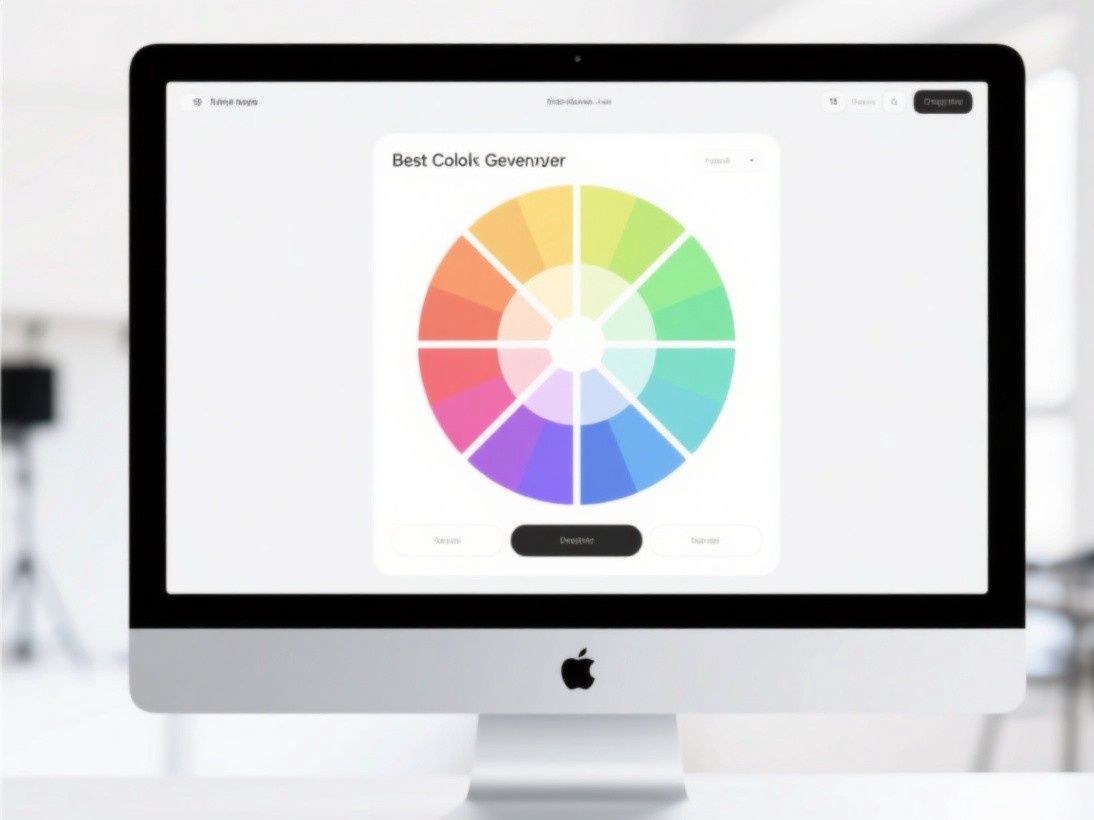
The data visualization templates are particularly strong. Add your data to a chart template, and Beautiful.ai generates a properly formatted chart with labeled axes, a legend, and appropriate colors from your theme. You can switch between chart types (bar to line to pie) with one click, and the data transfers automatically. The charts are not images—they are rendered as vector graphics that scale without quality loss.
Adding Media and Brand Assets
Beautiful.ai includes a stock photo library with over 40 million images from Getty Images and Unsplash. Search for photos directly within the editor and insert them into any slide. The AI engine automatically adjusts the image placement to maintain the slide's visual balance. If you add a photo to a slide template that was not designed for images, the engine reorganizes the layout to accommodate the photo while preserving the overall design.
For brand consistency, Beautiful.ai's Team plan includes a Brand Kit feature. Upload your logo, brand colors, and brand fonts, and every new presentation starts with your brand identity applied. Team members can create presentations that are automatically on-brand without manually applying brand guidelines to each slide. The Brand Kit also includes slide templates customized with your brand elements, so your team has a library of approved slide layouts.
Presentation Features: Presenter Mode and Analytics
Beautiful.ai's Presenter Mode provides a presenter view with slide notes, a timer, and a thumbnail strip for quick navigation. The presenter view runs in a separate browser window from the presentation display, which means you can present from your laptop while the audience sees only the slides on a projector or shared screen.

The analytics feature tracks presentation engagement. When you share a presentation link (Beautiful.ai presentations can be viewed via a web link without requiring the viewer to have an account), you can see how many people viewed it, how long they spent on each slide, and which slides they revisited. This data is valuable for sales presentations and pitch decks where understanding viewer engagement helps you follow up effectively.
Pricing and Plans
Beautiful.ai offers a free Basic plan with limited features: 3 presentations, basic templates, and community photos. The Pro plan at $12 per month (billed annually) includes unlimited presentations, all templates, premium photos, custom fonts, and PDF export. The Team plan at $50 per user per month adds Brand Kit, team libraries, analytics, and collaboration features. For individual users, the Pro plan provides the full experience at a reasonable price. For organizations, the Team plan's brand controls and analytics justify the higher cost.
Tips for Effective Presentations in Beautiful.ai
One idea per slide. Beautiful.ai's templates make it easy to add lots of content to a single slide, but resist the temptation. Each slide should communicate one point. If you have five points to make, use five slides. This approach creates a clearer narrative and keeps the audience focused on one concept at a time.
Use the section divider slides. Beautiful.ai includes section divider templates that create visual breaks between topics. Use them to organize your presentation into clear sections (Introduction, Problem, Solution, Evidence, Call to Action). These dividers give the audience mental breathing room and help them follow your argument structure.
End with a clear next step. The closing slide should not say "Thank You" and nothing else. Include a specific call to action: "Schedule a demo at example.com/demo," "Email me at [email protected]," or "Download the whitepaper at example.com/whitepaper." Beautiful.ai's CTA slide templates are designed for this purpose—use them.
Building a Personal UI Design Reference Library
The most effective way to grow as a UI designer is to curate a personal reference library of designs that inspire you. Tools like Eagle, Are.na, and Pinterest are built for this purpose, but even a simple folder structure on your local machine works. Organize your references by pattern type rather than by project: navigation patterns, form designs, card layouts, color schemes, typography pairings, and micro-interactions. When you encounter a design problem, search your library first before turning to generic inspiration sites. The advantage of a personal library is that it reflects your own taste and the specific challenges you encounter in your work. Over time, patterns emerge — you may notice you consistently save dark-mode designs or minimalist forms, which tells you something about your design preferences. Review your library monthly and delete references that no longer inspire you. A curated library of 200 high-quality references is far more useful than 2,000 bookmarks you never revisit.