Best Video Background Removers for Green Screen Effects
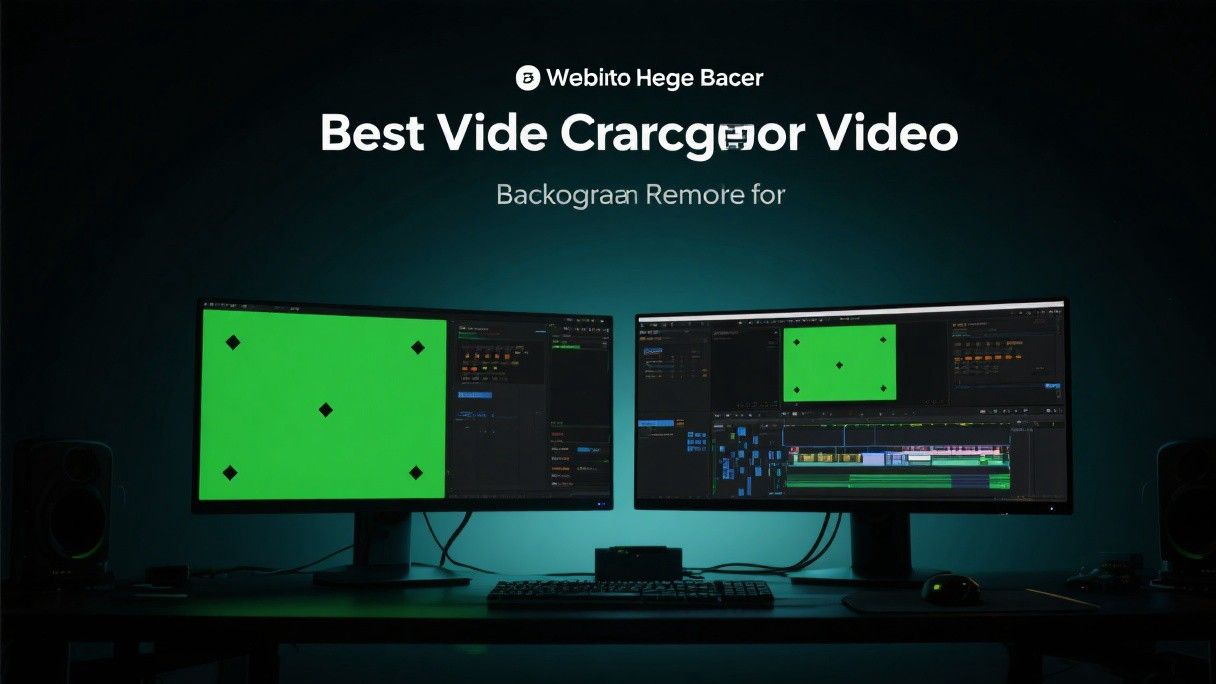
How AI Background Removal Replaces Traditional Green Screens
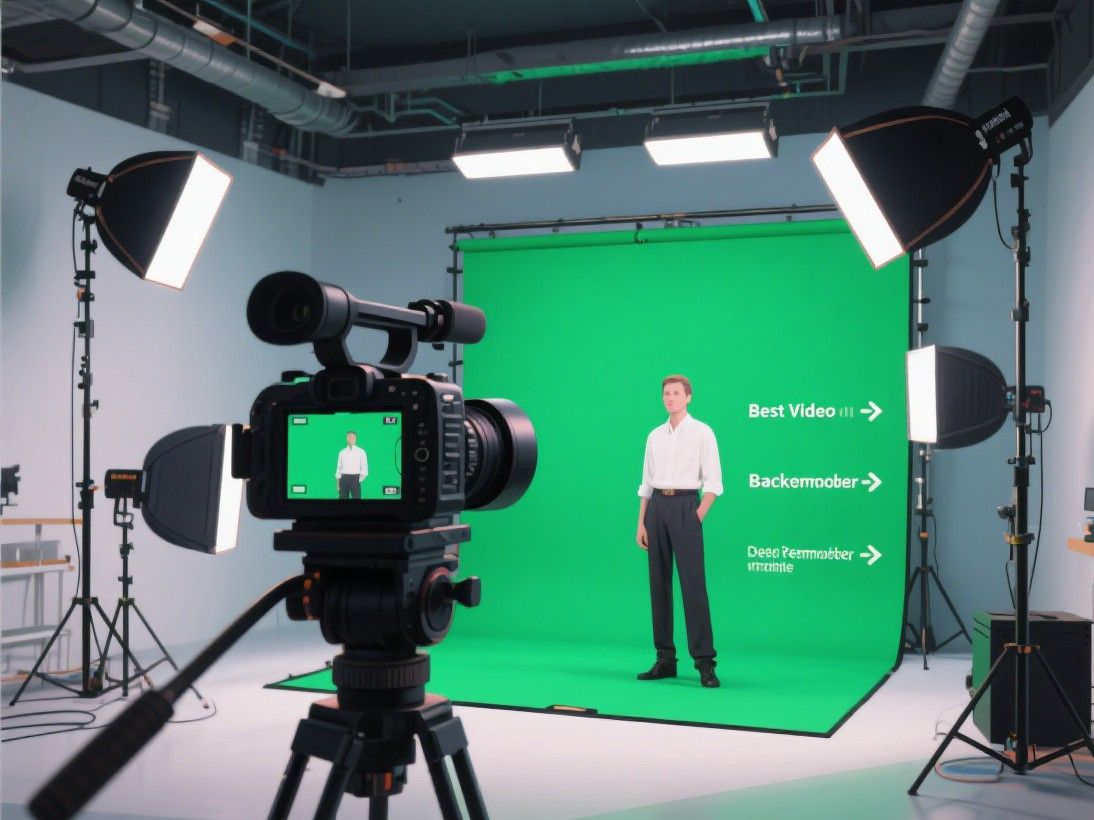
Traditional chroma key compositing requires a physical green (or blue) screen behind your subject, even lighting across the entire backdrop, and careful post-production masking to remove the background cleanly. AI-powered background removers eliminate the need for a physical screen by using machine learning models trained to detect and separate human subjects from their surroundings. This technology has improved dramatically, with modern tools achieving clean edge detection even around hair, fingers, and transparent objects.
AI background removal works by analyzing each frame of your video and creating a matte that separates the foreground subject from the background. The best tools maintain temporal consistency, meaning the matte does not flicker or shift between frames. Some tools also allow you to refine the mask manually for difficult shots where the AI struggles with complex backgrounds or fast movement.
Runway ML: Professional AI Video Editing

Runway ML is a browser-based AI creative suite that includes a powerful background removal tool called Green Screen. Upload your video, select the Green Screen effect, and Runway's AI automatically detects and removes the background. The tool handles complex scenarios including subjects with loose hair, semi-transparent clothing, and busy backgrounds that would challenge traditional chroma key tools.
Runway ML processes videos frame by frame and provides a preview of the result before you commit to the full render. You can replace the removed background with a solid color, an image, or another video. The platform also offers additional AI tools like motion tracking, object removal, and style transfer that complement the background removal feature. Runway operates on a credit-based pricing system, with the free tier providing limited processing time and paid plans offering more credits and faster rendering.
One advantage of Runway ML is its consistency across frames. The temporal coherence algorithm ensures that the background removal does not flicker or produce artifacts when the subject moves. This is critical for professional results, as inconsistent masking is the most common issue with AI background removal tools. Runway also supports batch processing, allowing you to apply the same effect to multiple clips simultaneously.
CapCut Background Remover: Free and Accessible
CapCut includes a built-in background removal tool that works without a green screen and is completely free to use. Available in both the mobile app and desktop version, this feature uses AI to detect the subject in your video and remove or replace the background. The process takes seconds: import your video, tap "Remove Background" in the effects panel, and CapCut generates the result.
The quality of CapCut's background removal is impressive for a free tool. It handles static shots well and produces clean edges around most subjects. For moving shots, the results are generally good but may occasionally show artifacts around fast-moving limbs or when the subject partially overlaps with background elements of similar color. You can refine the result by adjusting the edge feathering and opacity settings.
CapCut also provides a library of replacement backgrounds organized by category: office, outdoor, abstract, and seasonal. You can upload your own background image or video. The tool supports chroma key input as well, so if you do have a green screen, CapCut can use traditional keying in addition to its AI detection. This dual approach gives you flexibility depending on your shooting conditions and quality requirements.
Unscreen: Dedicated Background Removal Service
Unscreen is a web-based tool that specializes exclusively in removing backgrounds from video. The interface is minimal: upload your video or paste a URL, and Unscreen processes it automatically. The tool supports MP4, WebM, and GIF input formats and outputs videos with transparent backgrounds (as WebM or GIF) or with a custom replacement background.
Unscreen's AI model is trained specifically for background removal, and it shows in the quality of the results. Edge detection is clean, temporal consistency is strong, and the tool handles challenging scenarios like subjects holding objects, wearing hats, or standing in front of complex backgrounds. The free tier processes videos up to 5 seconds at 720p resolution. Paid plans support longer videos, higher resolutions, and API access for automated workflows.
For content creators who need background removal as part of a larger editing pipeline, Unscreen offers a plugin for Adobe Premiere Pro and After Effects. This plugin lets you apply Unscreen's AI background removal directly within your existing editing workflow, which is more efficient than exporting clips, processing them on the web, and re-importing the results.
Veed.io: Browser-Based Editor With Background Removal
Veed.io is an online video editor that includes AI background removal among its features. Upload your video to the Veed editor, click "Remove Background" under the Effects menu, and the AI processes your footage. The tool works with both video and image backgrounds and allows you to replace the removed background with any color, image, or video from the Veed library.
Veed.io's advantage is that background removal is integrated into a full editing suite. After removing the background, you can continue editing your video with text overlays, transitions, music, and effects without switching to another tool. This all-in-one workflow saves time for creators who need to produce complete videos rather than just process individual clips. Veed.io offers a free tier with watermarked exports and paid plans starting at $18 per month.
Choosing the Right Tool for Your Project
For professional-quality results with complex footage, Runway ML delivers the best edge detection and temporal consistency. For free, quick background removal, CapCut is the most accessible option. If you need a dedicated service with API access, Unscreen provides specialized background removal with plugin support. And if you want background removal integrated into a browser-based editor, Veed.io offers a complete workflow. Test each tool with a representative clip from your project to evaluate which produces the cleanest results for your specific shooting conditions.
Chroma Key vs. AI Background Removal: When to Use Each
Despite the advances in AI background removal, traditional chroma key (green screen) still has advantages in certain situations. Green screen provides pixel-perfect edges because the color difference between the green background and the subject is absolute, making it easier for the algorithm to create a clean matte. AI detection can struggle with fine details like transparent fabrics, thin hair strands, and objects that are similar in color to the background.
Use green screen when you need the highest possible edge quality, when you are shooting in a controlled studio environment, and when you have the budget for proper lighting and setup. Use AI background removal when you are shooting on location without a green screen, when you need to process existing footage that was not shot on green screen, and when you need quick results without a studio setup. For the best results, combine both approaches: shoot on green screen when possible for critical projects, and use AI tools for everyday content and situations where green screen is impractical.