How to Extract Audio From Video Files Easily
Common Reasons for Extracting Audio From Video
There are many situations where you need the audio track from a video file without the video itself. Podcasters often record video interviews but distribute audio-only episodes. Musicians may want to isolate a live performance's audio for mixing. Content creators extract background music from videos to reuse in other projects. Students and researchers extract audio from lecture recordings for transcription. Whatever your reason, extracting audio is a straightforward process with the right tools.
The quality of the extracted audio depends on the source video's audio track. Most videos use AAC or MP3 audio encoding at bitrates between 128kbps and 320kbps. When extracting, you can preserve the original quality or convert to a different format. For maximum quality preservation, extract the audio without re-encoding (a process called "stream copying" or "remuxing"). This produces an exact copy of the original audio data with zero quality loss and takes only seconds regardless of video length.
VLC Media Player: The Swiss Army Knife Approach
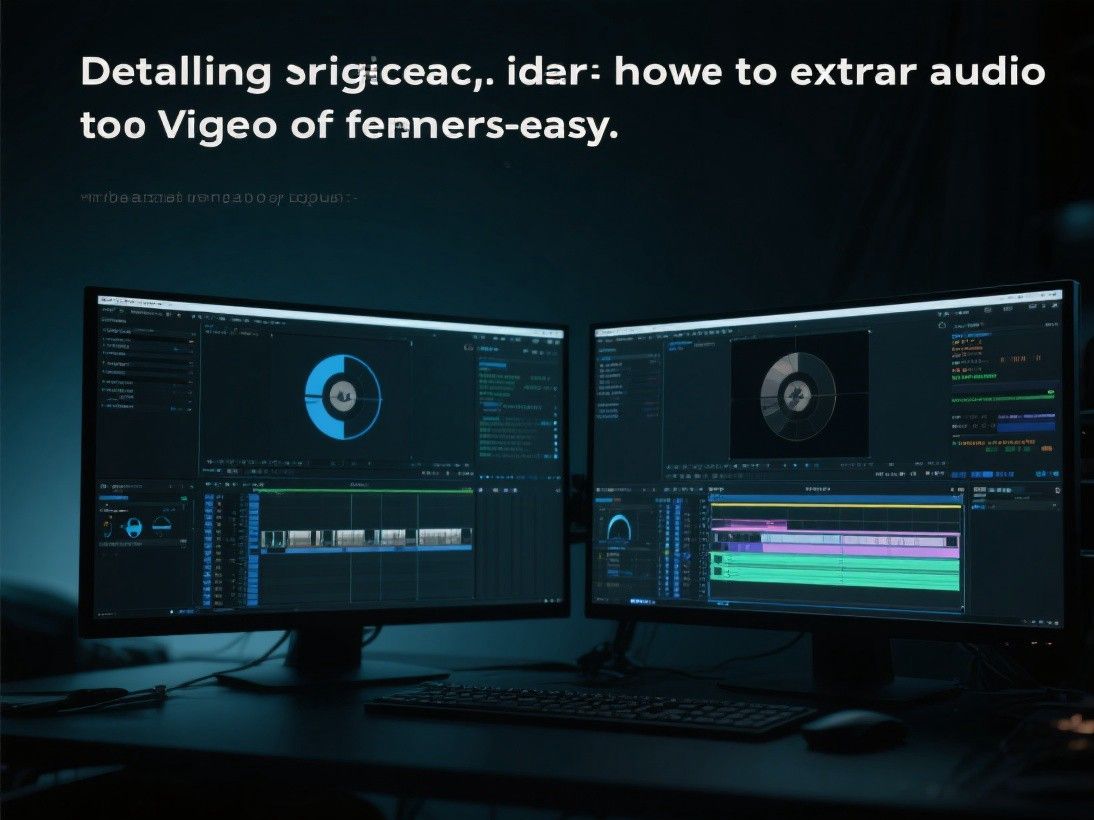
VLC Media Player is not just a video player. It includes a built-in conversion tool that can extract audio from any video file it can play, which covers virtually every format in existence. To extract audio in VLC, open the Media menu and select "Convert / Save." Click "Add" to load your video file, then click the "Convert / Save" button at the bottom. In the Convert dialog, choose your desired audio format from the Profile dropdown: MP3, AAC, FLAC, OGG, or WAV.
Click the wrench icon next to the Profile dropdown to access encoding settings. Here you can set the audio bitrate (higher bitrate means better quality but larger file size), sample rate, and number of channels (stereo or mono). For speech content like podcasts or lectures, 128kbps MP3 is sufficient. For music, use 256kbps or 320kbps. Click Browse to choose the output location and filename, then click Start to begin the extraction. VLC plays the video at high speed during conversion, and the process completes in roughly one-third of the video's duration.
VLC is free, open-source, and available for Windows, macOS, and Linux. It handles files up to any size and does not impose watermarks or length limits. The main drawback is that the conversion interface is not intuitive, and there is no progress bar showing completion percentage. However, once you learn the steps, VLC provides a reliable no-cost solution for audio extraction.
Online Audio Extractors: Browser-Based Convenience
Several websites offer audio extraction directly in your browser without installing software. These tools work by uploading your video to their server, processing it, and providing a download link for the extracted audio. The entire process typically takes under a minute for videos up to 500MB.
AudioExtract is a straightforward online tool that supports MP4, AVI, MOV, MKV, and WebM input formats with MP3, WAV, and AAC output. Upload your video, select the output format and quality, and click Extract. The tool processes the file on their servers and provides a download link when complete. Files are automatically deleted after 2 hours to protect your privacy. The free version supports files up to 1GB with no registration required.
123Apps Audio Extractor is another browser-based option that offers additional features like volume normalization and audio trimming. You can set start and end times to extract only a specific segment of the audio rather than the entire track. This is useful when you need a short sound effect or a specific section of a longer recording. 123Apps supports files up to 4GB and offers batch processing for extracting audio from multiple videos simultaneously.
FFmpeg: The Command-Line Power Tool
FFmpeg is the most powerful audio extraction tool available, and it is completely free. It is a command-line tool, which means there is no graphical interface, but the trade-off is unlimited control and blazing-fast processing. FFmpeg can extract audio from any video format, convert between audio formats, adjust quality settings, and process batch files through simple scripts.
To extract audio from a video using FFmpeg, open a terminal or command prompt and enter: ffmpeg -i input.mp4 -vn -acodec copy output.m4a. This command copies the audio stream directly without re-encoding, preserving exact quality and completing almost instantly regardless of video length. The -vn flag tells FFmpeg to ignore the video stream, and -acodec copy tells it to copy the audio codec without conversion.
If you need to convert the audio to a different format, replace "copy" with the desired encoder: ffmpeg -i input.mp4 -vn -acodec libmp3lame -q:a 2 output.mp3. The -q:a 2 flag sets the MP3 quality to near-maximum (variable bitrate around 190kbps). For lossless extraction, use FLAC: ffmpeg -i input.mp4 -vn -acodec flac output.flac. FFmpeg also supports batch processing through wildcards and shell scripts, making it ideal for extracting audio from large collections of videos.
Audacity: Extract and Edit in One Tool
Audacity is a free, open-source audio editor that can import video files and extract their audio tracks. When you open a video file in Audacity, it automatically extracts the audio and displays it as an editable waveform. You can then trim, normalize, apply effects, and export the audio in your preferred format. This two-in-one approach is ideal when you need to process the audio after extraction rather than simply saving it as-is.
Audacity supports MP3, WAV, OGG, FLAC, and AAC export formats. The noise reduction tool is particularly useful for cleaning up audio extracted from videos recorded in noisy environments. The equalizer, compressor, and limiter tools help optimize audio levels for different distribution channels. Audacity is available for Windows, macOS, and Linux and has an active community with extensive documentation and tutorials.
Choosing the Right Extraction Method
For a one-time extraction without installing software, use an online tool like AudioExtract or 123Apps. For regular extractions on your own computer, VLC Media Player provides a good balance of simplicity and capability. If you are comfortable with the command line and need the fastest, most flexible solution, FFmpeg is unmatched. And if you need to edit the audio after extraction, Audacity combines extraction and editing in a single application. Regardless of which method you choose, always use stream copying when possible to preserve the original audio quality.
Extracting Audio for Different Use Cases
Different use cases require different audio formats and quality settings. For podcast distribution, extract audio as MP3 at 128kbps or 192kbps for a good balance of quality and file size.
For creating sound effects or ringtones, extract a short segment of audio in a compact format. AAC at 256kbps provides excellent quality for short clips. For transcription purposes, extract audio at the highest quality available since speech recognition accuracy improves with better audio quality.