How to Add Subtitles to Videos Automatically
Why Automatic Subtitles Matter for Video Content
Adding subtitles to your videos is no longer optional if you want to maximize reach. Studies consistently show that 85% of social media videos are watched without sound, and captions increase average watch time by 25% or more. Subtitles also improve accessibility for deaf and hard-of-hearing viewers, help non-native speakers follow along, and boost SEO performance because search engines can index the text content of your videos.
Manually transcribing and timing subtitles is time-consuming and tedious. A 10-minute video can take 45 minutes to an hour to transcribe manually. Automatic subtitle tools use speech recognition AI to generate captions in a fraction of that time, typically producing usable results in under five minutes. While automatic transcription is not perfect, most modern tools achieve 95% or higher accuracy with clear audio, and the remaining errors can be corrected quickly in the editing interface.
Understanding How Auto-Subtitle Tools Work
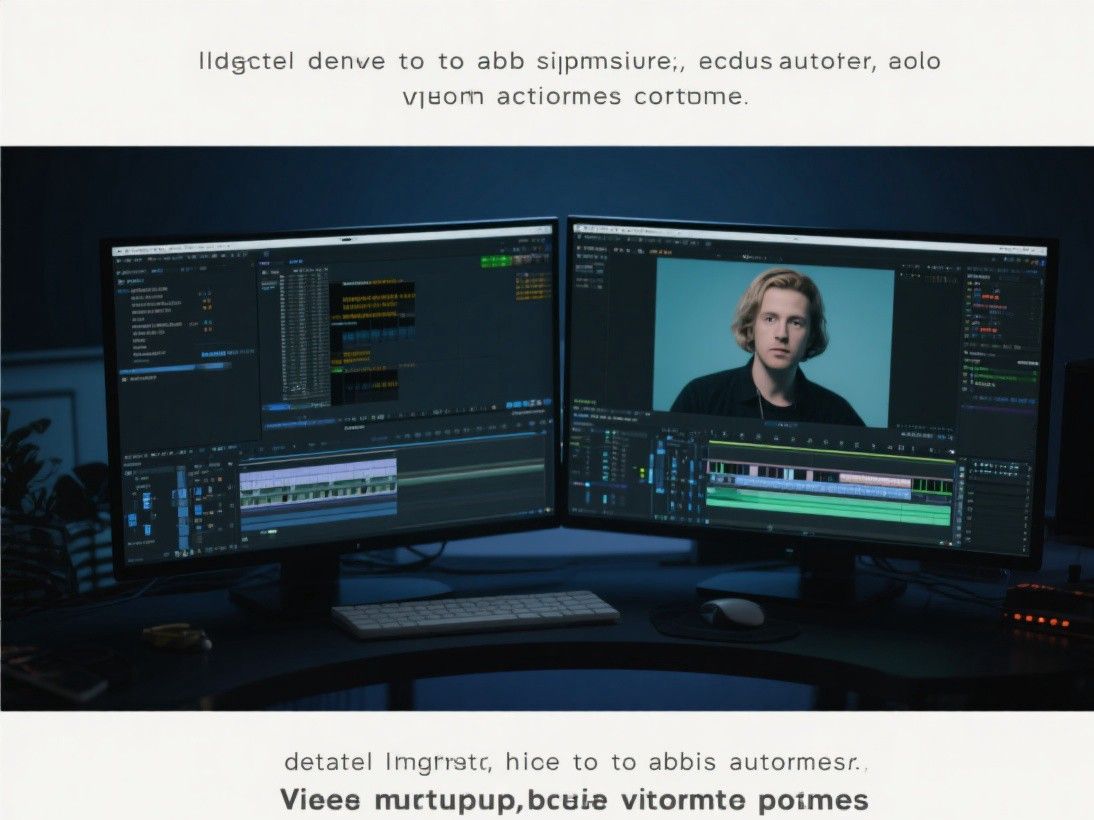
Automatic subtitle generators use automatic speech recognition (ASR) technology to convert spoken words into text. The process involves uploading your video file or providing a URL, selecting the language spoken in the video, and letting the AI analyze the audio track. Most tools support common languages including English, Spanish, French, German, Chinese, Japanese, Korean, and Portuguese, with some supporting over 50 languages.
The output format varies by tool. Some generate SRT files that you can upload to YouTube, Vimeo, or other hosting platforms. Others burn the subtitles directly into the video as a permanent overlay. Many tools offer both options. SRT files are preferable when you want viewers to be able to toggle subtitles on and off, while burned-in subtitles are useful when you need the text to always be visible regardless of the platform.
Advanced tools like Descript and Otter.ai use speaker identification to distinguish between multiple speakers in a conversation, labeling each person separately. This is valuable for interview videos, podcast recordings, and panel discussions where knowing who is speaking adds context and clarity.
Using Kapwing for Quick Online Subtitles
Kapwing is a browser-based video editing platform that includes a robust auto-subtitle feature. To get started, upload your video to the Kapwing editor or paste a YouTube URL. Navigate to the Subtitles tab and click "Auto-generate." Kapwing will analyze the audio and produce timed subtitles within a minute or two, depending on the video length.
The subtitle editor in Kapwing displays the transcript alongside the video preview. You can click on any word to jump to that point in the video, edit misrecognized words, adjust timing by dragging subtitle blocks, and change the font, size, color, and background of the text. Kapwing offers preset styles that match popular social media caption formats, including the bold white text with black outline commonly seen on TikTok and Instagram Reels.
When you are satisfied with the subtitles, export the video with burned-in captions or download the SRT file separately. The free tier allows videos up to 4 minutes with a watermark. Paid plans remove these limitations and add batch processing, which lets you add subtitles to multiple videos simultaneously. Kapwing also supports automatic translation, allowing you to generate subtitles in a different language from the original audio.
Descript: Edit Video by Editing Text
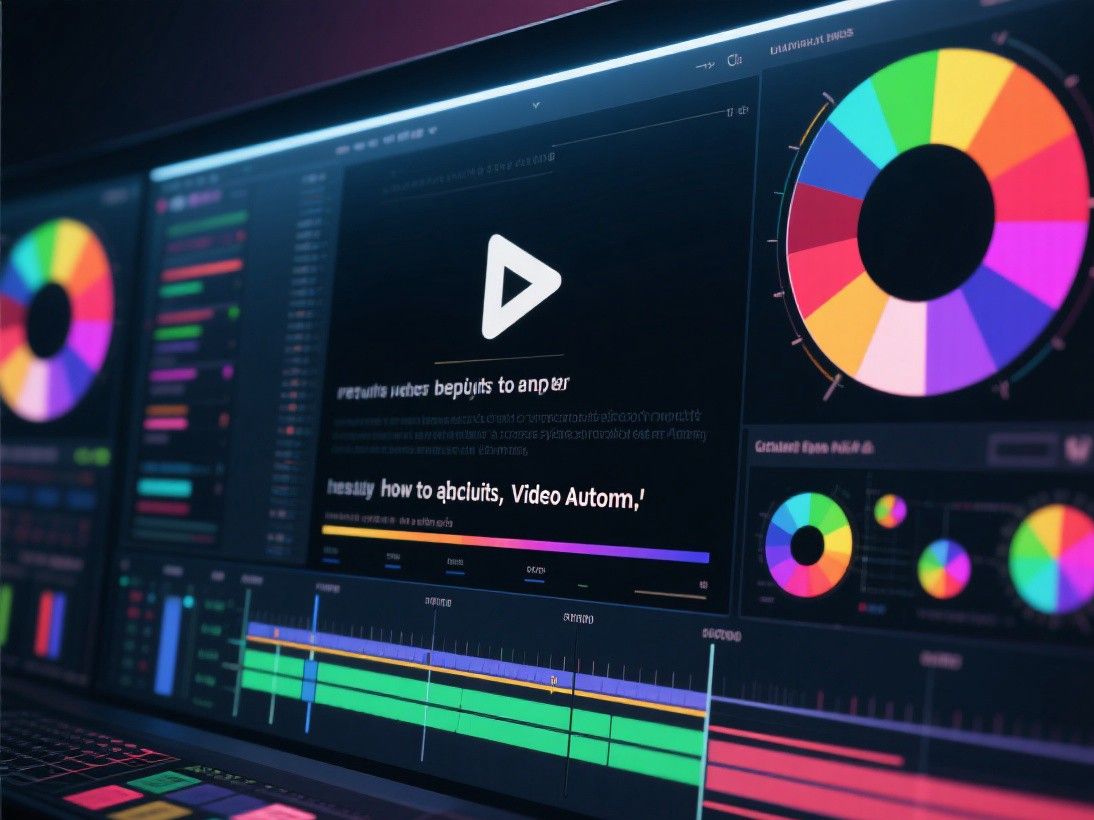
Descript takes a unique approach to video subtitles by treating your video like a text document. When you upload a video, Descript transcribes the audio and displays the full transcript in a text editor. You can edit the video by deleting words from the transcript, and Descript automatically removes the corresponding video segments. This makes the process of removing filler words like "um," "uh," and "you know" as simple as running a find-and-replace operation.
For subtitle creation specifically, Descript generates accurate captions with speaker labels and timestamps. You can export subtitles as SRT, VTT, or TXT files, or burn them into the video. The platform also includes a screen recording feature, making it possible to record and add subtitles in a single workflow. Descript supports over 20 languages and offers a filler word removal tool that cleans up transcripts automatically.
Descript operates on a freemium model with a generous free tier that includes 3 hours of transcription per month. The paid plans offer unlimited transcription, collaboration features, and access to advanced editing tools like Studio Sound, which uses AI to enhance audio quality by removing background noise and improving vocal clarity. For content creators who produce regular video content, Descript's integrated approach saves significant time compared to using separate recording, transcription, and editing tools.
YouTube's Built-In Caption System
If your videos are destined for YouTube, the platform's built-in caption system provides a free and convenient option. After uploading a video, go to the Subtitles menu in YouTube Studio. YouTube automatically generates captions for most videos within a few hours of upload, though processing time varies with video length and language.
The auto-generated captions appear under the "Automatic" label. You can duplicate them to create a new subtitle track that you can edit without losing the original. YouTube's caption editor lets you adjust timing, correct text, and add or remove subtitle blocks. The interface is basic compared to dedicated tools, but it gets the job done for simple corrections. Once published, viewers can toggle captions on and off, and YouTube uses the caption text to improve search discoverability.
Tips for Getting the Best Results From Auto-Subtitle Tools
Audio quality directly impacts subtitle accuracy. Record in a quiet environment, use a decent microphone, and speak clearly at a consistent volume. If your video includes background music, keep it at a low level relative to the speech. Most auto-subtitle tools let you adjust the confidence threshold, which determines how aggressively the AI tries to transcribe unclear audio. Setting this threshold too low produces more false words, while setting it too high causes the tool to skip sections it cannot confidently identify.
Always review and correct auto-generated subtitles before publishing. Even small errors can change the meaning of your content and undermine viewer trust. Proofread for homophones (their/there/they're), technical terms, proper nouns, and punctuation. Taking five minutes to review subtitles can make the difference between captions that look professional and ones that distract from your message.