Best Screen Recording Tools for Tutorials and Presentations
What to Look For in a Screen Recording Tool
Choosing the right screen recording tool depends on what you plan to create. Tutorial videos require the ability to highlight cursor movements, add annotations, and zoom into specific areas of the screen. Presentation recordings need reliable audio capture, webcam overlay support, and clean export options. Software demos benefit from the ability to record specific windows rather than entire screens, keeping the output focused and professional.
The most important features to evaluate include recording quality (resolution and frame rate), audio capture capabilities (system audio, microphone, or both), editing tools built into the recorder, export format options, and whether the tool adds watermarks to free recordings. Some recorders also offer drawing tools that let you annotate the screen in real time while recording, which is invaluable for tutorial content.
OBS Studio: The Open-Source Powerhouse
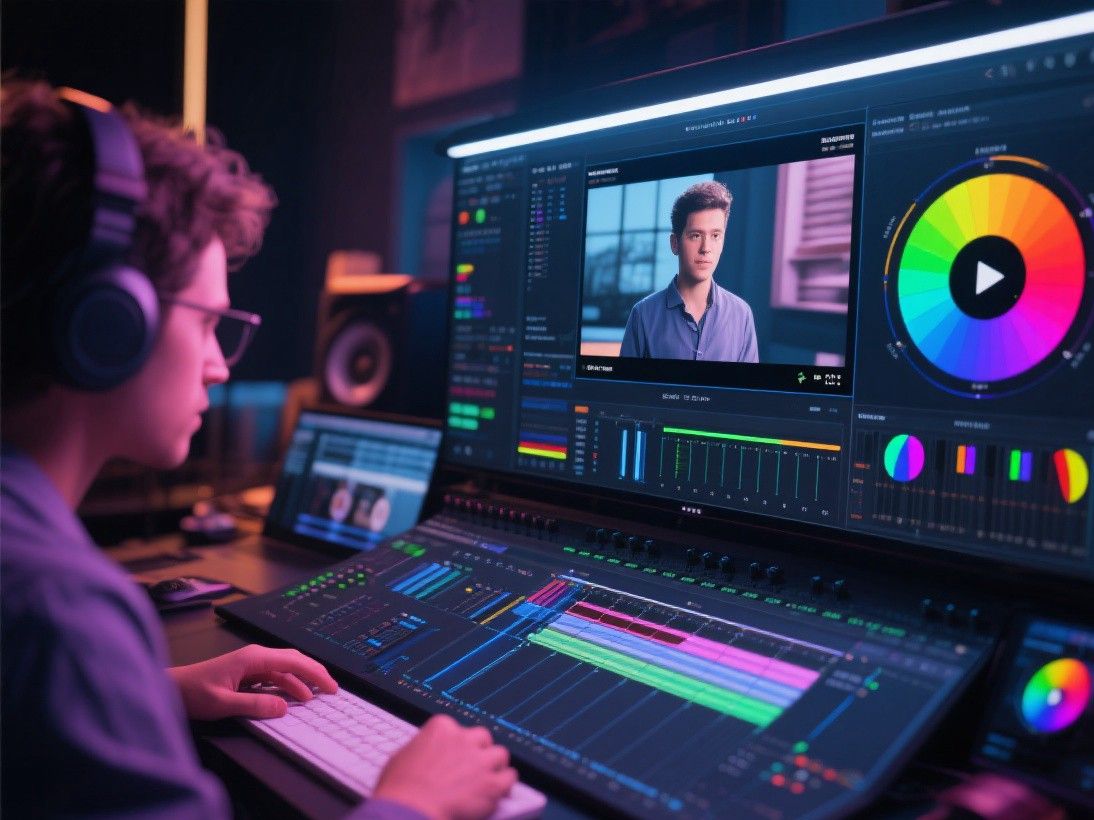
OBS Studio is free, open-source, and used by professional streamers and content creators worldwide. Despite being designed primarily for live streaming, its recording capabilities are exceptional. OBS captures your screen, webcam, microphone, and system audio simultaneously, giving you full control over every input source through a scene-based workflow.
The scene system in OBS lets you define different layouts. You might have one scene showing your full desktop, another showing a specific application window with a webcam overlay in the corner, and a third showing just your webcam for introductory segments. Switching between scenes during recording is seamless and does not interrupt the output file. OBS records in MP4 or MKV format with configurable resolution, frame rate, and bitrate. For tutorial creators, the ability to add text overlays, image sources, and browser captures to scenes provides significant flexibility.
The main drawback of OBS is its learning curve. The interface can feel overwhelming at first glance, with panels for scenes, sources, audio mixer, transitions, and controls. However, once you understand the basic concept of adding sources to scenes, the workflow becomes intuitive. OBS also supports plugins that extend its functionality, including captioning tools, noise suppression filters, and virtual camera output.
Loom: The Quick Communication Recorder
Loom takes a different approach to screen recording by focusing on speed and shareability. It is designed for quick video messages rather than polished tutorials, but it serves both purposes well. Click the record button, choose to capture your screen, a specific tab, or just your webcam, and start talking. When you finish, Loom instantly uploads the video and provides a shareable link.
The free tier of Loom allows recordings up to 5 minutes with a maximum of 25 videos per month. Paid plans remove these limits and add features like drawing tools, call-to-action buttons, engagement analytics, and password-protected videos. Loom's auto-transcription feature generates captions automatically, making your recordings accessible to viewers who prefer reading or watching without sound.
For internal team communication, product feedback, and quick tutorial walkthroughs, Loom is hard to beat in terms of convenience. The lack of advanced editing tools means you need to get your recording right in one or two takes, but the ability to trim the start and end of recordings helps clean up minor mistakes. Loom works as a browser extension for Chrome and Edge, or as a desktop application for macOS and Windows.
ShareX: The Feature-Packed Free Recorder
ShareX is a free, open-source screen capture tool for Windows that goes far beyond simple screenshots. Its screen recording capabilities include full screen, region, window, and scrolling capture options. ShareX records in GIF, MP4, or WebM format and supports custom frame rates up to 60fps. One standout feature is the ability to record screen activity directly as an animated GIF, which is useful for short demonstrations that need to loop continuously.
After recording, ShareX provides a built-in editor for trimming, adding text annotations, blurring sensitive information, and applying basic effects. The tool also integrates with over 80 cloud services for one-click uploading, including Google Drive, Dropbox, Imgur, and YouTube. You can set up custom workflows called "after capture tasks" that automatically apply a series of actions to every recording, such as uploading to a specific folder and copying the shareable link to your clipboard.
ShareX does not include webcam recording or system audio capture in its screen recording mode, which limits its usefulness for narrated tutorials. However, for silent demos, software bug reports, and quick screen captures, it is remarkably capable and completely free with no watermarks or limitations.
Camtasia: The Professional Tutorial Builder
Camtasia by TechSmith is a premium screen recording and video editing tool built specifically for creating tutorials and presentations. It combines a high-quality screen recorder with a dedicated video editor that includes annotations, callouts, cursor effects, zoom and pan animations, and quiz interactions. The recorder captures screen, webcam, microphone, and system audio with configurable quality settings.
What sets Camtasia apart from other tools is its editing environment. After recording, you can add cursor highlights and spotlights that draw attention to specific areas of the screen. The zoom and pan feature lets you create smooth transitions between full-screen views and close-ups of detailed areas, which is essential for software tutorials where small UI elements need to be clearly visible. Camtasia also includes a library of pre-built assets like icons, music tracks, and lower-thirds that speed up the production process.
Camtasia is not free, with a one-time purchase price that includes one year of upgrades. For professional tutorial creators, educators, and corporate training teams, the investment pays for itself through the time saved on editing and the polished quality of the output. A free trial is available so you can evaluate whether the features justify the cost for your specific use case.
Choosing the Right Tool for Your Needs
If you need maximum control and do not mind a learning curve, OBS Studio delivers professional results at no cost. For quick shareable recordings, Loom offers the fastest workflow. Windows users who want a free tool with extensive customization should consider ShareX. And if you create tutorials professionally and need an all-in-one solution with advanced annotation features, Camtasia is worth the investment. Most creators benefit from having two tools: a quick recorder like Loom for everyday communication and a more powerful tool like OBS or Camtasia for polished tutorial content.