How to Create Wireframes and Prototypes With Figma

What Makes a Good App or Web Icon
Icons in applications serve a functional purpose: they communicate meaning quickly, save screen space, and create visual rhythm in an interface. A well-designed icon is recognizable at 16 pixels, consistent in style with other icons in the set, and clear enough that users understand its meaning without a label. The tools listed here are chosen for their ability to produce icons that meet these standards, whether you are designing a single logo icon for an app or a full set of 200 interface icons.
Figma: The Versatile Choice for Icon Design
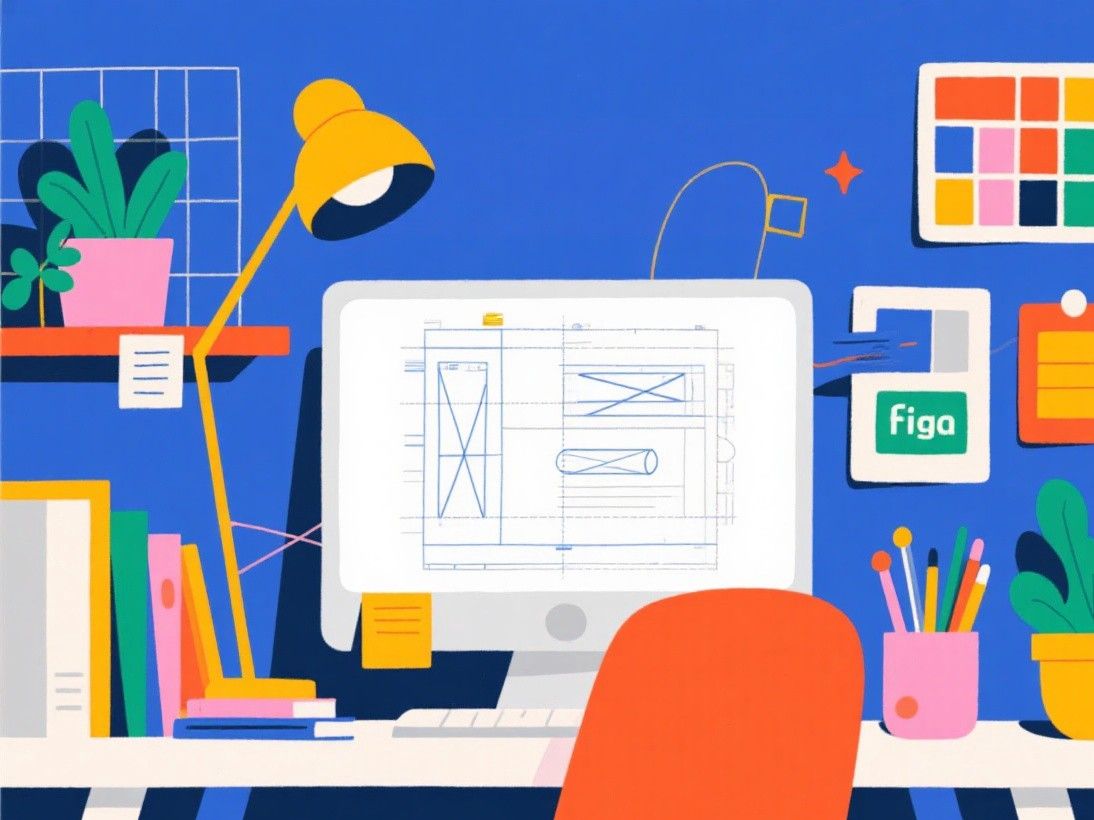
Figma's vector editing tools are well-suited for icon design. The Pen tool, Boolean operations (Union, Subtract, Intersect, Exclude), and vector networks (Figma's version of the pen tool that allows branching paths) give you precise control over every curve and corner. Icons are typically built at 24x24 pixels and exported at 1x, 2x, and 3x for different screen densities.
Figma's component system is particularly useful for icon sets. Create a base icon component, then use variants for different states (filled, outlined, duotone) and sizes (16, 20, 24, 32). When you update the base component, all variants update simultaneously. This makes maintaining large icon sets manageable—changing the stroke width across 200 icons requires editing one component, not 200 individual frames.
The Figma Community hosts thousands of free icon sets that you can use as starting points or reference material. Popular sets include Phosphor Icons, Heroicons, Tabler Icons, and Lucide. Import any of these into your file, study their construction, and use them as templates for your own custom icons.
Sketch: Precision Icon Design on macOS
Sketch's vector tools are excellent for icon design, and its Smart Layout feature helps you create icon containers that resize automatically. Sketch's pixel snapping is more precise than Figma's—when you zoom in to 800% or higher, Sketch aligns vector points to the pixel grid, which produces crisper icons at small sizes. This matters for 16px and 20px icons where a half-pixel offset creates visible blurriness.
Sketch also offers a "Pixel Perfect" mode that snaps all elements to whole pixels. Combined with the vector editing tools and the ability to work at multiple zoom levels simultaneously (using multiple artboards at different scales), Sketch provides a refined icon design experience on macOS.
IcoMoon: The Icon Font and SVG Specialist
IcoMoon serves a different purpose than Figma or Sketch. It is a web-based tool for managing, customizing, and exporting icon fonts and SVG sprites. You can upload your own SVG icons, or choose from IcoMoon's library of over 5,000 free icons. The tool lets you customize each icon's size, color, and alignment before generating a downloadable icon font or SVG sprite sheet.
Icon fonts are useful for web applications because they load faster than individual image files and can be styled with CSS (color, size, shadow). IcoMoon generates the necessary font files (WOFF, WOFF2, TTF, EOT), a CSS file with class names for each icon, and a demo HTML page showing all icons with their class names. This makes integration into a web project straightforward.
For mobile development, IcoMoon exports SVG files that you can import directly into Xcode (as SF Symbols alternatives) or Android Studio (as vector drawables). The ability to switch between icon font and SVG export makes IcoMoon a valuable bridge between design and development.
IconKitchen: Quick App Icon Generation
IconKitchen (formerly AppIconGenerator) is a specialized tool for creating app launcher icons. Instead of designing from scratch, you configure an icon by selecting a shape (rounded square, circle, squircle), a background color or gradient, a foreground icon or letter, and a style (flat, material, neumorphic). IconKitchen generates all required sizes automatically: 1024x1024 for the App Store, and every size needed for iOS and Android asset catalogs.
This tool is not for custom icon design—it is for quickly producing a professional-looking app icon when you do not have a designer or need a placeholder icon for development. The results look polished and follow platform guidelines. Export options include individual PNG files for each size, a single ZIP containing all assets, and an Xcode catalog or Android resource folder ready to drop into your project.
SVG-Edit and Boxy SVG: Browser-Based Vector Editing
SVG-Edit is a free, open-source SVG editor that runs in the browser. It provides basic vector tools: path drawing, shape creation, text, gradients, and grouping. The interface is minimal and not particularly modern, but it works for simple icon creation and editing. The advantage of SVG-Edit is that it requires no installation and no account—you open the page and start drawing.
Boxy SVG is a more polished browser-based SVG editor with a cleaner interface and better tool organization. It supports SVG and SVGZ formats, includes keyboard shortcuts familiar from Illustrator (such as V for the selection tool and P for the pen tool), and can import and export SVG files. Boxy SVG is available as a web app and as a desktop application for macOS, Windows, and Linux. For quick icon edits or simple icon creation, it is a practical free option.
Exporting Icons for Development
Regardless of which tool you use to design icons, the export format matters. For web applications, SVG is the preferred format because it scales to any size, has a small file size, and can be styled with CSS. Export your icons as individual SVG files with clean, optimized paths (remove unnecessary anchor points and metadata). Tools like SVGO (available as a web tool and command-line utility) optimize SVG files by removing editor-specific metadata and reducing path complexity.
For mobile applications, export icons as PDF vectors (iOS) or vector drawables (Android). Both platforms render vector icons natively, so you do not need to provide multiple PNG sizes. If you must use PNGs (some older frameworks require them), export at 1x, 2x, and 3x scales. Ensure the export settings use "artboard" or "selection" bounds rather than the full canvas, so each icon file contains only the icon itself with no extra whitespace.