Best Free Graphic Design Tools for Beginners in 2025
Why Beginners Should Start With Free Tools
Learning graphic design does not require an expensive software subscription. Several powerful tools are available at no cost, and they provide enough functionality to create professional-quality work for social media, blogs, presentations, and small business marketing. The tools listed here have been selected based on three criteria: they must be genuinely free (not free trials), they must run in a browser or on common operating systems, and they must offer enough features to handle real design tasks—not just basic cropping and filtering.
Canva Free: The Best Starting Point for Non-Designers
Canva's free tier gives you access to over 250,000 templates, 100+ design types (social media posts, presentations, flyers, resumes, infographics), and a drag-and-drop editor that requires zero design knowledge. You get 5GB of cloud storage, the ability to upload your own fonts and images, and real-time collaboration with up to 10 team members.
The main limitations of the free plan are: you cannot use premium templates (marked with a crown icon), you are restricted to a smaller font library, the Brand Kit feature is locked, and background remover is unavailable. Despite these restrictions, the free version is more than sufficient for creating Instagram posts, simple flyers, basic presentations, and social media stories. The learning curve is nearly flat—open a template, replace the text and images, and download your design.
GIMP: The Free Photoshop Alternative
GIMP (GNU Image Manipulation Program) has been the standard free image editor for over two decades. It runs on Windows, macOS, and Linux, and it handles photo retouching, image composition, and graphic design with a feature set that rivals Adobe Photoshop in many areas.
GIMP supports layers, layer masks, blending modes, filters, color correction, and custom brushes. It opens and saves PSD files (Photoshop's native format), which means you can exchange files with Photoshop users. The interface is dense and takes time to learn, but once you understand the panel layout—toolbox on the left, layers and channels on the right, canvas in the center—you can accomplish nearly any image editing task.
Where GIMP falls short compared to Photoshop is in raw photo processing (no Camera Raw equivalent), advanced color management (limited CMYK support), and AI-powered features (no content-aware fill or generative fill). For beginners focused on basic photo editing, resizing, and simple compositing, these limitations are not a problem. For professional print production, they matter more.
Inkscape: Professional Vector Graphics at Zero Cost
Inkscape is a free vector graphics editor comparable to Adobe Illustrator. It uses the SVG (Scalable Vector Graphics) format as its native file type, which means your designs are resolution-independent and can scale to any size without quality loss. This makes Inkscape ideal for logo design, icon creation, illustrations, and any graphics that need to look sharp at different sizes.
The tool set includes the Pen tool for precise path drawing, the Bezier tool for smooth curves, Boolean operations for combining shapes, text on path, gradient editing, and a powerful node editor for fine-tuning vector paths. Inkscape also supports extensions written in Python, and the community has built hundreds of them for tasks like generating barcodes, exporting to different formats, and applying specialized effects.
Inkscape runs on Windows, macOS, and Linux. The interface resembles older versions of Illustrator, which some users find dated but others appreciate for its straightforwardness. Documentation and tutorials are abundant on YouTube and the Inkscape wiki, making it relatively easy to learn despite the initial complexity.
Figma Free: Browser-Based UI and Graphic Design
Figma's free plan is generous enough to serve as a serious design tool, not just a trial. You get three files with unlimited pages, the full set of design tools (vector networks, boolean operations, auto layout, components), and the ability to share files with unlimited viewers. The free plan supports two editors per file, which works for individuals and small teams.
While Figma is primarily a UI design tool, it is capable of much more. You can create social media graphics, presentation slides, marketing materials, and even simple illustrations. The auto layout feature makes it easy to create responsive designs that adapt to different aspect ratios. Figma's component system lets you build reusable design elements, which speeds up repetitive work.
The browser-based nature of Figma means there is nothing to install. Open your browser, go to figma.com, sign up, and start designing. This also means your files are accessible from any device with a browser, which is convenient for people who switch between a desktop at work and a laptop at home.
Photopea: Photoshop in Your Browser
Photopea is a web-based image editor that looks and functions almost exactly like Adobe Photoshop. It supports PSD files, layers, masks, smart objects, filters, adjustments, and even advanced features like content-aware scaling and camera raw processing. The interface is a faithful recreation of Photoshop's layout, down to the same keyboard shortcuts.
Photopea is free and supported by advertisements (which you can remove with a $5/month subscription). It runs entirely in the browser using JavaScript and WebGL, which means it works on any operating system without installation. The performance is impressive for a browser application, though very large files (over 100MB) may run slowly depending on your hardware.
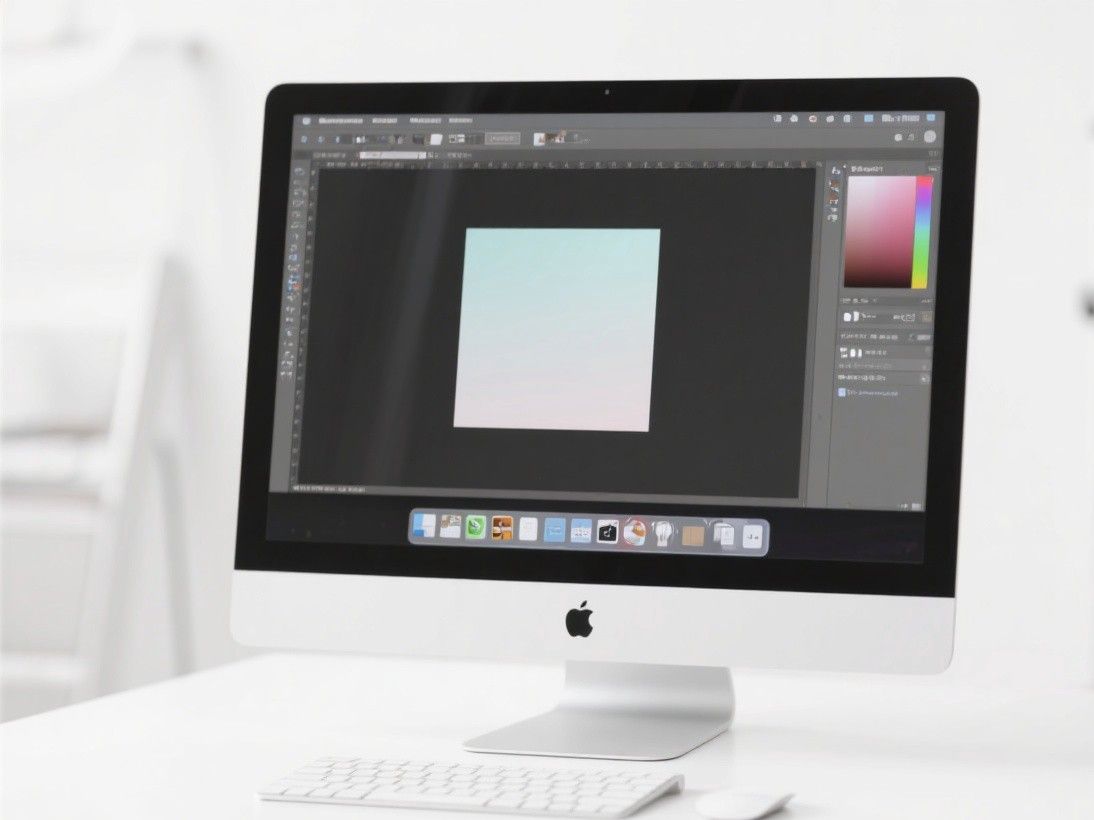
For beginners who want to learn Photoshop-style editing without paying for a subscription, Photopea is the closest free alternative available. Every Photoshop tutorial you find online can be followed in Photopea because the tools and menus are nearly identical.
Remove.bg and Pixlr: Specialized Free Tools
Remove.bg uses AI to remove backgrounds from photos in seconds. Upload any image, and the tool automatically separates the foreground subject from the background. The free version produces medium-resolution downloads (around 0.25 megapixels), which is sufficient for web graphics and social media. For higher resolution, you need a paid plan. The accuracy is remarkable—hair, fur, and complex edges are handled well in most cases.
Pixlr is a suite of browser-based photo editing tools. Pixlr X is a simple editor for quick adjustments and filters, while Pixlr E is a more advanced editor with layers, masks, and blend modes. Both are free with ads. Pixlr is a good middle ground between Canva's simplicity and GIMP's complexity—it offers more control than Canva but a gentler learning curve than GIMP or Photopea.
Choosing the Right Tool for Your Needs
If you need quick, polished designs for social media and marketing without learning complex software, start with Canva Free. If you want to edit photos with professional-level control, use GIMP or Photopea. If you need to create logos, icons, or scalable graphics, learn Inkscape. If you are interested in UI design or want a versatile tool that handles multiple design types, use Figma Free. These tools are not mutually exclusive—many designers use several of them together, leveraging each one's strengths for different tasks.