4 devices I can connect to my TV without an HDMI cable
You can’t use HDMI—so what does your TV actually let you plug in?
You grab a cable, reach behind the TV, and realize HDMI isn’t happening tonight—maybe the port is loose, all the inputs are taken, or the set is old enough that HDMI was optional. What matters now is what the TV will accept besides HDMI, because each “other” port pushes you toward a different kind of device (and a different level of picture quality, delay, and hassle).
Most TVs in this situation still have at least one of these: USB (for playing local files), coax/antenna (for live channels with the right box), AV/RCA (red/white/yellow for older players), or VGA (for a computer). If the TV is “smart,” it may also support casting or screen mirroring with no cable. The quick win is choosing the option that matches a port you already have open.
A 2‑minute port check that prevents buying the wrong thing
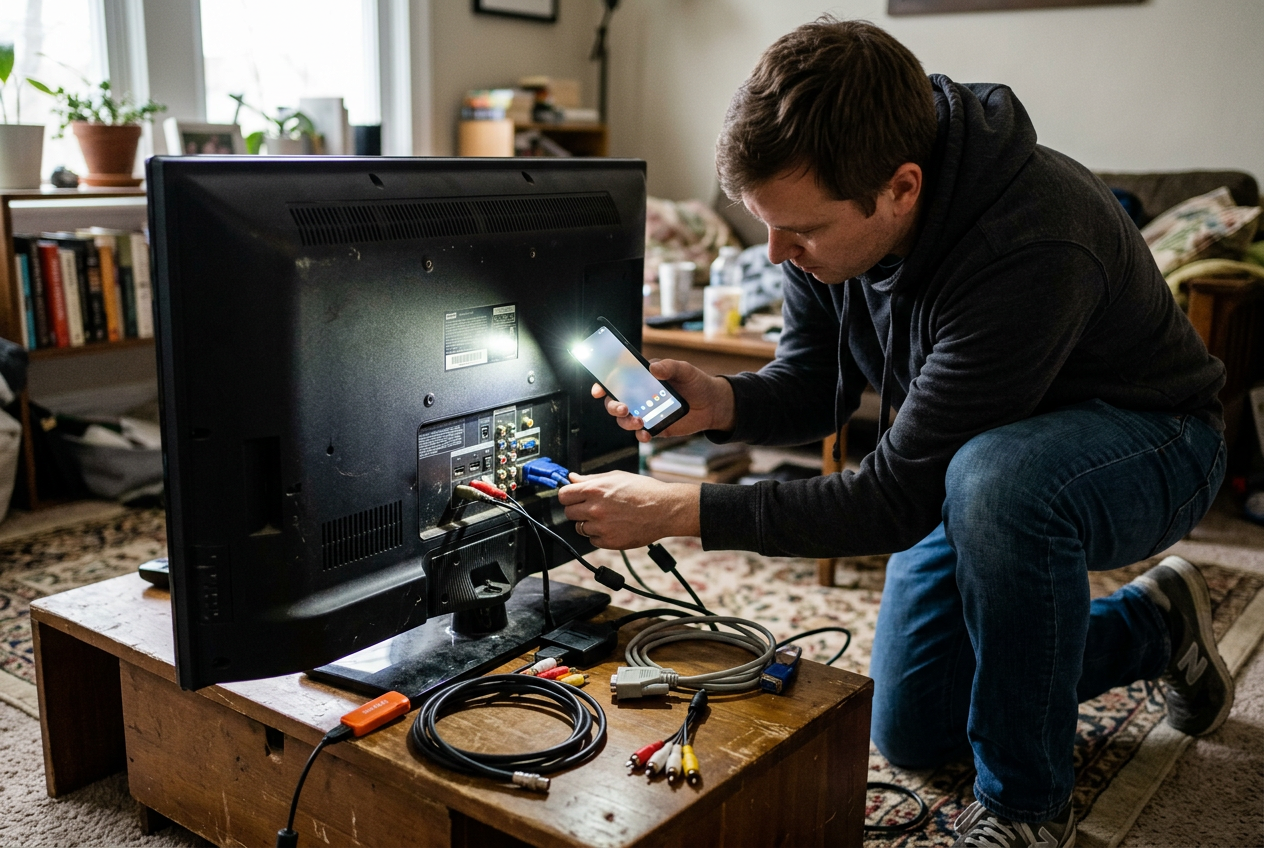
That “open port” part is where people usually guess—and then come home with the wrong adapter. Spend two minutes with a phone flashlight and check the labels right on the TV, not what you remember it having. Look for USB, ANT IN/COAX, AV IN (sometimes it’s a single yellow “video” plus red/white audio), and VGA/PC IN. If there’s a 3.5mm jack labeled “AV IN,” you may need a specific breakout cable that matches your TV brand’s wiring, not a random one.
Then do one fast reality check: what are you trying to watch tonight? If it’s Netflix or YouTube from a phone, USB usually won’t help. If it’s a movie file you already have, USB might be perfect. If you want live channels, coax alone doesn’t guarantee it works without a digital converter box. And if you’re using VGA from a laptop, plan for separate audio.
Once you know the exact inputs, picking a device option becomes a match problem.
Device option #1: USB flash drive or portable hard drive (when you just need local files)
That “match problem” gets easy when what you want to watch is already a file you can carry. If your TV has a USB port, a flash drive or portable hard drive can be the cleanest no‑HDMI option: plug it in, open the TV’s media/player app, and pick the video.
The catch is that TVs are picky about formats. A file that plays fine on a laptop might show up with no sound, stutter, or not appear at all if the TV doesn’t support that codec or container. The practical move is to test one short clip first, then copy the rest. Also watch the drive format: many TVs read FAT32 or exFAT, but not all handle NTFS. Portable hard drives can add another friction point—some need more power than the TV’s USB port provides.
If your goal is streaming apps, skip USB and look at the options that treat your TV like a “display,” not a file reader.
When you have a coax/antenna input: a TV antenna + digital converter box for live channels
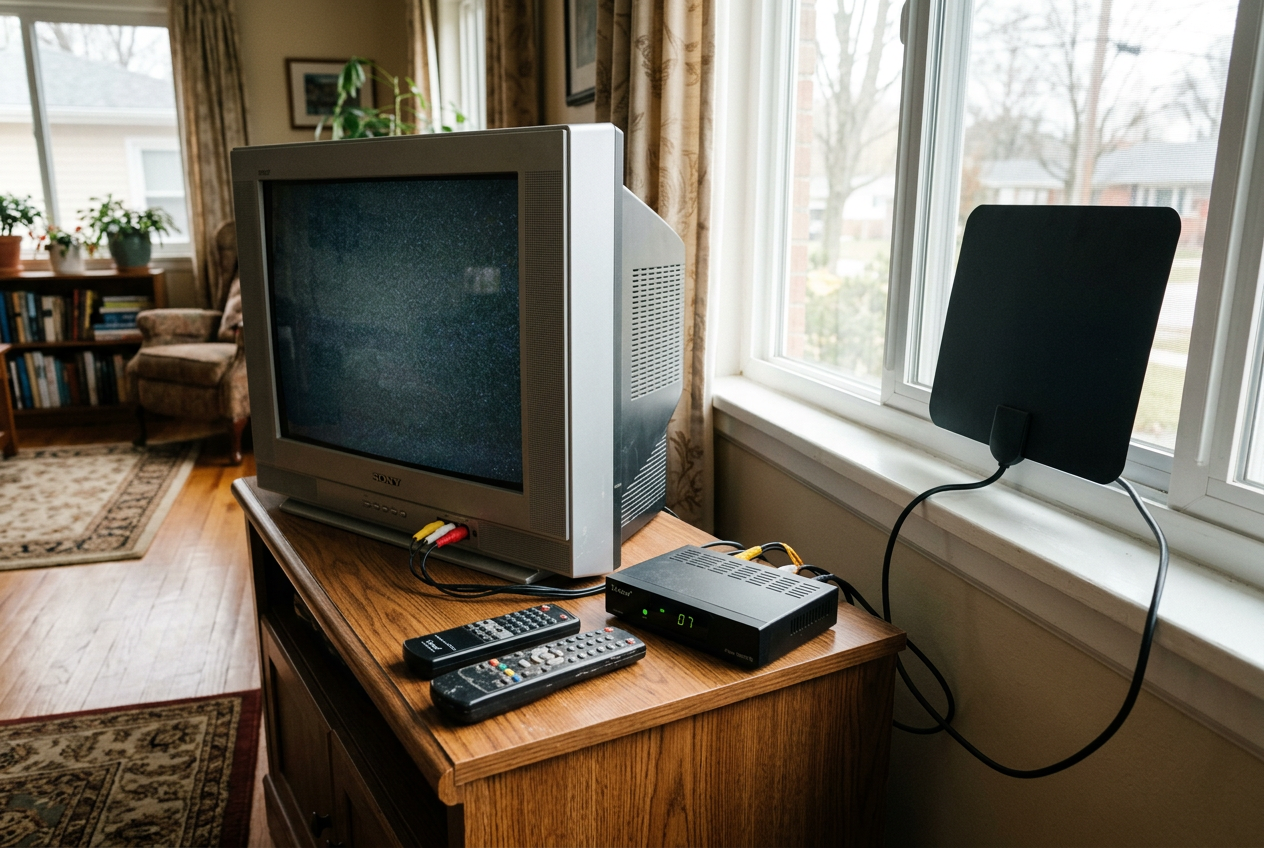
That “treat your TV like a display” idea is exactly what the antenna/coax port is for—just not in the way most people expect. If you see ANT IN, CABLE, or COAX on the back, you can watch free over-the-air local channels with a simple antenna, but only if the TV can tune digital broadcasts. Many older sets can’t, which is why “coax alone” often leads to a blank scan.
The reliable setup is: antenna → digital converter box → TV. The antenna plugs into the box’s RF/ANT input, then the box connects to your TV either by coax (channel 3/4 style) or by AV/RCA if your TV has it. You then use the box remote to change channels. It’s one more device, but it turns that coax port into a working live-TV option without internet.
Channel scans take time, reception depends on placement, and the picture can look noisy or drop out if the antenna sits in a bad spot—so plan to move it around before you assume it “doesn’t work.”
Device option #3: DVD player / older game console / legacy media box via AV (red/white/yellow RCA)
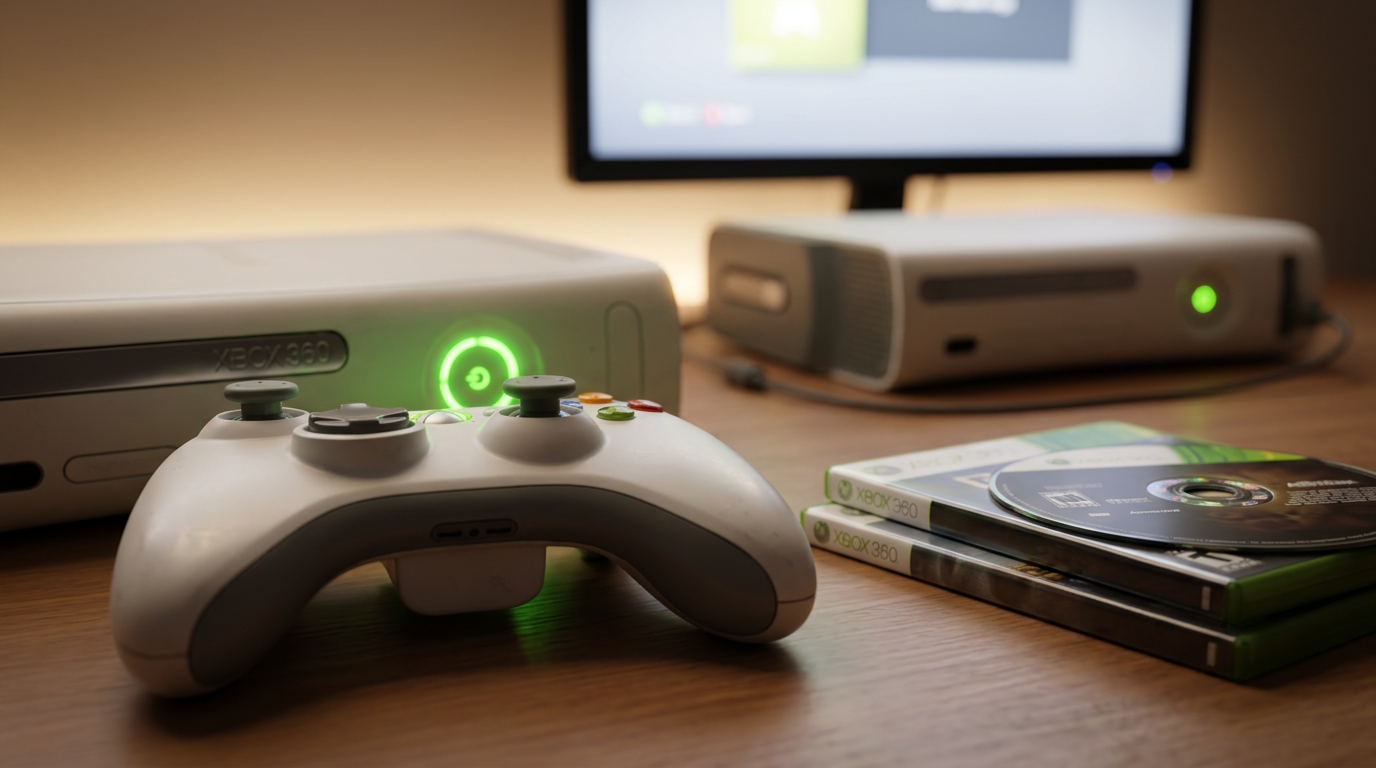
When you’ve moved the antenna three times and still don’t have what you want, the AV input can be the easiest “just show me something” port on the whole TV. If you see the red/white/yellow jacks (or an AV IN label that uses a 3.5mm-to-RCA breakout), you can hook up a DVD player, a VCR, an older game console, or a legacy cable/satellite box and get picture and sound without touching HDMI.
Yellow is composite video, so text looks soft and fast motion can smear compared to HDMI. You’ll also want to check your TV’s input list: some sets call it AV, Video, or Composite, and you may need to switch to that input manually.
One practical gotcha: not every “AV cable” works with every TV that uses a 3.5mm AV IN jack, and some newer players don’t output composite at all. If AV is available and you mainly need playback, it’s a solid fallback—otherwise, VGA is the next “treat it like a display” option.
Device option #4: Laptop or desktop over VGA (good enough for browsing, slides, and some streaming)
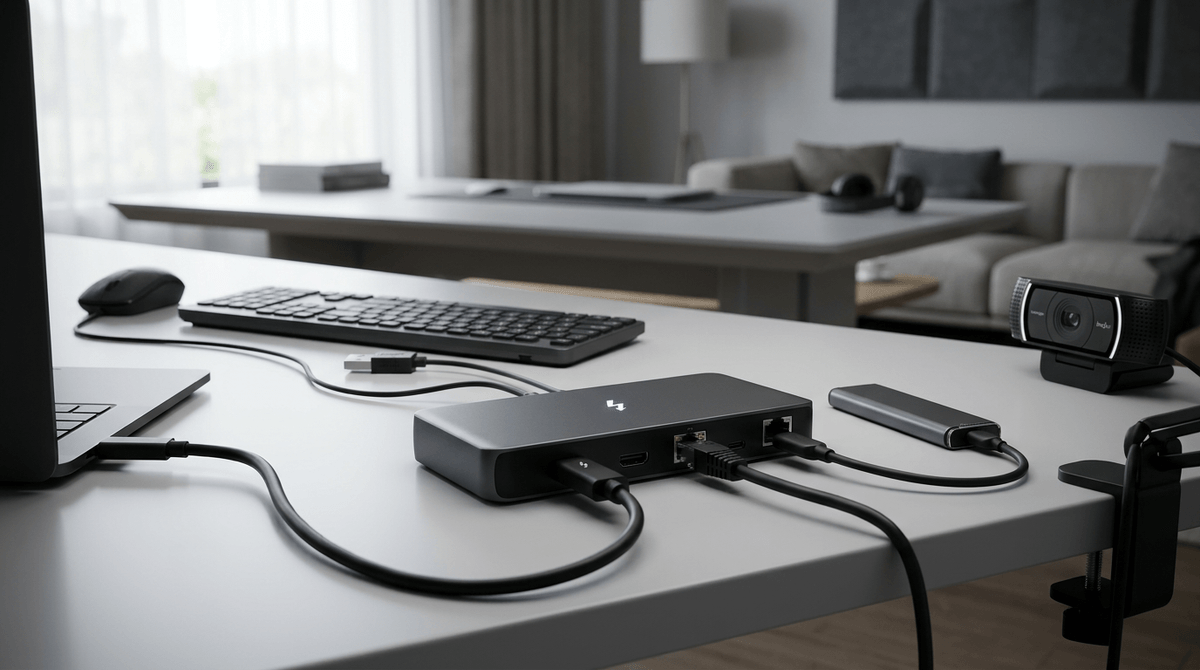
VGA is the “I just need the screen” port. If your TV has a VGA/PC IN jack, a laptop or desktop can drive it like a basic monitor—useful for browsing, showing photos, or running a slideshow without relying on a TV app. Plug VGA from the computer to the TV, switch the TV input to PC/VGA, then set the computer’s display output to 720p or 1080p if it looks fuzzy or cropped.
The big catch is audio. VGA carries video only, so you’ll usually need a separate 3.5mm audio cable from the computer’s headphone jack to the TV’s “PC Audio In” (if it has one) or to external speakers. If the TV has VGA but no matching audio input, sound becomes the friction point you’ll feel immediately.
Streaming can work, but expect trade-offs. Some services limit playback quality on certain setups, and overscan/incorrect resolution can make text hard to read until you tweak settings. If you want fewer cables—and your TV is smart—wireless casting may be the less annoying path.
If your TV is ‘smart’: connect your phone without any cable (casting, AirPlay, screen mirroring)
That “less annoying path” usually looks like this: you open YouTube or Netflix on your phone, tap the cast/share icon, and the TV pops up as an option. If it works, it’s the fastest way to get streaming on the screen without hunting for ports at all. On many smart TVs, casting sends the video directly from the internet to the TV while your phone acts like a remote, so your battery and notifications matter less.
When casting isn’t available, screen mirroring is the fallback. It duplicates your whole phone display on the TV (AirPlay on many Apple setups; Miracast/similar names on others), which helps for photo galleries, web pages, and apps that don’t offer a cast button. The trade-off is delay. Even a small lag makes games and fast scrolling feel off, and some video apps show a black screen or block playback during mirroring.
Two quick friction checks save time: make sure the TV and phone are on the same Wi‑Fi network, and turn off any “guest” network split. If your TV’s “smart” features are slow or outdated, a simple plug-in streamer can still be the cleaner move for the night.
Pick the least-painful option for tonight (quality vs. delay vs. setup time)
That “cleaner move for the night” comes down to what you’re willing to trade: picture quality, delay, or setup time. If you already have a movie file, USB is usually the fastest with the fewest parts. If you want live local channels and your internet is shaky, antenna plus a converter box is the dependable play, but plan for a channel scan and some antenna repositioning.
If you need streaming right now, try casting first—when it works, it looks better and feels snappier than full screen mirroring. If casting fails, VGA from a laptop is the most predictable “get it on the screen” option, with the annoying consequence that audio often becomes a second cable problem. If you’re tired of troubleshooting, AV/RCA is the “it’ll show something” fallback.