14 Amazon Fire TV Stick Tricks That Can Make Your Device Feel Like New
Your Fire TV Stick didn’t used to be this annoying
One day the Fire TV Stick feels fine, and then you notice the little delays: the home screen takes a beat to load, a button press doesn’t register right away, and an app that used to open instantly now hangs on its splash screen.
Most of the time, nothing “broke.” Small stuff piles up—extra apps you don’t use, cached data, missed updates, noisy home screen rows—and the stick starts spending more time loading and less time responding. The annoying part is that it’s hard to tell which fix will actually change what you feel.
Some steps will force a restart or sign you back into an app, so it helps to move in a smart order. A quick reality check will tell you whether you’re fighting your network or the stick itself.
Is it the network or the stick? A 2-minute reality check
If a show buffers, the menu lags, and audio drops for a second, it’s easy to blame the stick. Start by checking whether the slowdown follows the internet instead. Open one streaming app you trust, play something, then jump to a different app and play something else. If both struggle at the same time, your Wi‑Fi or ISP is the likely culprit.
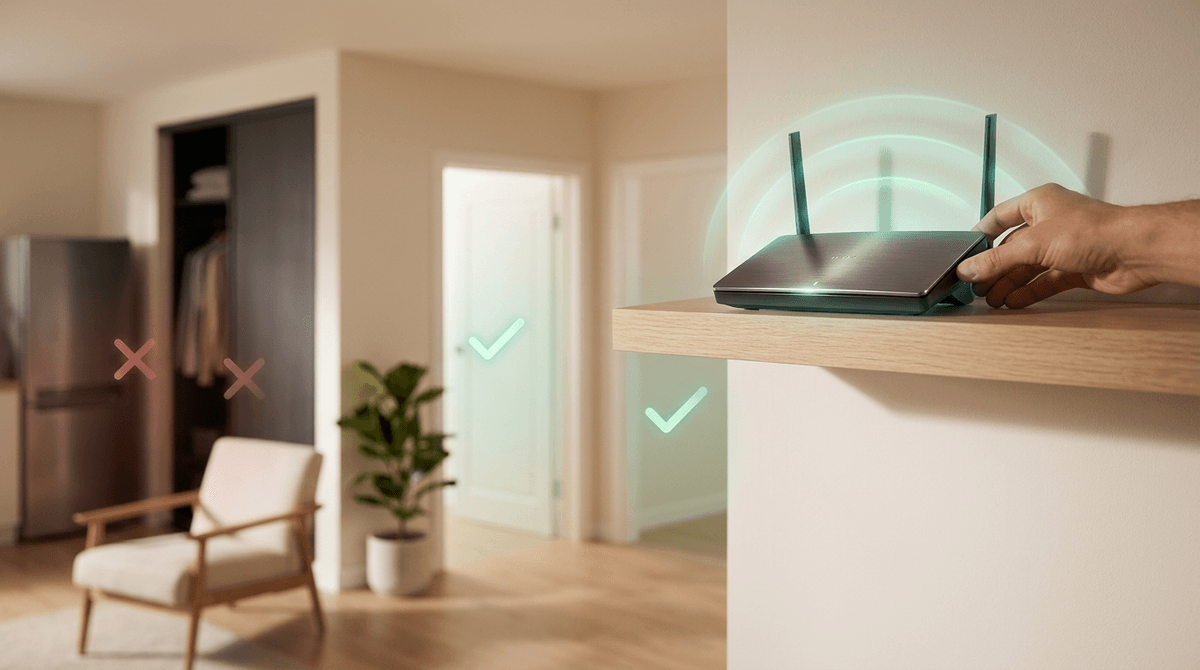
Now separate “speed” from “stability.” On the Fire TV home screen, go to Settings → Network and look at the signal bars. If you’re on Wi‑Fi with one or two bars, move the stick to an HDMI extender (if you have one) or shift it away from the TV’s back panel to reduce interference. Then do a clean reboot: Settings → My Fire TV → Restart. If apps open slowly even when playback is fine, that points back to the stick—usually storage or clutter, which you can fix next.
When storage is the hidden culprit: reclaim space without breaking anything
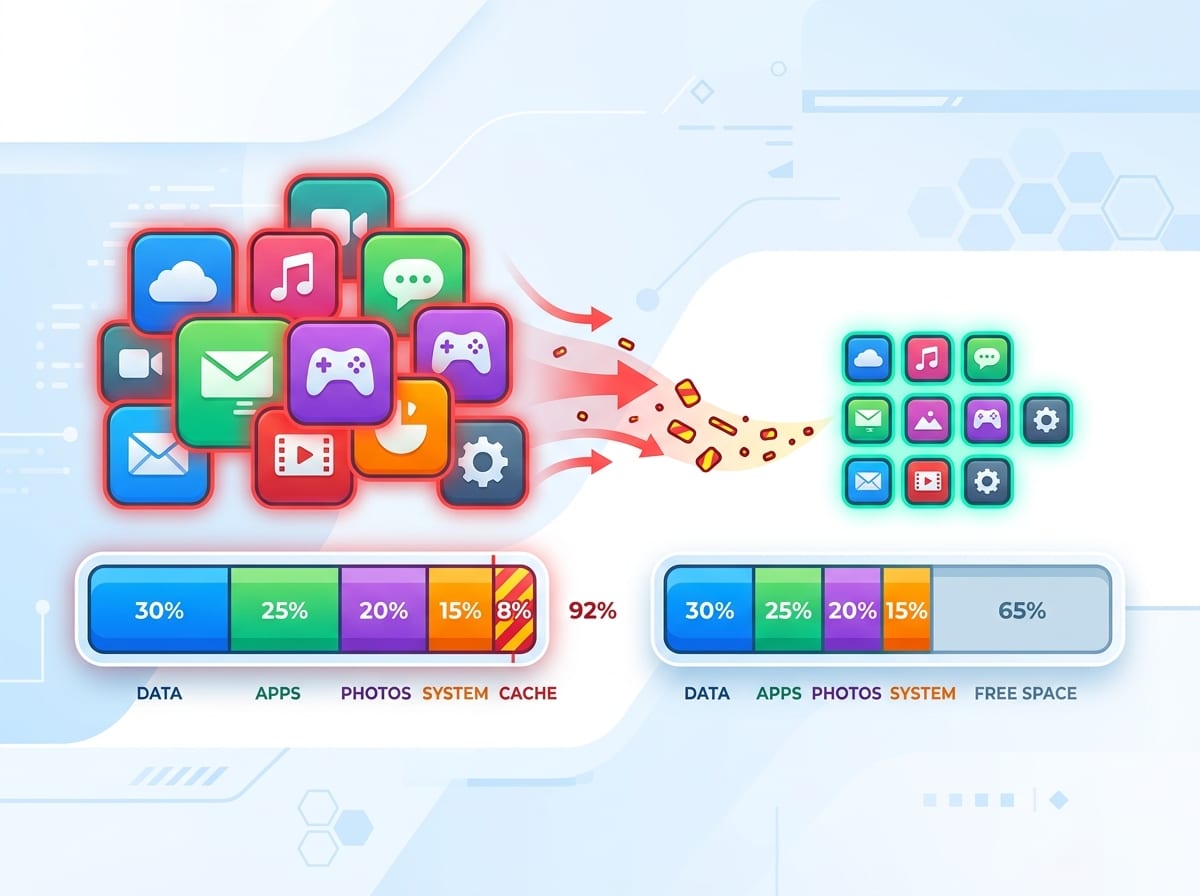
When playback is fine but apps crawl to open, the usual reason is simple: the stick is running out of breathing room. You’ll feel it as longer launches, slower search, and random “thinking” pauses after you hit Home. Fire TV doesn’t need to hit zero storage to act like it did—it just needs to get tight enough that updates and temp files can’t shuffle around quickly.
Check what you’re working with: Settings → My Fire TV → About → Storage. If free space is low, uninstall before you start clearing things blindly. Go to Settings → Applications → Manage Installed Applications, sort by size, and remove anything you truly don’t use. The downside: uninstalling can wipe downloads and force a fresh sign-in, so start with games, kids apps, and one-off “trial” services.
After that, reclaim space without breaking setups. In the same app list, open your biggest offenders and choose Clear cache first. Save Clear data for apps that are misbehaving, because it resets the app like new. When you’ve freed a chunk, restart the stick to make the change stick—then you’re ready to tackle the home screen clutter you see every day.
Home screen chaos: decide what deserves a tile (and what doesn’t)
That home screen clutter is what you touch every day: rows you never use, sponsored tiles, and a “Recent” strip that keeps resurfacing apps you opened once. Even if storage is healthier now, the stick can still feel slow because you’re hunting and scrolling instead of clicking. The fix is less about “more apps” and more about putting the right three to six where your thumb expects them.
Start with the app row. Highlight an app you don’t want up front, press the menu button (≡), then Move it down the line—or Remove from Recent if it’s just popping up there. Put your daily apps first, and don’t be afraid to tuck “seasonal” ones (sports, travel, a single subscription month) near the end. It won’t change your internet speed, but it cuts the time you spend waiting for tiles and previews to load.
If the home screen still feels noisy, reduce what animates. In Settings → Preferences, turn off Autoplay Videos and Autoplay Audio. The downside is you’ll see fewer previews, but the home screen often feels calmer and more responsive—especially before you start digging into app updates and permissions.
Apps that feel sticky or buggy: handle updates and permissions before blaming the hardware
Those autoplay previews were only part of it. A lot of “slow” apps feel slow because they’re stuck between an update they need and a permission they lost, so they stall, freeze, or dump you back to the home screen.
Start with updates. Open the Appstore and check Updates, then update your most-used streaming apps first (Netflix, Prime Video, YouTube, Hulu, etc.). If an app still hangs on launch, go to Settings → Applications → Manage Installed Applications, open that app, and try Force stop, then Clear cache. Save Clear data for last because it usually signs you out and wipes downloads.
Then check permissions when an app behaves “weird,” not just slow—mic access for voice search, storage access for downloads, location for local channels. If a kid profile or a privacy toggle changed, an app can fail silently. Fix the app first, and if playback still stutters or audio slips, it’s time to tune the playback path itself.
If video stutters or audio gets weird, don’t guess—tune the playback path
That “playback path” problem usually shows up like this: the picture stutters every few seconds, voices drift out of sync, or you get a quick audio cut even though your Wi‑Fi looks fine. Before you chase random fixes, lock down the output settings so the stick isn’t constantly switching formats mid-stream.
Go to Settings → Display &'' Sounds → Display and set Video Resolution to your TV’s native (often 1080p or 4K) instead of Auto, then turn Match Original Frame Rate on. If you see black flashes when a video starts, turn frame rate matching back off—some TVs and receivers handle the switch poorly.
For audio, go to Settings → Display &'' Sounds → Audio and try Surround Sound on Best Available, but switch to PCM if you hear dropouts through a soundbar/AVR. The annoying part: you may lose Dolby Atmos on PCM, but you’ll usually gain stability—then you can focus on the small switches that make everything feel faster day to day.
Make it feel faster every day with a few hidden quality-of-life switches
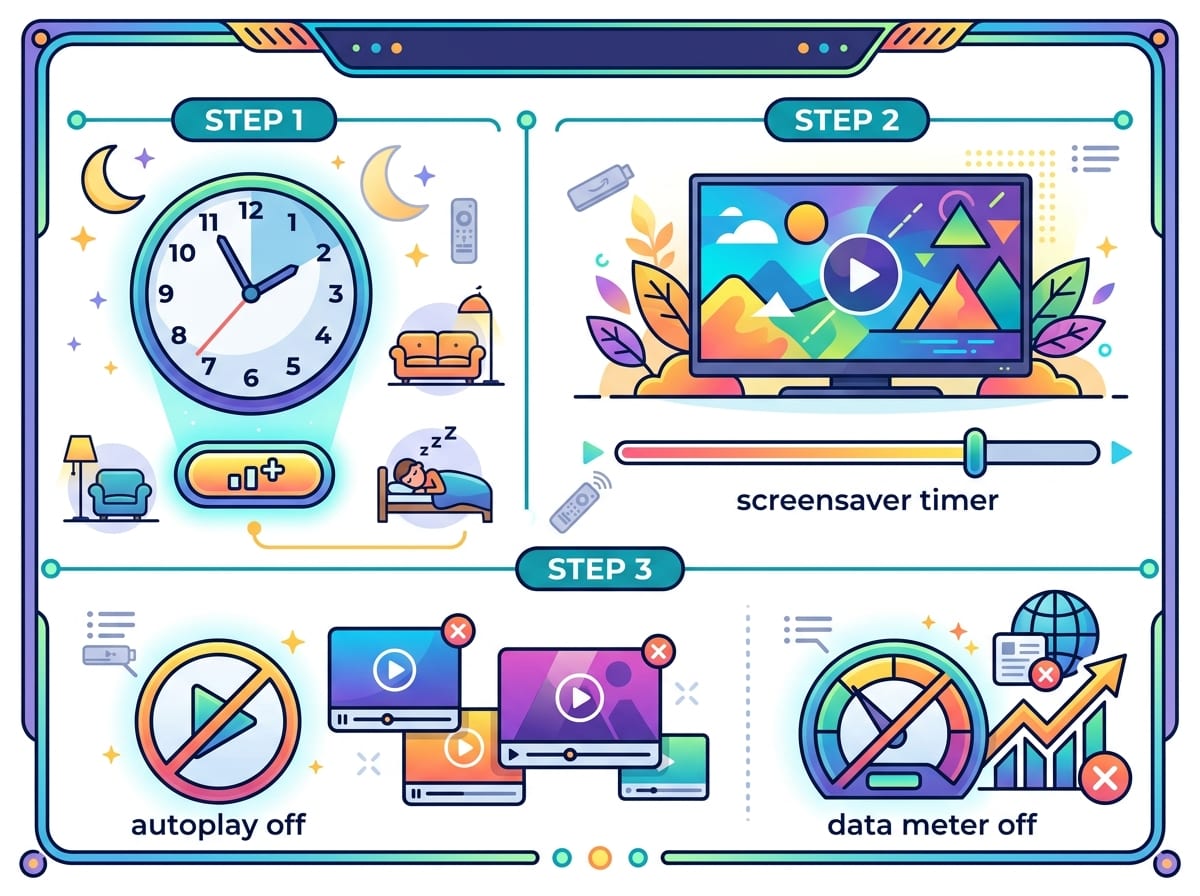
Once audio and video stop doing surprise format switches, the lag you notice most is usually in the “between” moments: waking the stick, hopping between apps, and waiting for the home screen to settle. A few settings can cut that daily friction without wiping anything.
Start with sleep and screensaver behavior. Go to Settings → Preferences → Screen Saver and set Start Time longer (or off, if you don’t need it), then in Settings → Display &'' Sounds → Display set Sleep to a longer timer. If your stick keeps “napping,” it has to spin back up, and that feels like slowness even when storage is fine.
Then cut background noise. In Settings → Preferences → Featured Content, turn off Allow Video Autoplay and Allow Audio Autoplay (if you didn’t earlier), and in Settings → Preferences → Data Monitoring, turn data monitoring off unless you actively use it. The downside is you lose some previews and usage stats, but the home screen usually loads with fewer hiccups—and that sets you up for a tiny routine that keeps it that way.
Keep the ‘new stick’ feeling: choose a tiny maintenance routine you’ll actually do
That “tiny routine” works best when it’s attached to something you already do, like the first Friday of the month or right after a big app update. Take 60 seconds to check Settings → My Fire TV → About → Storage. If free space is tight, uninstall one app you haven’t opened in months, then restart the stick. Small wins keep it from slipping back into that sluggish, cramped feeling.
Once a month, pick your two biggest apps in Manage Installed Applications and hit Clear cache (not data). If an app starts acting up after an update, do Force stop first, then clear its cache, and only sign yourself out with Clear data when you’re ready for the hassle of logging back in and re-downloading content.
Finally, spend 30 seconds on the home row: remove anything that’s just “Recent,” and move your top three apps back to the front. It sounds trivial, but when the tiles you want are always in the same place, the stick feels faster even before you press Play.