Getting Your Kid an iPhone? Teach Them These 7 Basic iOS Skills Right Away
The handoff moment: what to cover before they walk away with it
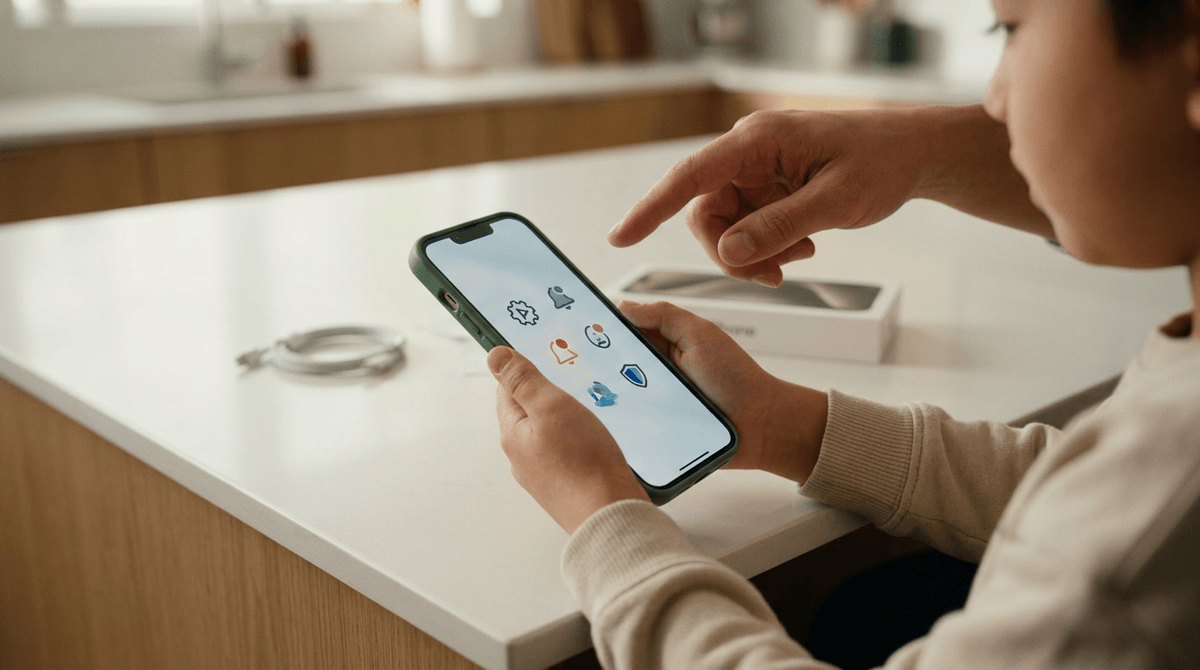
The handoff usually happens fast: the phone is charged, the case is on, and they’re already sliding their thumb across the screen while you’re still holding the box. If you skip a few basics now, the first week tends to fill with “I didn’t get it,” “I didn’t mean to buy it,” or “I can’t find it,” and you become the default fix.
Plan on 10–15 minutes where the goal is not perfection, just coverage: one account decision, notifications and Focus, purchase prompts, sharing habits, and what to do when it’s lost. The only hard part is that changing some of this later can be messy—so start with the account choice you can’t easily undo.
Start with the one account decision you can’t easily undo later (Apple ID + Family Sharing)
That “account choice” usually gets made in a hurry: they type an email they already know, you accept a few prompts, and the phone is suddenly “theirs.” If you pick the wrong setup, fixing it later can mean moving purchases, photos, backups, and messages across accounts—or realizing you can’t move some of it at all.
For most families, the cleanest move is: your child gets their own Apple Account (not yours), and you connect it to your family through Family Sharing. That keeps their iMessage and iCloud data separate, while still letting you manage key guardrails like Screen Time and purchase approval. It also avoids the common mistake of sharing one Apple Account across devices, which can mix contacts, photos, and FaceTime calls in ways that feel invasive fast.
One real-world snag: if the phone is a hand‑me‑down, it may still be tied to an old Apple Account. You’ll need that account’s password to sign out and fully reset, or activation lock can stop setup cold.
“I didn’t see your text”—fix notifications and Focus before drama starts
Once the Apple Account is set, the next “I swear I didn’t know” moment usually comes from notifications that never show up, or show up silently. A group chat lands during homework, the phone stays quiet, and suddenly it looks like they ignored you. Before you blame attitude, fix the settings that decide what gets through.
Start in Settings >'' Notifications: turn on Allow Notifications for Messages, choose Banners, and make sure Sounds and Badges match your expectations. Then open Settings >'' Focus and check two common traps: a Focus mode that blocks people, and Share Across Devices turning Focus on everywhere without them noticing. Create one simple “School” or “Homework” Focus together that allows calls/texts from you (and any caregiver), and leaves everything else muted.
The downside is you can’t set this once and forget it. A new app, a new group chat, or a teen tweaking Focus to “make it quieter” can bring the problem back—so treat it like a quick, repeatable check before the first purchase prompt shows up.
When the first App Store purchase pops up, what happens next?
That first purchase prompt usually shows up when you’re not paying attention: a game wants a “starter pack,” a free app offers a subscription trial, or they tap a skin their friend recommended. If the phone is set to buy with a glance, you’ll learn about it later on a receipt email. If it’s set to ask, you’ll get a notification at the worst possible time.
Open Settings >'' Family and turn on Ask to Buy for your child, then confirm you’re the organizer who approves purchases. In Settings >'' Screen Time (child) >'' Content &'' Privacy Restrictions >'' iTunes &'' App Store Purchases, set In-app Purchases to Don’t Allow or require approval. Also show them where subscriptions live: Settings >'' their name >'' Subscriptions.
The catch is approvals can back up—bad cell service, a dead parent phone, or school hours—so agree on one rule: no “limited-time” popups without asking first, even if it means waiting.
Friends, screenshots, and AirDrop: the privacy oversharing trap
That “limited-time” pressure doesn’t stop at money. It shows up as “Send me your number,” “Screenshot it,” or “AirDrop it to me,” and kids often share fast because the phone makes it feel temporary.
Do three quick checks together. In Settings >'' Privacy &'' Security, open Location Services and show them the difference between Never, While Using, and Always for social apps—because “Always” can quietly attach where they are. In Photos, show how a screenshot can include names, notifications, and even a map preview. Then set AirDrop to Receiving Off or Contacts Only in Control Center, so they don’t accept random files at school.
The hard part is social fallout: saying “no” can feel louder than sharing. Practice one line they can use, and you’ll avoid a lot of cleanup later—especially when the phone leaves the room.
If it gets lost at practice, can they recover it without you?
When the phone leaves the room—locker room, gym bag, a teammate’s car—the first thing most kids do is panic-tap and then text you from a friend’s phone. You want a simpler script: they can try to find it, protect what’s on it, and only then pull you in.
On their iPhone, turn on Settings >'' [their name] >'' Find My >'' Find My iPhone, plus Find My network and Send Last Location. Then open the Find My app and show them two actions: Play Sound (when it’s nearby) and Mark as Lost (when it isn’t). Lost Mode locks the phone and can show a message on the screen, which is useful if a coach finds it.
The limitation is timing. If the battery is dead or the phone never had a data/Wi‑Fi connection, location can be old. Agree on one rule: if it’s missing for 10 minutes, they stop retracing steps and go straight to Find My.
Battery dying and data spikes: the surprises that make parents hate phones
That “timing” problem gets worse when the battery is at 3%—because a dead phone can’t update its location, receive your message, or show up when you ping it. Most kids drain a new-to-them iPhone fast by maxing brightness, leaving the screen on, and letting apps run in the background.
Do a quick battery tune-up: turn on Low Power Mode in Control Center, set Settings >'' Display &'' Brightness to a reasonable brightness, and shorten Auto-Lock. In Settings >'' Battery, look at what’s chewing power and then switch off Background App Refresh for the worst offenders. The cost is some apps won’t update until they’re opened, which can feel like “my messages are late.”
For data surprises, open Settings >'' Cellular and scroll: you’ll see which apps spike usage. Turn off cellular for video-heavy apps, and consider Low Data Mode. Then check this again together after a week, before the first “why is our bill higher?” moment.
The 10‑minute ‘independence check’ you do together after week one
That “check this again together after a week” is where the phone stops being new and starts being normal—and that’s when small problems turn into habits. Sit down for 10 minutes and have them drive: open Settings >'' Battery and name the top two drainers, then decide one change (brightness, Auto-Lock, or Background App Refresh). In Settings >'' Cellular, spot any surprise app and toggle it off on data if needed.
Then run two quick scripts: send you a text and confirm it shows alerts (and which Focus is on), and open Find My to show Play Sound and where Mark as Lost lives. The annoying part is this takes real attention—if you rush it while cooking dinner, you’ll miss the one setting that’s been quietly causing the “I didn’t know” moments.