You Can Prevent Your Car Key From Being Cloned With Your iPhone - Here's How
You’ve heard “relay attack” — but what’s actually at risk in your setup?
You park, walk away, and assume the car is “locked” in the same simple way it was ten years ago. With many modern setups, the car keeps listening for a nearby key (or phone), and that convenience is what a relay attack tries to exploit: it extends the “nearby” signal so the car unlocks and starts as if you were standing next to it.
What’s at risk depends on one detail: does your car unlock just because you approached, or only after you press a button or confirm on the phone? The frustrating part is you can’t tell from the marketing name on the fob.
There’s also no universal fix—some cars offer strong settings, some offer none—so the fastest win is a two-minute check of how your car actually unlocks.
First 2-minute check: do you unlock by touching the handle, or only after a button press?
That two-minute check starts at the door handle. With your key fob in your pocket (or your iPhone set up as a key), walk up to the car and don’t touch anything for a moment. Then touch the handle like you normally would. If the car unlocks just from the touch, you’re using passive entry, which is the setup relay attacks most directly target because the car accepts “nearby” as enough.
Now force a comparison. Stand next to the car with the fob/phone on you, but keep your hand off the handle and press the fob’s unlock button (or use the phone’s explicit unlock). If nothing happens until you press, you’re closer to an active step, which narrows what an attacker can get for free.
The annoying constraint: many cars mix modes—passive unlock, but button-to-start—so you need to check both doors and starting behavior before you change any settings.
If your iPhone is your key: confirm Wallet Car Key is set up the safer way
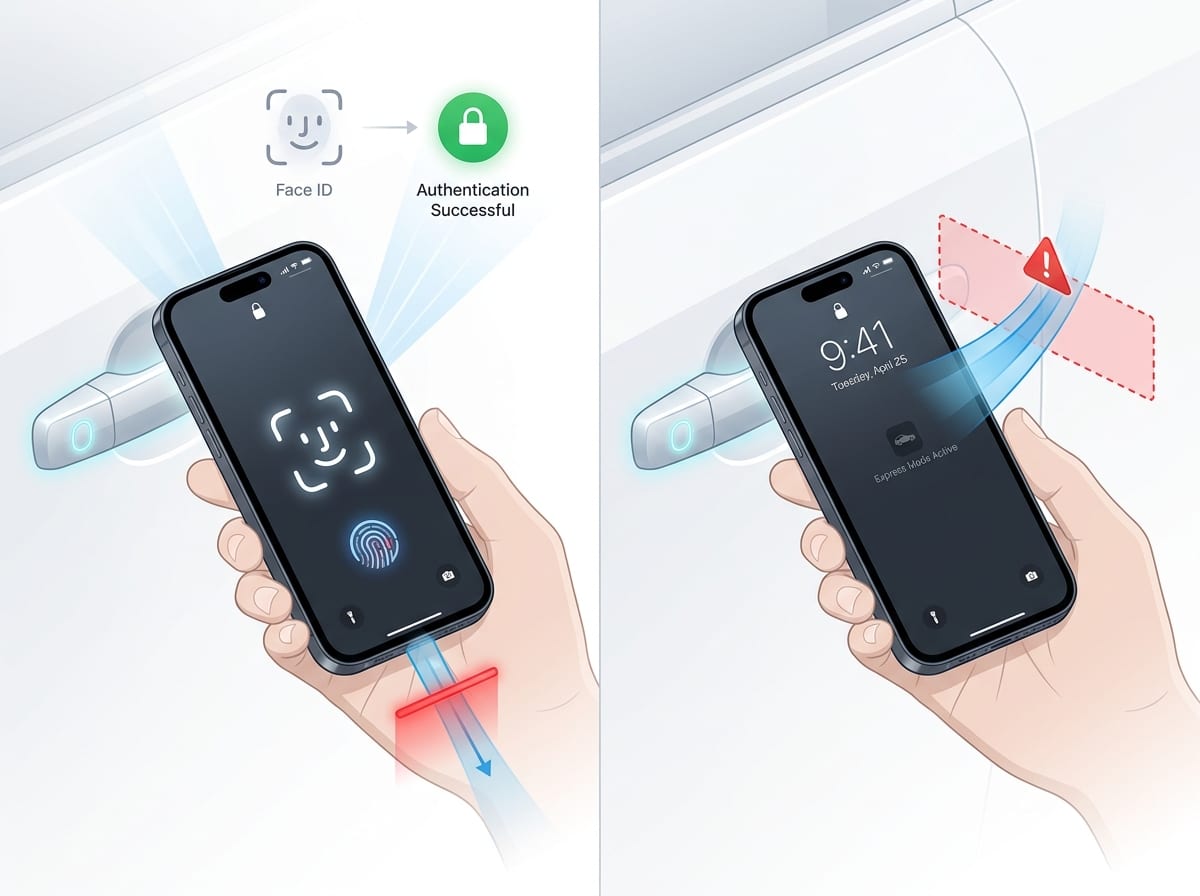
If you used your iPhone during that handle test, the risk question becomes simple: does the car act on “phone is nearby,” or does it wait for an extra step? Open Wallet, tap your Car Key, and check what the screen prompts you to do at the door. If it unlocks with no Face ID/Touch ID step (or without you doing anything on the phone), you’re in the most convenience-heavy mode.
On iPhone, the safer setup is “require authentication” for the key (Wordings vary by car brand). When it’s enabled, the phone has to be unlocked with Face ID/Touch ID (or passcode) before the key works. That doesn’t make relay attacks impossible, but it forces a real check that “a nearby phone” is also an unlocked phone in your hand.
One snag: Express Mode is convenient because it works when your phone is locked or low on battery, but that convenience is the point. If you turn off Express Mode and it breaks your day-to-day (gloves, gym runs, dead battery), keep it on—and lean harder on the car’s own anti-theft toggles next.
Open the manufacturer’s app and look for the anti-theft toggles that change daily risk
That’s the moment to stop treating your iPhone as the whole solution and treat the car’s own settings as the lever you can pull. Open the manufacturer’s app and look for anything that changes how the car responds to “nearby.” The names vary, but you’re hunting for switches like passive entry/approach unlock, walk-up unlock, hands-free unlock, or “smart key” behavior. If you can turn off approach unlock (while keeping button unlock), you’ve removed the easiest “no-action” path a relay depends on.
Then look for settings that add a second step: “PIN to drive,” “secure start,” “two-step verification,” “valet/guest restrictions,” or a prompt that requires you to confirm in-app before remote unlock. These don’t help if someone can physically get in, but they can block a fast start-and-go theft.
The real-world annoyance is you may pay for these controls (subscription tiers), or they may be buried under “Convenience” instead of “Security.” If you can’t find anything after a focused five-minute search, assume you have no meaningful toggle and fall back to a default routine that reduces exposure anyway.
When you can’t find a toggle: a default routine that cuts relay exposure tonight
When the app is a dead end, what usually happens is you keep using passive entry because it’s how the car shipped—and the car keeps accepting “nearby” as a yes. Tonight, you can still narrow that window by changing where the “nearby” signal lives when you’re not driving.
Pick one default: once you’re home, don’t leave the fob by the front door, in a hallway bowl, or in a garage coat pocket. Put it deeper inside the house and away from exterior walls—think a kitchen drawer on the interior side, not an entry table. If you use iPhone Car Key, turn off Bluetooth while you sleep, or at least use Focus/Shortcuts to flip Bluetooth off automatically at a set time. Then flip it back on when you leave.
The annoying part is convenience: a hidden fob gets misplaced, and Bluetooth-off can break CarPlay or headphones. If that’s your reality, aim for “farther from the door” as the non-negotiable, and tighten the phone settings next.
Don’t forget the iPhone itself: lock-screen choices that affect car access
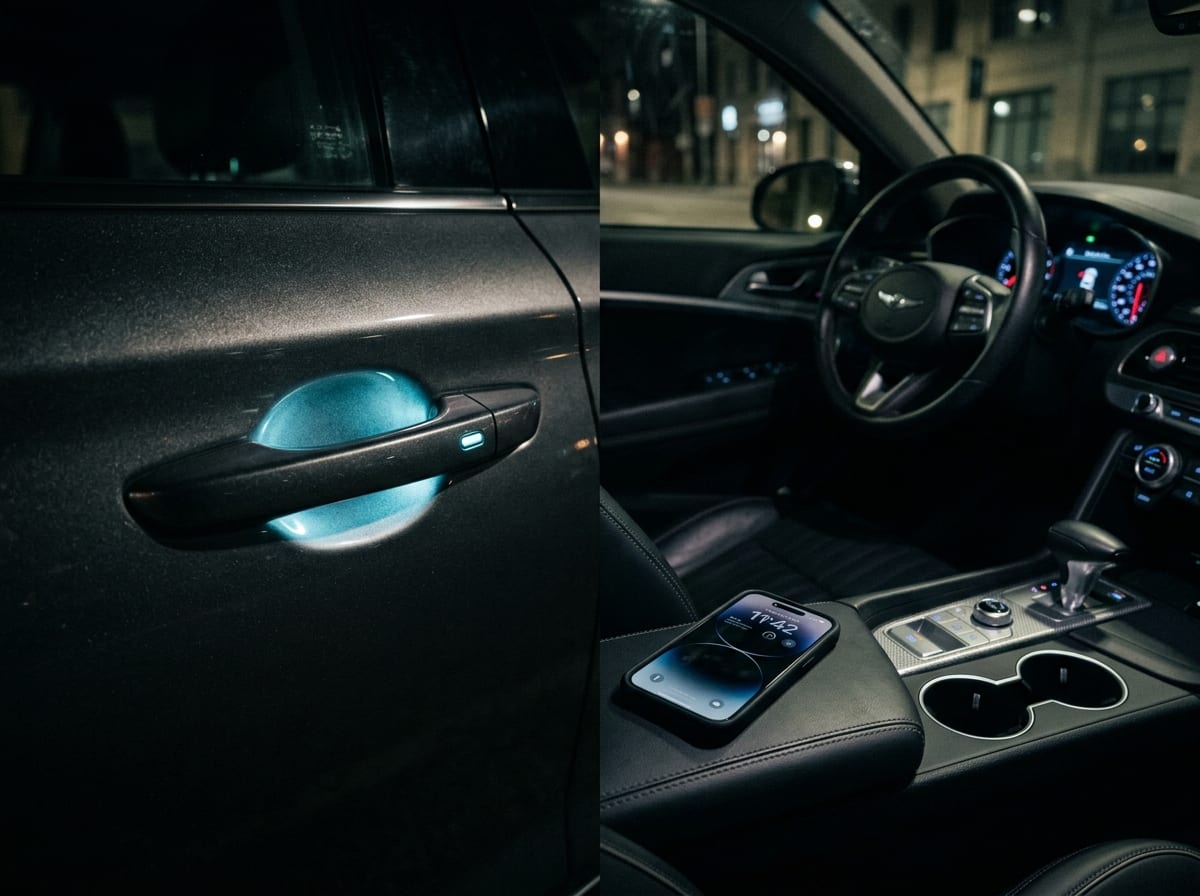
That “tighten the phone settings” step usually comes down to what happens when your iPhone is still locked. If the car can use the phone as a key while the screen is locked, then a stolen phone—or a phone you set down unlocked for a minute—can turn into a car problem fast. Open Settings and look at Face ID &'' Passcode (or Touch ID &'' Passcode): make sure you use a real passcode (not 4 digits), and set Require Passcode to something short (immediately or 1 minute), so the phone re-locks quickly after you stop using it.
Then scroll to Allow Access When Locked. Turn off anything you don’t need for daily life that could help someone keep control of your phone without unlocking it—especially Wallet if you rely on “Require Authentication” for Car Key. The downside is obvious: you’ll lose some one-tap convenience at a gas station or drive-through. If that friction will make you undo the change, keep Wallet on and tighten the car-side settings for starting instead.
One more practical habit: don’t leave the phone on a café table “for a second” while you grab a napkin. Treat it like the fob. The last piece is knowing when these iPhone steps still won’t block a start-and-go theft.
Know the line: common cases where an iPhone-only step won’t stop theft
That line shows up when the thief isn’t “tricking” your phone at all. If someone can get the physical key, a cloned fob, or access through the car’s diagnostic port after a break-in, your iPhone settings won’t matter—because the car is being started as if a real key is present.
It also shows up when the weak point is account access. If your manufacturer account is taken over (reused password, text-message SIM swap), an attacker may add a new digital key or remote-unlock from anywhere, even if your phone is locked down. And if your car still supports passive entry with a fob you keep at home, turning off iPhone Express Mode doesn’t stop a relay that targets the fob instead.
If any of those feel plausible, focus on blocking “no-action” unlock (car-side toggles) and tightening account security, not just the iPhone.