This Is How I Stop My Android Phone From Spying on Me
You’re not crazy—Android tracking feels scattered (so you need a short plan)
You open Settings to “turn off tracking” and it feels like a maze: one switch for location, another for ads, another buried under your Google account, plus a dozen app prompts that all sound the same.
That’s normal. Android spreads privacy controls across apps, system menus, and Google services, so it’s hard to tell what matters. And some changes will cost you convenience—like slower maps, less accurate weather, or apps that stop working in the background until you open them.
The fix is a short plan: hit the biggest data leaks first, then decide what you’re willing to trade today before you start flipping switches.
Before you change anything: what convenience are you willing to lose today?
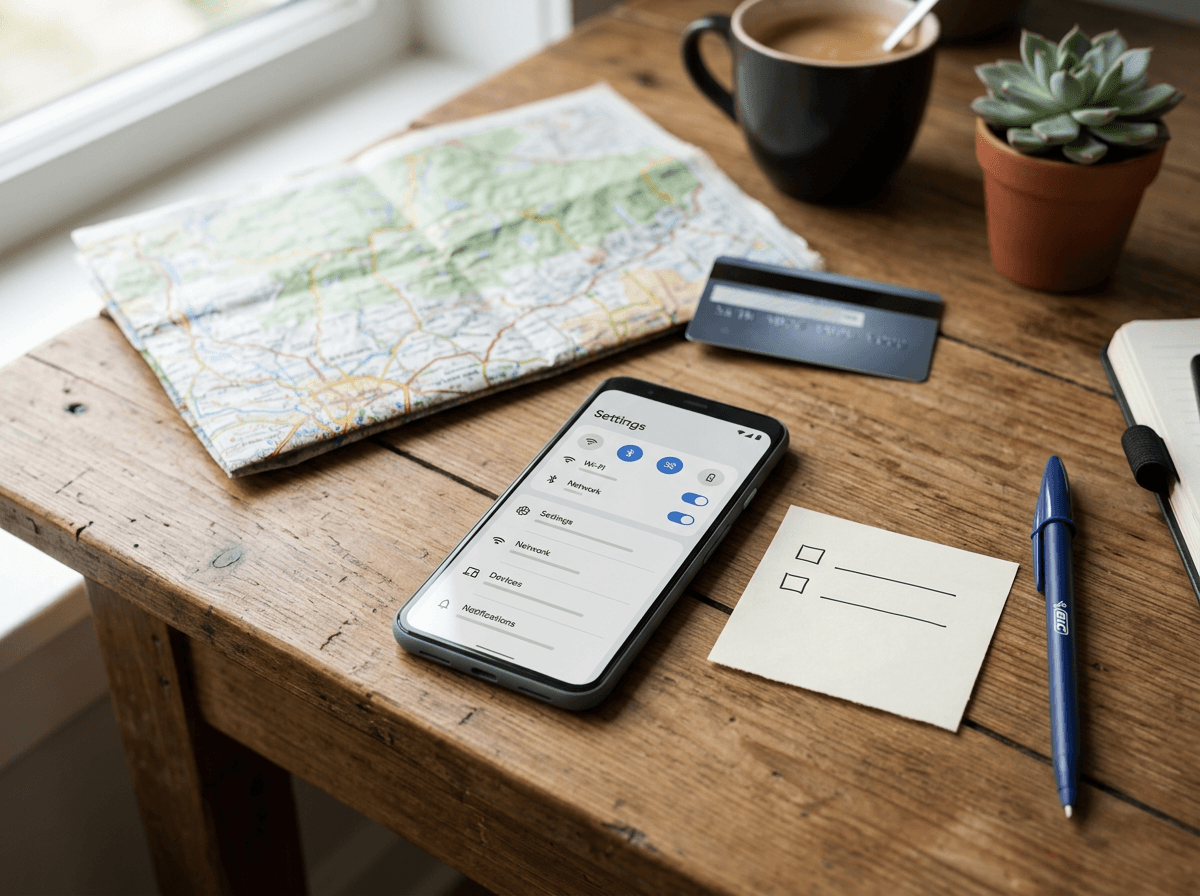
Before you touch anything, pick one or two conveniences you can live without for a week. Most people change a setting, something gets annoying, then they turn everything back on. A small, intentional “cost” keeps you from undoing the whole effort.
Think in plain situations. If you rely on ride-share pickups, you probably need location to work smoothly. If you mainly use your phone at home and work, you might be fine with less precise location, fewer “nearby” suggestions, and weather that updates less often. If you like instant package alerts or step counts, limiting background activity can delay notifications or stop passive tracking unless you open the app.
Write down your two non-negotiables (like “Maps must work” and “Bank alerts must arrive”). Everything else is fair game, starting with the fastest win: permissions apps quietly keep even when you’re not using them.
Start with the fastest win: app permissions that quietly leak data
Those “quiet” permissions are the quickest place to get control, because they feed data even when an app isn’t open. A flashlight app that can read your contacts, or a coupon app that can see nearby devices, doesn’t need that access to do its job.
Do a fast sweep: go to Settings → Privacy (or Security &' privacy) → Permission manager. Start with Location, Microphone, Camera, Contacts, Phone, and Nearby devices. For anything you don’t fully trust, switch it to Don’t allow or Ask every time. If you still want it to work, use Only while using the app instead of Allow all the time.
One real downside: some apps will nag more, and a few will break until you grant access again. That’s fine—treat each prompt as a test, not an emergency.
When “only while using” still feels too much: taming location tracking
That “Only while using” option still leaves one big gap: plenty of apps can pull location the moment you open them, then turn it into a pattern over time. If you want location to work, but with less detail, change the location source itself.
Go to Settings → Location → Location services. Turn off Wi‑Fi scanning and Bluetooth scanning so apps can’t “guess” where you are just by nearby signals. Then review Google Location Accuracy and switch it off if you’re okay with slower, less precise positioning indoors.
Also open Location → App location permissions and set anything non-essential to Ask every time. Expect a real cost: ride-share pickups can drift, store “near me” results get worse, and camera apps may stop auto-tagging photos—so keep Maps (and only a few others) on a lighter leash.
Do ads still follow you? The settings that reset (and limit) your ad identity
Even after you tighten permissions and location, you may still notice the same kinds of ads popping up across different apps. That’s often because many apps share an “ad identity” on your phone, so your activity in one place can influence what shows up somewhere else.
To shrink that link, go to Settings → Privacy (or Security &' privacy) → Ads. Turn on Delete advertising ID (or Reset advertising ID, depending on your Android version). Also turn on Opt out of Ads Personalization if you see it, so apps are told not to build a profile from your ad ID.
One concrete downside: some free apps may show less relevant ads or bug you for consent again, and you’ll still see ads—just with fewer clean ties back to the same identifier. The bigger question is what your Google account keeps, even when apps behave.
The big one: Google account activity—what history are you comfortable keeping?
Even if you rein in apps, your Google account can still store a long trail of what you do across Google services—searches, YouTube watches, Maps lookups, and even voice snippets if you use Assistant. That history is why suggestions can feel “too accurate,” even when an app itself has limited permissions.
To decide what stays, open Settings → Google → Manage your Google Account → Data &' privacy. Under History settings, review Web &' App Activity, Location History, and YouTube History. You can pause each one, and you can also set Auto-delete (for example, keep 3 or 18 months instead of “forever”). Then use My Activity to delete what’s already there.
The real cost shows up fast: search and YouTube recommendations get worse, Maps may stop learning commute patterns, and Assistant can feel less helpful. If that’s too much, keep one history on a short auto-delete timer and pause the rest, then we’ll lock down the quieter background checks that keep feeding data.
Lock in the ‘quiet’ leaks: background access, notifications, and network checks
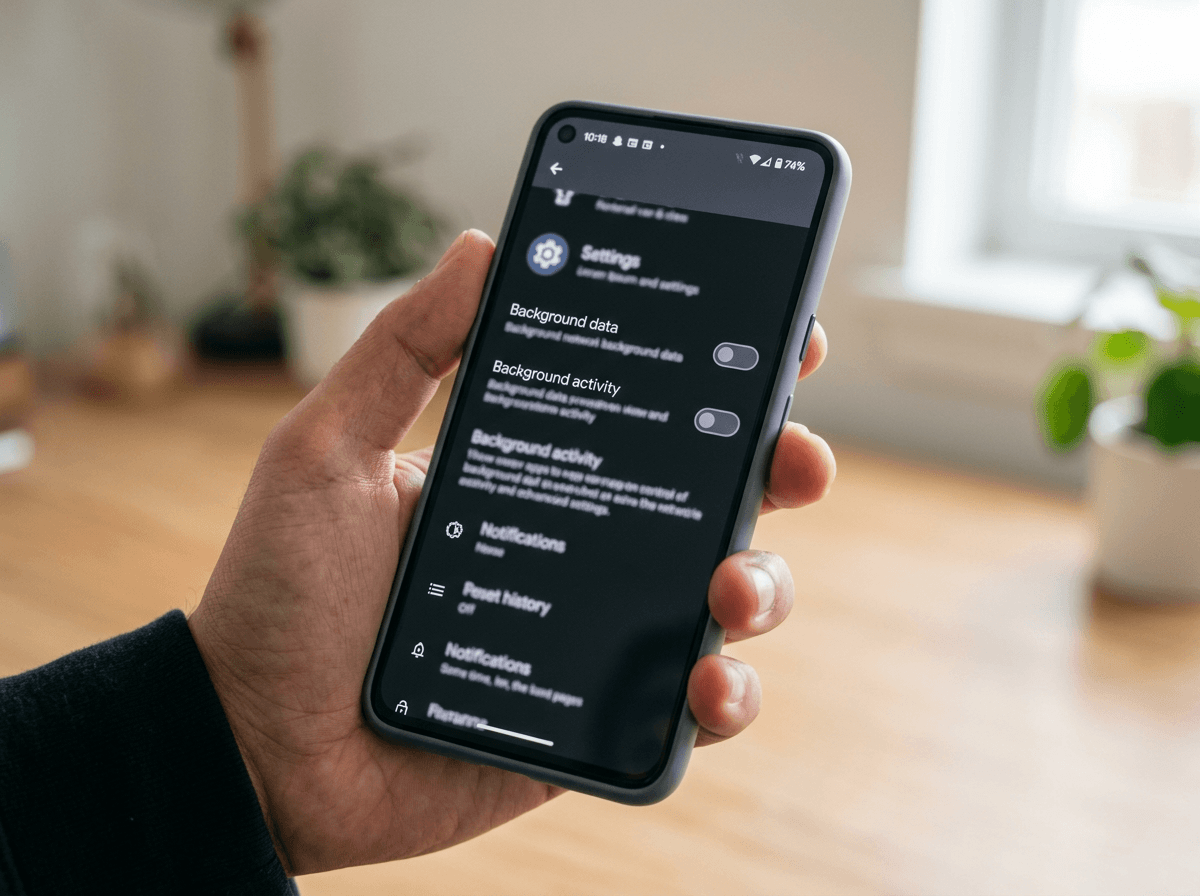
Even with history paused, many apps still “check in” when you’re not using them—refreshing feeds, syncing contacts, or pinging servers just because they can. That background drip is easy to miss because nothing pops up, but it keeps data moving.
Start with the worst offenders: Settings → Apps → pick an app you don’t trust → Mobile data &' Wi‑Fi (or Data usage) and turn off Background data if you see it. Then go to Battery and set Restricted (or disable Allow background activity) for social, shopping, and “deal” apps. Leave your non-negotiables (messages, banking, ride-share) alone.
Finally, trim notification “permission creep”: Settings → Notifications → review by app and disable anything that’s just marketing. The concrete downside is delay—news won’t refresh, fitness won’t count steps unless you open it, and some apps will retry logins. After this, you’ll want a fast checkup you can repeat in ten minutes.
A 10-minute privacy checkup you can repeat (without living in Settings)
That ten-minute checkup is just a tight loop you can run when you install a new app, switch phones, or notice “creepy” recommendations again. Start with Settings → Privacy → Permission manager: scan Location, Microphone, Camera, Contacts, Nearby devices and flip anything sketchy to Ask every time or Don’t allow.
Then do three quick spot-checks: Settings → Ads (confirm your ad ID is deleted/reset), Settings → Location → Location services (keep Wi‑Fi/Bluetooth scanning off if you chose that), and Google → Manage your Google Account → Data &' privacy (confirm History stays paused or auto-deleting).
Finish with one app you don’t trust: Settings → Apps → pick it → restrict background/battery and kill marketing notifications. The annoying part is real: you’ll get more prompts, and a few apps will “forget” to update until you open them. That’s usually the point.