4 Android Auto Apps That Make My Road Trips So Much Better
You’re already using Android Auto—now you just need four apps you can trust for a long haul
You can have Android Auto working perfectly on a quick errand run, then hit hour three of a road trip and realize the weak link is the apps. The wrong ones freeze when coverage fades, bury the one button you need, or force you into little fixes at every gas stop. That’s not just annoying—it pushes you to touch the screen when you shouldn’t.
For a long haul, “reliable” means predictable behavior when your phone gets warm, when the route changes, and when you haven’t looked at your handset in two hours. The goal is simple: navigation that stays steady, music you can control by voice, audio that resumes every time, and messaging that keeps you reachable without turning you into the trip’s full-time texter.
Once you decide what that looks like in your car, picking four apps gets a lot quieter.
Before you pick apps, decide what “road-trip reliable” actually means in your car
That “in your car” part matters more than most people expect. Two drivers can run the same apps and have totally different results because their setup changes the basics: a wired connection vs wireless, a fast charger vs a weak port, and a mount that keeps the phone in the sun vs in the shade. If your phone overheats, Android Auto can lag, audio can stutter, and messages can arrive late—none of which feels like an “app problem” while you’re driving.
So define reliable in simple, testable terms: it launches fast after each stop, it keeps working when LTE drops to one bar, and it stays usable with voice and steering-wheel controls. Do a 10-minute trial run this week: start a route, play something, send a message by voice, then unplug and replug once.
With that baseline, you can judge navigation first—because it’s the one app you can’t “work around” at speed.
When the signal drops mid-route, can your navigation keep you calm? (Google Maps)
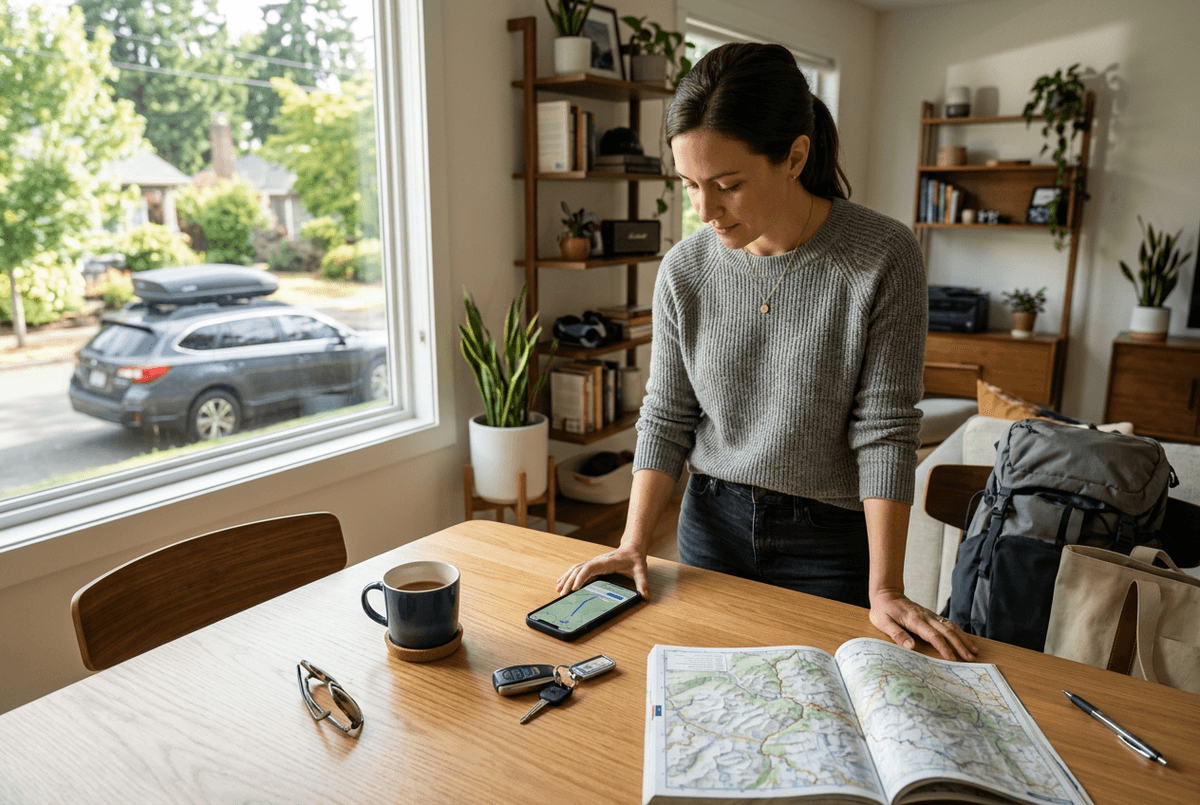
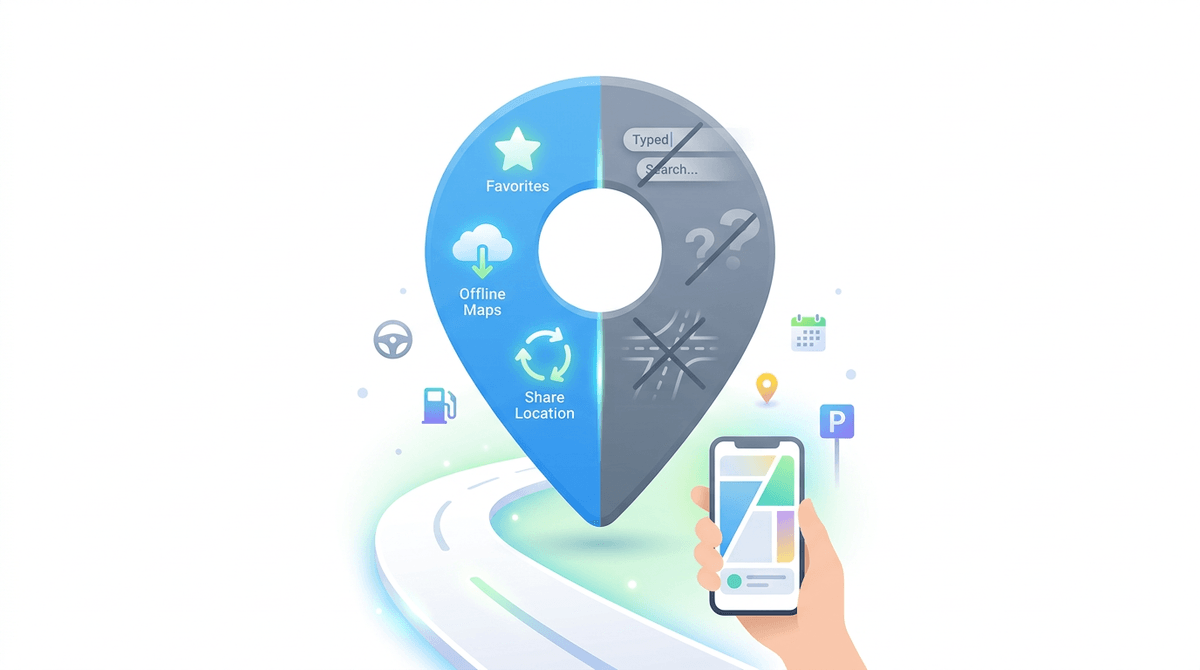
At highway speed, the moment that tests your setup is the first dead zone: the map tiles turn gray, the little “recalculating” spinner hangs, and you’re left guessing whether the next exit is yours. Google Maps tends to stay steadier here because it doesn’t just show a route—it actively reroutes when you miss a turn, and it keeps your place even if the connection dips as you cross rural stretches.
Before you leave, use it like a road-trip app, not a commute app. Download the offline map for the full corridor you’ll drive (plus a margin for detours), then start the trip with the route already loaded on Wi‑Fi. If you rely on lane guidance or speed limit info, treat those as “nice when available,” because some details can thin out without data.
The real constraint is stops: without signal, “open now,” reviews, and quick re-searching for gas can get slow fast. That’s why the next decision is your audio app—because you’ll still want one thing that never makes you reach for the screen.
A music app is only “good” if you can run it without touching the screen (Spotify)
That urge to poke at the display usually starts with music: the song ends, the mood shifts, or a passenger asks for “something else,” and suddenly you’re hunting for tiny controls. Spotify works well in Android Auto because the basics stay big and predictable—Play/Pause, Skip, and your most recent picks—so you can keep your hands on the wheel and let voice handle the rest.
Before you leave, set up a few “no-thinking” options: download a road-trip playlist (or a few albums) over Wi‑Fi, and make sure your go-to mixes are easy to reach from Recent. Then test Google Assistant commands you’ll actually use: “Play my road trip playlist,” “Play artist…,” “Skip,” and “Turn it down.” The real downside shows up with spotty signal: search results and new recommendations can stall, and if you keep chasing new songs, you’ll end up tapping. The smoother move is to lock in what you’ll listen to—then let long-form audio take over when you don’t want to manage anything at all.
Long stretches feel shorter when your audio app always resumes perfectly (Audible)
That “manage nothing at all” moment usually hits after the first couple hours, when you just want a story to keep going through fuel stops, rest areas, and quick photo pulls. Audible fits that need because Android Auto treats it like a single, simple job: play, pause, skip, and pick up exactly where you left off. If you’re bouncing between the car and your phone, that reliable resume matters more than fancy features.
Set it up before you leave: download the books you’ll actually listen to on Wi‑Fi, then start each one once so it’s ready in Recent. If you use a sleep timer at night, turn it off for driving—otherwise you’ll wonder why audio keeps stopping. The real annoyance is switching content: finding a new title mid-drive is slower than you expect, especially with spotty data, so queue your next listen at a stop.
Once your audio stays steady across every stop, staying connected becomes the next question—without letting messages take over the trip.
You want to stay reachable—without becoming the trip’s full-time texter (WhatsApp)
That takeover usually starts with good intentions: “Let me just reply quickly,” then you’re juggling updates, ETAs, and “where are you now?” texts at every stoplight. WhatsApp works well with Android Auto because it keeps the interaction simple—hear the message, then reply by voice—so you can stay reachable without staring at a keyboard.
Before you leave, decide what you’ll answer while driving and what can wait. A practical setup is a short default reply you can dictate fast (“On the road—will reply at the next stop”), plus a pinned chat for your key person so you’re not scrolling. Also check that WhatsApp notifications are allowed in Android Auto; otherwise it will look like “silence,” then dump a pile of messages when you reconnect.
The real limitation is group chats: they can trigger constant readouts and tempt you to keep responding. Quiet them for the trip, and your focus stays on the road.
The night-before setup that makes these four apps behave once the wheels are turning
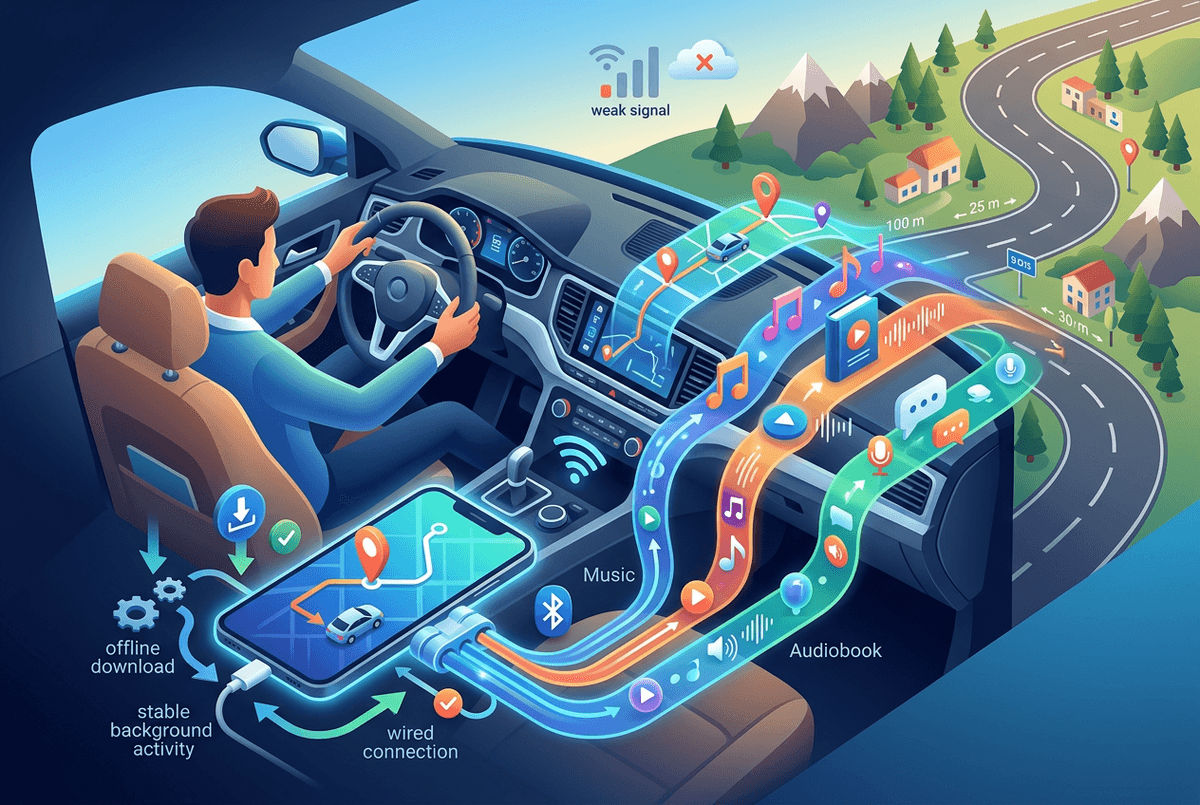
Quieting group chats is the kind of “before you leave” move that keeps the whole system calmer, and the night before is when you can do the rest without pressure. Plug your phone in the same way you’ll use on the trip (wired or wireless), then run a two-minute rehearsal: start a Google Maps route, play Spotify, switch to Audible, and send one WhatsApp voice reply. If anything stalls, fix it now—permissions and battery settings rarely get easier on a shoulder.
Then lock in the stuff that fails when signal drops. Download Google Maps offline areas for your corridor and likely detours. Download your Spotify playlists and your Audible titles on Wi‑Fi, and start each one once so it shows up in Recent. This avoids the “loading…” loop you’ll hit in rural stretches.
Finally, remove the little traps. Turn off any battery optimization for these apps if your phone is aggressive about killing background activity, and make sure notification volume won’t blast at night. The cost is a bit more battery and storage, but it buys fewer surprises when the route changes mid-drive.
Your “leave now” checklist: four installs, a few toggles, and you’re done
That “bit more battery and storage” is the point: spend it before you roll, so you don’t spend attention later. Install (or update) Google Maps, Spotify, Audible, and WhatsApp, then sign in while you’re on Wi‑Fi.
Flip three things: download Google Maps offline areas for the whole route plus a detour buffer; download Spotify playlists and Audible titles and start each once; allow WhatsApp notifications in Android Auto and mute group chats. Do one last plug-in test in the driveway—route running, audio switching, one voice reply. If it fails here, it will fail at a gas pump when you’re tired.