5 Quirky USB Gizmos My PC Connects to Without a Hitch
The fun USB gadget that doesn’t turn into a troubleshooting night
You plug in a cheap USB “toy,” Windows makes a sound, and then… nothing. No new device, no usable app, and suddenly you’re digging through a tiny folded manual looking for a driver link that went dead years ago. The safer kind of fun gadget is the one Windows treats like a plain keyboard, camera, microphone, light, or audio interface—things it already knows how to talk to.
That doesn’t mean “no effort.” Some gear still needs the right port (a USB-A vs USB-C cable, enough power, no flaky hub), and some needs a simple app to be useful even if the device itself loads fine.
So before you buy, it helps to know what Windows will recognize instantly.
Before you click Buy: what Windows will recognize instantly
“Recognize instantly” usually looks like this: you plug it in, and within a few seconds it either starts working in the app you already have, or it shows up in Device Manager with a boring, generic name. The easiest wins are gadgets that use built-in Windows device types: USB HID (keyboards, buttons, many scanners), UVC (webcams and a lot of USB microscopes), USB Audio Class (headsets, tiny sound cards), and class-compliant MIDI (many simple controllers). If the listing says those words, that’s often the whole compatibility story.
What trips people up is vague marketing. “Works with Windows” can still mean “download our tool.” Look for “no driver required” plus the specific class name, not just a promise. Also check the connector situation: a USB-C plug doesn’t help if your PC only has USB-A ports and the box doesn’t include the right cable.
One more reality check: even truly driverless devices can ship with optional software for extra buttons or effects, and you may lose those extras without it. That’s why the simplest “it just works” pick is often the one that acts like a plain keyboard.
Barcode/QR scanner: it types into Notepad like magic
That “plain keyboard” behavior is exactly why a USB barcode/QR scanner can feel like a small magic trick. Plug a basic HID scanner in, click into Notepad (or a spreadsheet cell), scan a code, and the digits show up where your cursor is—often followed by an automatic Enter, like you typed it fast.
To keep it truly plug-and-play, shop for “USB HID” or “keyboard emulation” in the listing, not just “works with Windows.” That wording usually means no driver, no pairing, no special app. The practical catch is layout and formatting: some scanners default to adding a tab, using the wrong keyboard language, or dropping characters in certain QR codes until you reprogram a setting with the included configuration barcodes.
If you want it to act like a camera instead, that’s a different type of scanner—and a different setup story.
A USB ring light that’s basically ‘driverless’ by design
That “different setup story” is why a USB ring light can be such a relief: it isn’t trying to become a device Windows has to “see.” Most of these lights just pull 5V power over USB, so they turn on the moment you plug them in—no drivers, no pairing, no Device Manager mystery.
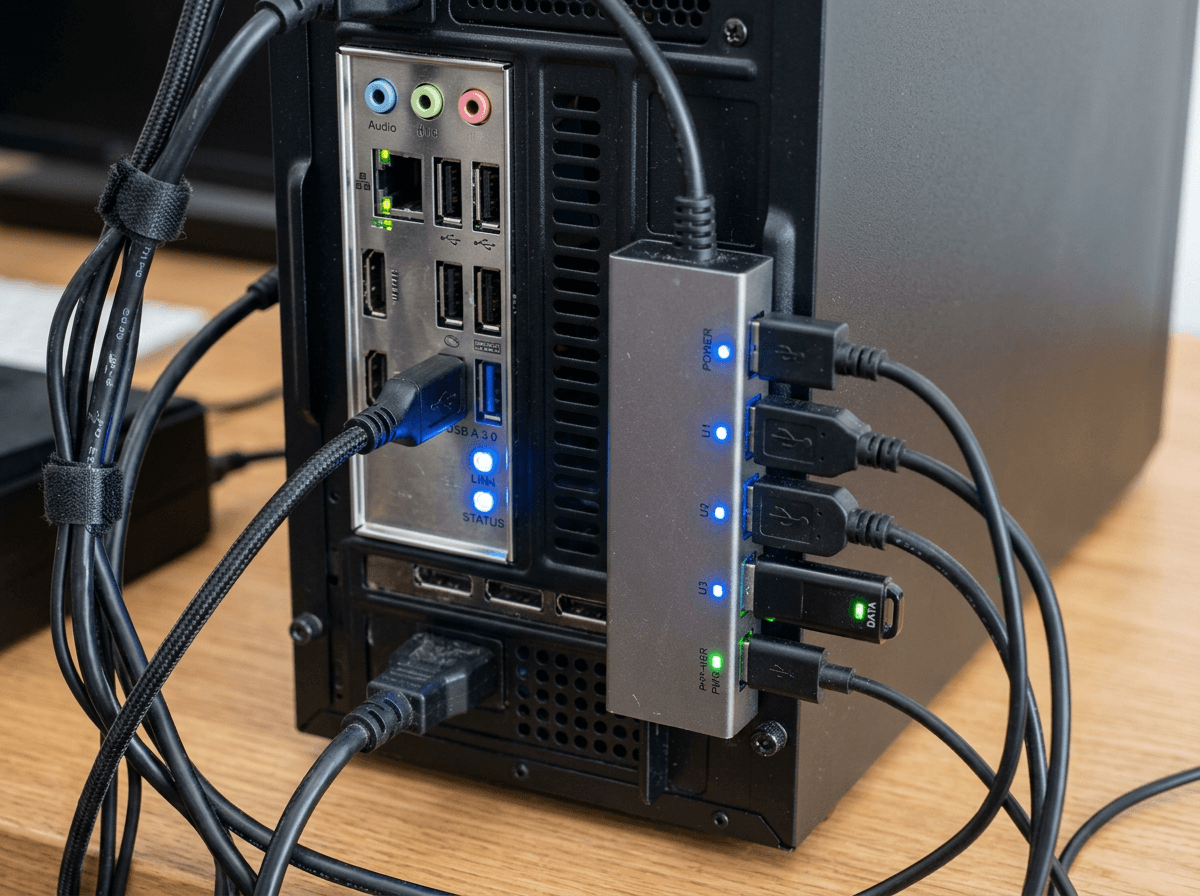
To keep it painless, treat it like a power accessory. A ring light that plugs into USB-A will work fine on most PCs, but a bright one can be picky about power. If it flickers, won’t hit full brightness, or shuts off when you raise the level, you’re often on an underpowered port, a loose front-panel connector, or a cheap hub. Plug it directly into a rear USB port, or use a simple USB power adapter instead.
The only “software” choice is whether you want a physical knob and buttons, or you’re okay with fixed modes.
When a webcam (or USB microscope) is truly plug-and-play
A physical knob and buttons feel simple because Windows doesn’t have to “understand” anything. With a webcam or USB microscope, “plug-and-play” means Windows can treat it as a standard UVC camera: you plug it in, the Camera app shows a preview, and Teams/Zoom lists it as a video source.
When shopping, look for “UVC” or “UVC compliant” and “no driver required,” not just “works on Windows.” If the listing talks about a “pro” driver or bundled capture suite, expect the basics to work but the extras (zoom buttons, LED brightness, measurement overlays for microscopes) to depend on that software. That’s where people get stuck.
One concrete gotcha is bandwidth and power. High-res cameras can stutter on a busy hub, and some microscopes pull enough power that a front port acts flaky. Plug directly into a rear port, then pick the camera inside your app.
The tiny USB sound card that adds a mic jack in seconds
That “pick the camera inside your app” moment has an audio version too: you plug in a tiny USB sound card, and suddenly there’s a new microphone and speaker option in Windows. The simplest ones use USB Audio Class, so Windows 10/11 loads them automatically and apps like Zoom, Discord, and the Voice Recorder app can select them right away.
This is a handy fix when your laptop’s mic jack is noisy, missing, or combined with the headphone jack and your headset won’t behave. In Sound settings, set the USB device as the input, do a quick test recording, and you’re done.
The real-world annoyance is quality and wiring. Some ultra-cheap dongles hiss, and a TRRS phone headset may need a splitter to work. If it doesn’t show up, try a different USB port before blaming the dongle.
A class-compliant MIDI controller that shows up in your music apps
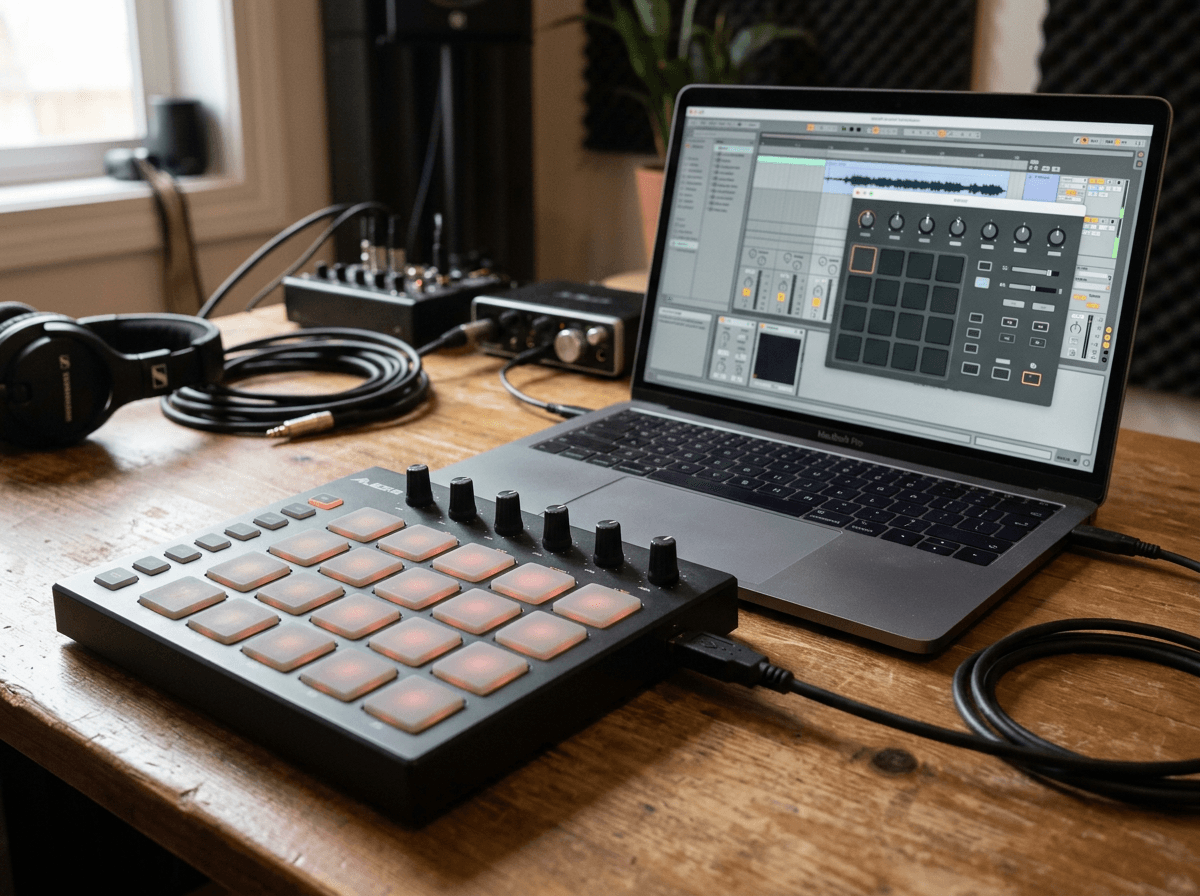
That “try a different USB port” advice matters with MIDI gear too, because the whole point is seeing it appear inside your music app without a driver hunt. A class-compliant USB MIDI controller usually shows up within seconds in Windows 10/11 and then appears as an input in apps like Ableton Live, FL Studio, GarageBand on a Mac (if you switch later), or even simpler tools like a virtual piano.
When shopping, look for “class-compliant” or “USB MIDI class” in the listing, not just “works with Windows.” If it mentions a required “editor,” “control app,” or “firmware tool,” expect the keys and pads to work, but things like custom knob mappings, lights, and onboard presets may stay locked until you install that software.
Also plan for one practical nuisance: some controllers draw more power than you’d guess. If it connects and disconnects, skip the hub, use a rear port, and pick the controller as the MIDI input inside your app.
If it doesn’t show up: the 60-second fix list you’ll actually use
That connect-and-disconnect behavior is usually your clue to stop guessing and run a quick, boring checklist. Unplug it, wait two seconds, plug it straight into a rear USB port (skip the hub), and try a different cable or adapter if you’re using USB-C. If it’s a camera, open the Camera app; if it’s audio, open Sound settings; if it’s HID, click into Notepad and press/scan something.
Still nothing? Open Device Manager and look for a yellow warning or “Unknown USB Device,” then right-click and uninstall it, and reconnect. Also reboot once. The practical downside: on locked-down work PCs, USB devices can be blocked by policy, and no amount of swapping ports fixes that.