Tips for Safe Password Sharing
You just need someone to log in—why does it feel so risky?
You hire a contractor, they’re ready to work, and the fastest path is “Can you send the login?” So you text the password, or drop it in email, and everyone moves on. Until you can’t remember who else got it, where it was copied, or whether it’s now saved in a browser you don’t control.
A password isn’t just a key to one task. It’s often the whole account, with billing, data exports, and settings attached. If it leaks—or gets reused somewhere else—you don’t get a clean way to limit damage.
Speed feels good in the moment. Control is what you miss later, unless you choose what kind of access you’re actually trying to share.
First, decide what you’re actually sharing: an account, a role, or a one-off task
That “kind of access” question matters because most people default to sharing the whole account, even when they only need a slice of it. Before you send anything, name the job: are you handing over an account, assigning a role inside a tool, or asking for a one-off task?
If it’s an account, you’re giving full control: settings, data, connected apps, and sometimes billing. That might be appropriate for a single-owner social profile or a bank portal with no user management, but it’s also the hardest to unwind later. If the tool supports roles, use them. “Add them as a user” often takes two minutes and gives you an off switch.
For one-off work, look for the smallest handoff: invite to a shared folder, assign the ticket, forward a specific message, or export what they need. The trade-off is friction up front, but it saves you from rotating passwords after every project.
When a password feels like the only option, what’s the least-bad way to hand it off?
That “rotate passwords after every project” moment is exactly what you’re trying to avoid, but sometimes the tool gives you no users, no roles, no invites—just one login. If you have to share a password, treat it like a short, controlled handoff, not a casual message you can’t pull back.
Start by changing the password right before you send it, and plan to change it again when the work ends. Use a password manager’s sharing feature or a one-time secret link that expires, not email, Slack, or a doc that will get copied forward. If you can, turn on two-factor authentication and keep the recovery options (backup codes, recovery email/phone) under your control, so access doesn’t become permanent by accident.
The trade-off is you’ll spend a few extra minutes setting this up, and you may get a “can you just text it?” request. Hold the line—then make the next step easier by finding a way to grant access without giving away the password.
A safer shortcut: can you grant access without revealing the password?
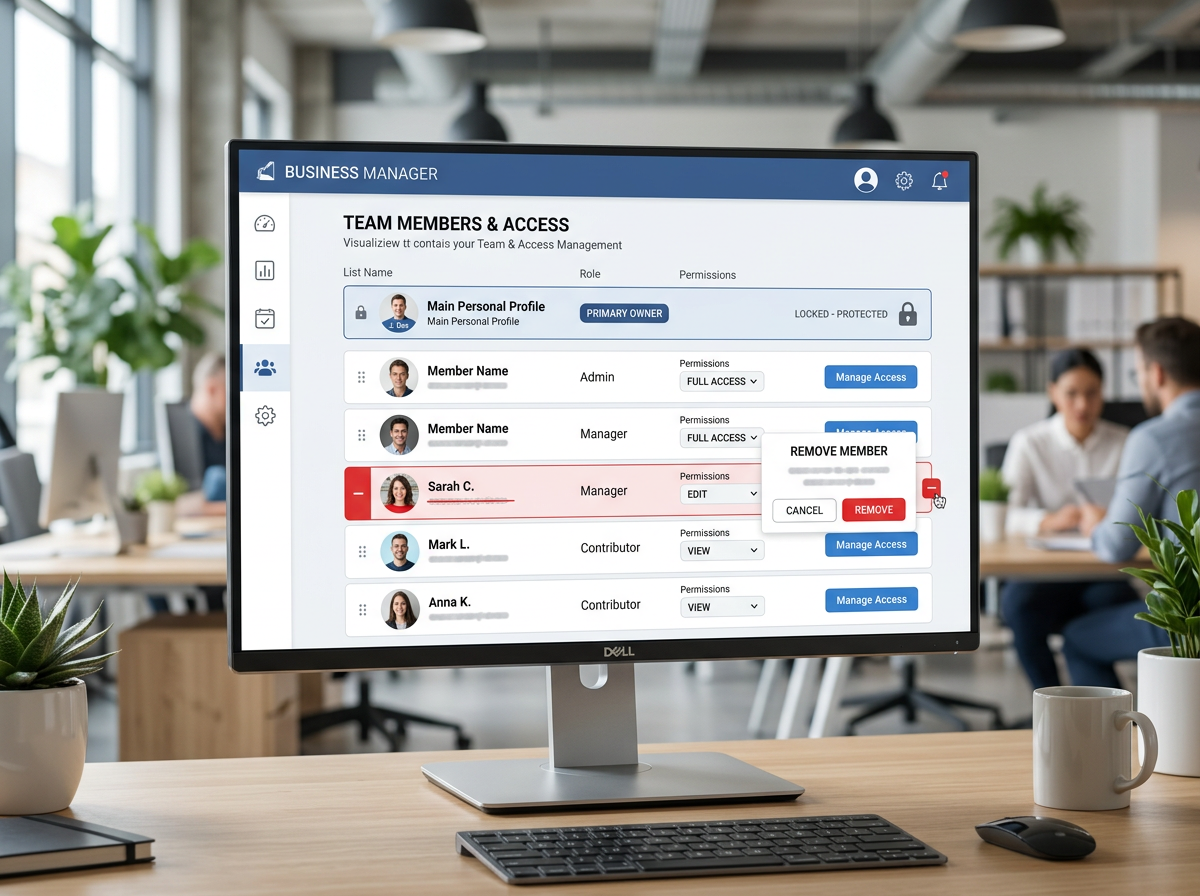
That “can you just text it?” request usually comes up when the tool feels like a single login, even if it isn’t. Before you hand over the password, look for a way to let them in without ever seeing it: add them as a user, invite their email, or connect the tool to an identity provider like Google or Microsoft so access rides on their work account.
In many SaaS apps, this is as simple as creating a seat and picking a role like “Editor,” “Analyst,” or “Billing.” In a social tool, it may mean granting access through a business manager, not sharing the main profile login. The win is clean offboarding: you can remove one person without touching everyone else.
The friction is cost and setup. Seats cost money, and role design can feel like busywork when you’re trying to ship today. But it’s usually cheaper than the time you lose after a messy handoff—especially when you need to prove who had access, and for how long. Once you’ve chosen the access method, you still need clear rules before you click Send.
Set ground rules before you click Send (so you’re not negotiating later)
Once you’re about to click Send, the usual failure is that nobody agrees on the basics. The contractor thinks they can “set it up however they want.” You think they’ll only touch what’s in the brief. That gap turns into late-night messages when a setting changes, a card gets charged, or a client sees an unexpected email.
Before you share access, set three rules in plain language: what they can do, what they must not do, and when access ends. Examples: “No billing changes,” “No exporting customer lists,” “Only post from the draft folder,” “Access ends Friday at 5pm ET.” If the tool supports it, limit permissions to match the rule; if it doesn’t, the rule still matters when something goes wrong.
One practical friction: this can feel awkward with trusted people. A short written note beats a memory test later, and it makes the handoff easier to unwind when plans change.
Someone leaves, a device is lost, or trust changes—what now?
That “easier to unwind” moment usually arrives at the worst time: someone quits, a contractor goes quiet, a laptop is stolen, or you notice a login from a place that doesn’t make sense. If access was shared by role, you can usually turn it off in minutes—remove the user, revoke sessions, and you’re done. If you shared a password, you don’t have that switch.
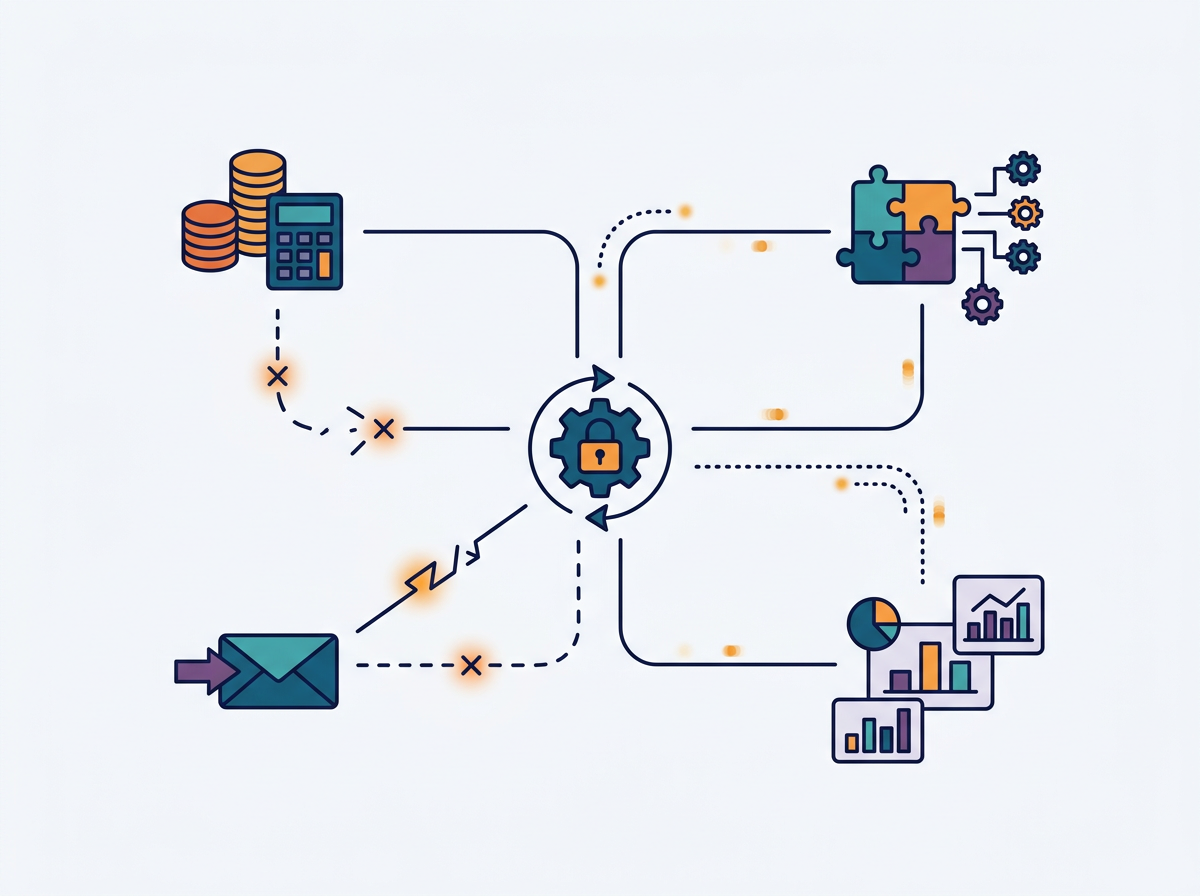
Start with containment. Disable the person’s access where you can (user account, vendor portal seat, social business manager), then force sign-out or revoke active sessions if the tool offers it. Next, rotate the password and update it everywhere it’s saved—browsers, shared devices, integrations, and any “helpful” spreadsheet someone made. Rotating can break automations and connected apps, so plan for a short outage and make a quick list of what might fail (billing sync, Zapier, email sending, reporting).
Finally, close the loop: confirm recovery options are yours, check recent activity, and write down what you changed so the next handoff doesn’t restart the same scramble.
Your ‘next time’ plan: one lightweight system you can stick with
That “write down what you changed” step is the start of a system, not extra admin. Keep a single “Access Log” note (Doc, Notion, or a password manager vault) with five fields: tool, who has access, how (role vs shared login), what they can do, and the end date. When you grant access, you add a line. When work ends, you remove the user or rotate the password and mark it done.
It’s tempting to skip it when you’re busy. Make it the rule that nobody gets access until the log entry exists, and future handoffs stop feeling like a risk.