5 Settings I Changed Immediately on My LG TV
The picture looks "off"—and the menus feel risky
You turn on a new LG webOS TV and the image can look a little wrong right away: whites feel blue, shadows look crushed, and fast scenes either smear or look unnaturally smooth. Then you open Settings and it’s a wall of options—Energy Saving, AI Picture, dynamic contrast—where one wrong toggle feels like it could mess everything up.
The good news is you don’t need a full calibration to get a natural picture. A few defaults do most of the damage, and they’re reversible. The annoying part: some settings apply per input or per app, so you may need to repeat one or two changes for your cable box, game console, and streaming apps.
Start by picking the right Picture Mode as your “home base,” because everything else builds on that.
First decision: which Picture Mode should be your default?
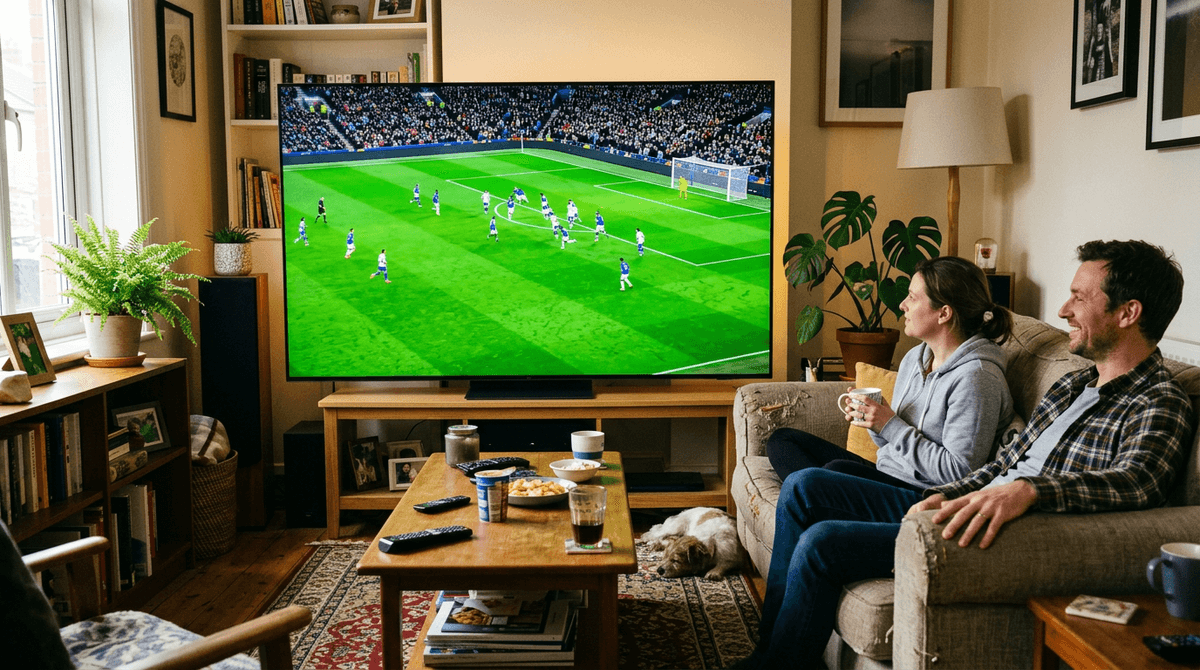
That “home base” is the mode you’ll land in every time the TV decides to help—after an update, a new HDMI device, or a different app. In most rooms, the safest default is Filmmaker Mode or Cinema for movies and streaming because they start closest to neutral color and sensible contrast. If you watch a lot in daylight, Cinema Home can be a practical compromise, but it often turns on extra processing you’ll want to trim later.
Avoid using Vivid as your everyday mode. It pushes blue whites and sharpness so hard that faces can look plastic and highlights clip. Standard is hit-or-miss and often pairs with power-saving dimming. For sports, you can use Sports, but expect it to crank motion smoothing and edge enhancement—great for some people, distracting for others.
Pick one mode per input you actually use, then we’ll deal with the TV changing brightness on its own.
When the screen keeps dimming or getting brighter on its own
After you pick a sane Picture Mode, the next surprise is the TV “breathing” in brightness. A cloudy shot gets darker, then a bright menu pops and the whole screen lifts. It can also happen mid-game when you pause, or during a long dark scene where faces slowly dim.
Start with the obvious culprits: turn Energy Saving (or Power Saving) Off for that mode, and disable AI Brightness / Auto Brightness if you see it. Then check for picture “helpers” that also change light level: Dynamic Contrast and Auto Dynamic Contrast are the usual offenders. If you use HDR, Dynamic Tone Mapping can also make highlights rise and fall shot-to-shot; try Off or HGiG and see which feels steadier.
The cost is real: with power saving off, the TV uses more energy and can look harsh at night unless you lower OLED/Backlight yourself. Once brightness stops shifting, motion settings are the next thing that can make a picture feel “wrong.”
Motion that feels too smooth (or too blurry): what to do with TruMotion
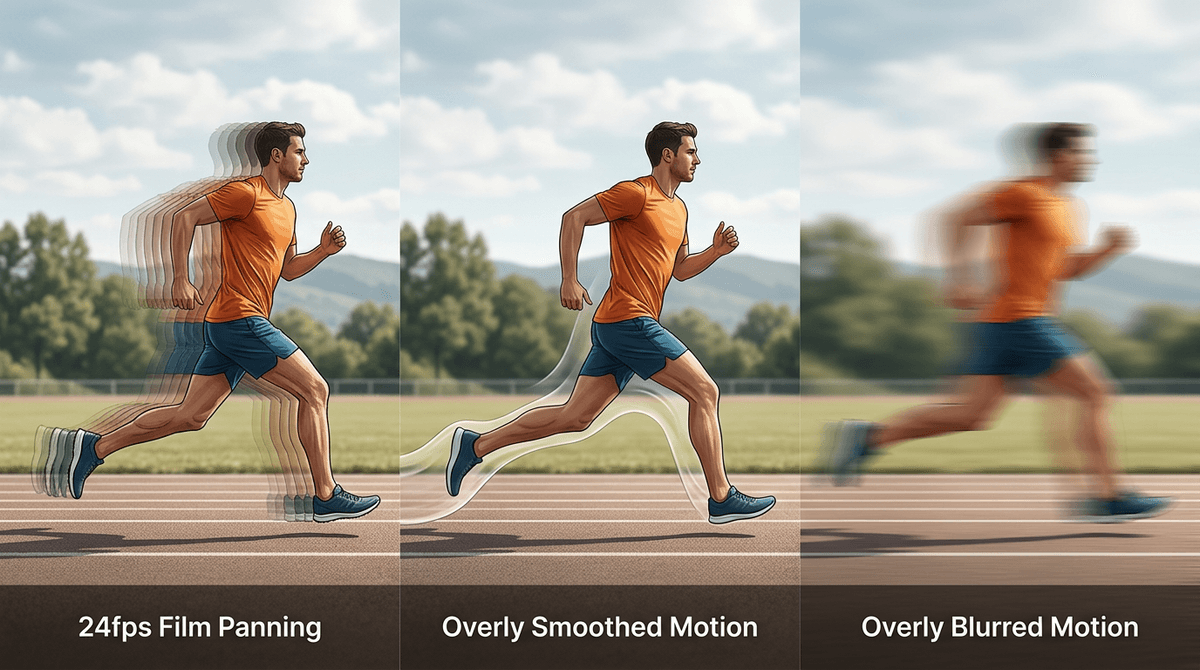
Once brightness stops jumping around, motion is usually the next “why does this look weird?” moment. You’ll see it two ways: movies look like a live studio show (too smooth), or sports and panning shots look smeary (too blurry). On LG sets, that’s mostly TruMotion.
For movies and most streaming, start simple: set TruMotion: Off. If that feels too choppy on slow camera pans, switch to Cinematic Movement (or use User with De-Judder around 1–2 and De-Blur at 0). Keep De-Judder low; that’s the control that creates the “soap opera” look. If you mainly watch sports, try User with De-Blur around 7–10 and De-Judder around 2–4, then back it down if you see halos or twitchy edges.
The downside is you can’t win every scene: turning smoothing off can reveal 24fps stutter, and turning it up can add artifacts or extra lag in games. Once motion looks right, the next giveaway of over-processing is crunchy edges and waxy faces.
If edges look crunchy or faces look waxy
Crunchy edges usually show up first on captions, hairlines, or the outline of a jersey number. Waxy faces show up in close-ups where skin loses pores and looks airbrushed. Both are almost always “detail” processing that’s trying to invent texture the source never had.
In your current Picture Mode, go to the clarity/sharpness controls and pull Sharpness down until white halos disappear (many LGs look best near 0–10, not 25+). Then look for Super Resolution, Noise Reduction, MPEG Noise Reduction, and Smooth Gradation. Start by turning them Off (or to Low for Smooth Gradation if you see banding in skies). If your set has AI Picture or AI Super Upscaling, disable it while you judge the result.
The catch: low-bitrate cable and older streams can look rougher when you remove cleanup. If that’s your main source, keep one setting on Low instead of stacking several, because artifacts add up. Once the picture stops “editing” your content, the interface behavior is the next thing to tame.
The TV feels intrusive: ads, auto-start behaviors, and tracking
Once the picture stops “editing” your content, the TV itself can feel like it’s editing your choices—showing big tiles, autoplaying promos, and nudging you into apps you didn’t ask for. The quickest cleanup is in the Home and privacy areas: turn off Home Promotion / Content Recommendations (names vary), and disable any Auto-Play Video on the home screen if you see it. If you want a quieter start-up, look for settings that launch the Home screen or “Recent Inputs” automatically and switch them off so the TV goes straight to the last input you actually use.
Then hit the tracking switches. In Support or Privacy, turn off Interest-Based Ads / Personalized Advertising, and any Viewing Information / Live Plus style options that collect what you watch to feed recommendations.
The real-world downside: turning this off can make the home screen feel less “helpful,” and some free channels or voice features may prompt you again later. Lock it down anyway—then save a simple “daily” setup you can revert to fast.
Lock it in for daily use (and make it easy to undo later)
That “daily” setup is what you want the TV to fall back to after an update, a new HDMI device, or a curious family member. Take two minutes and make it stick: on each input you use, set your chosen Picture Mode, then use Apply to All Inputs (if you see it) so you’re not fixing the same problems three times. If you game, turn Instant Game Response on for that HDMI port and leave your movie mode alone.
Then make it easy to undo. Write down three things: your Picture Mode, your TruMotion setting, and whether Energy Saving is Off. If you want a safety net, copy your mode into an unused slot (or keep a “clean” Filmmaker/Cinema profile) so you can flip back in one click if the picture starts looking weird again.