6 Useful Google Maps Features I Use All the Time (and You Should Too)
You already use Maps—so why does it still feel like work?
You open Google Maps, type the same place you went last week, and still end up double-checking the address in a text. Then you hit traffic you “didn’t see coming,” arrive, and spend five minutes circling because the entrance isn’t where the pin looks. None of that feels like navigation. It feels like admin.
Most people use Maps as a steering wheel: start route, follow turns, stop thinking. But the time sinks happen before and after the drive—saving places you’ll need again, lining up a couple stops, meeting up, handling weak signal, and finishing the last block.
The good news is you don’t need more features. You need a few defaults that remove repeat work.
Stop re-typing: what to save (and how to pull it up fast later)
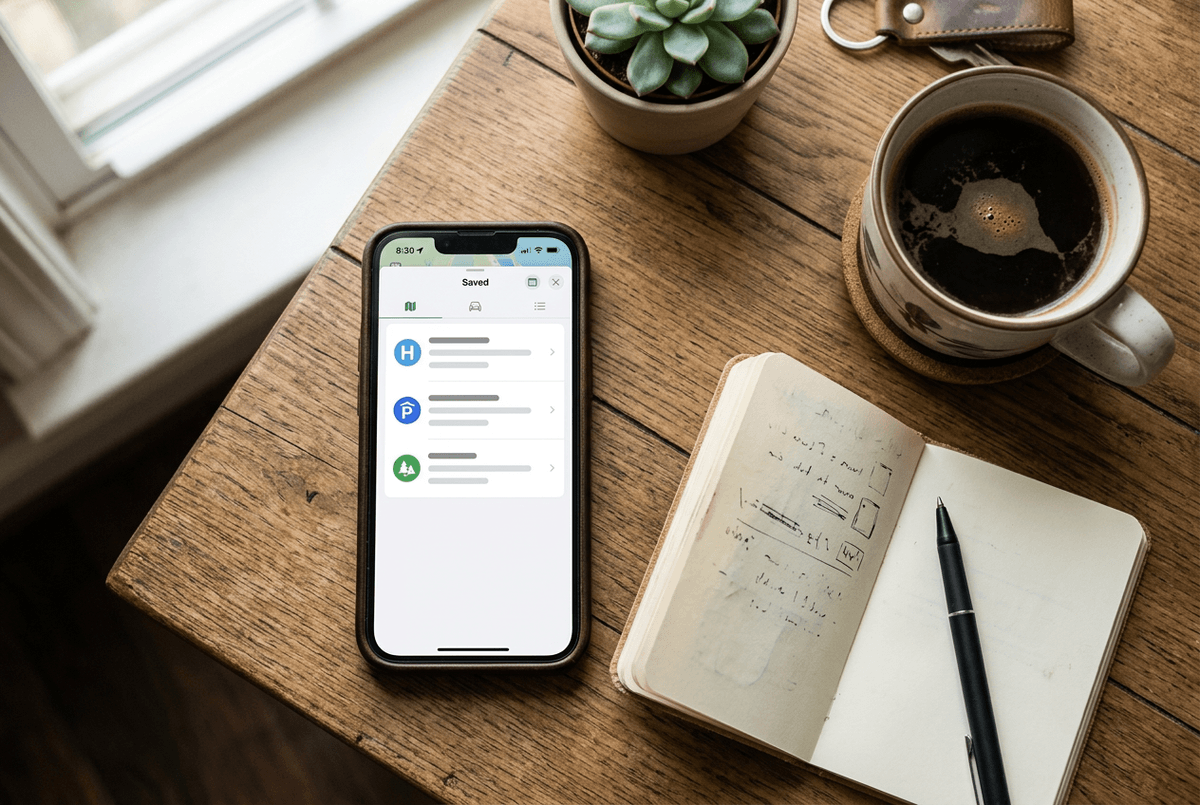
That “repeat work” usually starts with the same two taps: search, type, re-check. Instead, save the places you actually reuse. For everyday stuff, set Home and Work (or “Gym,” “School”) so they show up as one-tap shortcuts. For everything else—your dentist, that parking garage you trust, the trailhead with the right entrance—hit Save and put it in a list you’ll remember, like Favorites or a simple “Revisit” list.
The payoff comes when you pull them up fast. Use the bottom tabs: Saved to browse lists, or You to jump back to recent places without searching again. If you’re in a hurry, type just the name of your saved place; Maps will usually surface it first.
One real snag: lists can get messy fast. Keep it to two lists for now, or you’ll be scrolling instead of driving.
When one errand turns into three, is multi‑stop routing worth the setup?
That scrolling problem shows up again when your “quick stop” turns into a chain: pharmacy, pickup, then home. Most people handle it by ending one route and starting the next, which means you re-check ETAs, miss a faster order, and forget the one stop that needed to happen first.
If the stops are fixed, add them once. In Google Maps, start a route, tap the ⋮ menu, choose Add stop, and drag the handles to reorder. The practical win is mental: you see the full plan and the total time, so you’re not renegotiating your day at every parking lot. If you’re on transit, you’ll often get fewer useful multi-stop options—sometimes it’s faster to save the stops and route them one at a time.
The downside is setup overhead. If you’re still deciding where to go based on prices or parking, don’t over-plan. That’s when sharing your live trip helps more than perfect routing.
Meeting someone? Share your trip without the back‑and‑forth texts
That “still deciding” moment is when meetups usually fall apart: you’re driving, they’re asking “where are you,” and you’re guessing an ETA you’ll regret. Instead, share what Maps already knows. Once navigation is running, tap the route info panel, choose Share trip progress, pick a contact, and send it. They’ll see your live location and updated arrival time without you touching your phone again.
This works best when you set a clear endpoint—like the restaurant, not “somewhere near downtown.” If you’re meeting at a big place (stadium, mall, campus), send the trip share and also text a specific entrance or landmark so you don’t both arrive “on time” to different spots.
One real limitation: trip sharing can lag or stop if your battery dies or signal drops. Plug in early, then let Maps do the updating.
Bad signal isn’t a surprise—so what should you download before you leave?
That signal drop is usually the moment trip sharing goes quiet—and it’s not rare. You pull into a garage, a rural stretch, or the lower level of a mall, and Maps can still show your blue dot but struggle to load the map tiles you need to make the next decision.
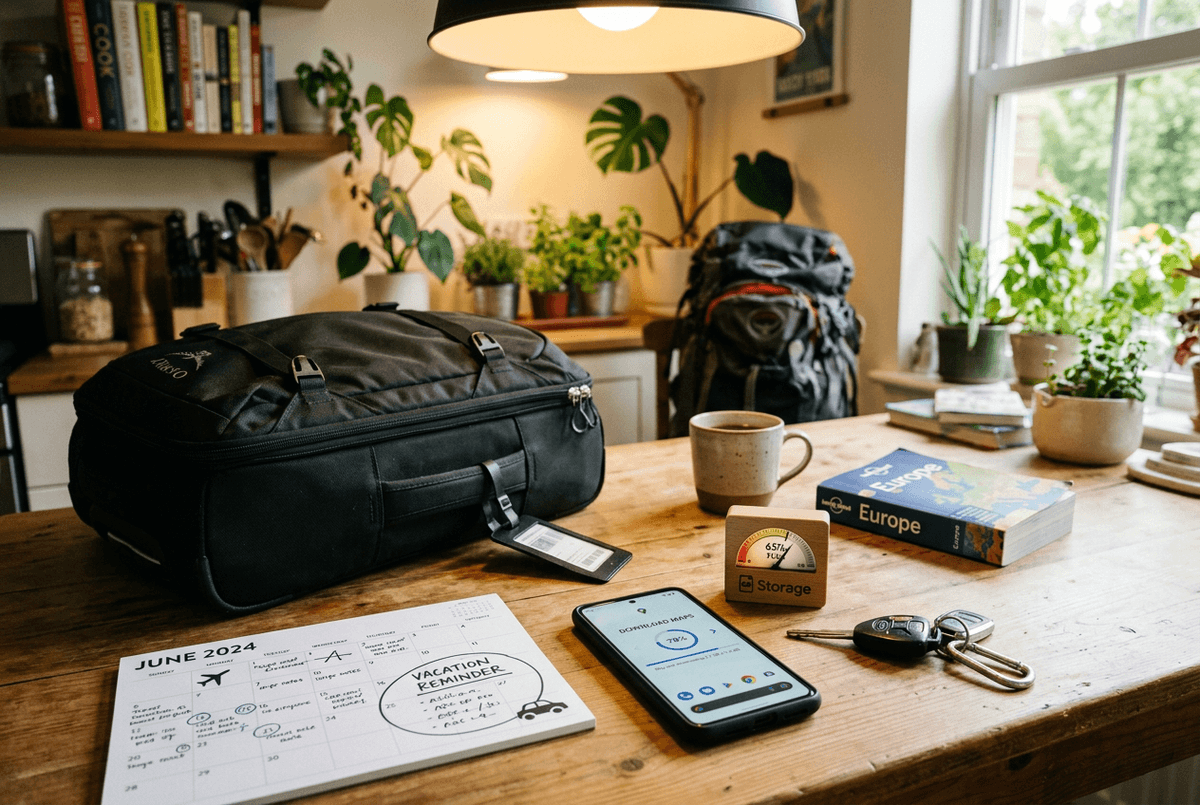
Before you leave, download an offline area for where you’ll actually be driving. In Google Maps, go to your profile icon, tap Offline maps, then Select your own map, and drag the box to cover the whole zone (not just the destination). Include the highways you might detour onto and the nearest “big” town as a fallback. If you’re traveling, grab the city plus the route from the airport or hotel—those are the spots where you’re most likely to be tired and offline.
Two practical constraints: offline maps take storage, and they go stale. Set a calendar reminder to refresh them monthly, and don’t expect offline to replace live traffic or transit timing when the network is down.
Where did I park, again? The 10‑second step that saves a 10‑minute search
When you’re offline or half-focused, the easiest thing to lose isn’t the route—it’s the car. You walk out of a store, open Maps, and realize you never made a “future you” breadcrumb. Garages and big lots make it worse because every row looks the same once you’re tired or carrying bags.
Do the 10‑second step as soon as you shut the door: open Google Maps, tap the blue dot, then tap Save parking. Later, you can search “parking,” or just tap the saved parking card and hit directions back. If you’re in a multi-level garage, add a quick note or photo (level, section, elevator number) so you don’t end up at the right spot on the wrong floor.
One annoyance: if your phone’s location is drifting (common in garages), the pin can land a bit off. Pair it with that note, and you’ll still walk straight to it.
The last 200 feet is the hardest: entrances, platforms, and ‘you’re here’ confusion
That drifting blue dot is exactly why arrival can feel messy even when the whole drive went fine. You’re “here,” but the pin is on the back side of the building, the entrance is around the corner, and the app keeps rerouting you as you crawl through a lot at 5 mph.
Before you commit to the last turn, open the place card and look at the photos and the map for clues: which side has the main door, what the storefront looks like, and whether there’s a drop-off loop. If it’s a big venue, scroll for “Entrances” or “Gates” (when available) and aim for the one you actually need, not the center pin. On transit, tap the station and check which exit matches your destination, then follow that even if the blue dot jitters inside the building.
The real difficulty is that none of this is perfectly reliable. Pins can be wrong, indoor GPS drifts, and some stations don’t show exit details. When it matters—doctor’s office, interview, airport pickup—save a quick note with the exact entrance name, or send it to the person you’re meeting so you both walk to the same spot.
Make it stick: pick two features to turn into defaults this week
That’s the point: when it matters, you want “future you” to have less to decide. So pick two features you’ll use by default this week, not all six. If you keep re-typing, make Save your default: save any place you might return to, and keep it in one simple list. If things go wrong in the moment, make Offline maps your default: download the area before you leave anytime you expect garages, rural roads, or travel fatigue.
Expect some friction at first. You’ll forget once or twice, or you’ll download too small an area and still lose tiles. That’s fine. Set one reminder today (a calendar ping or a sticky note on your dashboard), and you’ll feel the difference by the end of the week.