How To Prevent Your Apple TV From Spying On Your Activities
You just want to watch TV—so what’s actually being collected?
You sit down, open a streaming app, and hit play. Nothing looks “personal,” but the box can still log what you do: which apps you open, how long you watch, what you search for, and which shows you click—even if you don’t finish them.
Some of that data stays on-device, but some gets sent out as analytics and diagnostics. Apple may also use an advertising identifier to support ad targeting across apps, and Siri or dictation requests can create voice-related records when you use voice search.
The hard part is that turning these off can make a few things worse—less relevant recommendations, clunkier voice search, and sometimes less useful troubleshooting. So before hunting through menus, you need a privacy baseline you can live with tonight.
Before touching settings: pick a “privacy baseline” you can live with tonight

Tonight, the usual move is to start flipping toggles until something breaks, then backtrack. A better way is to decide what you’re willing to give up before you touch anything, because the biggest privacy wins often come from the same settings that smooth out daily use.
Pick one baseline and stick to it for a week. “Low friction” means you keep Siri/voice search and personalized recommendations, but you shut off anything that exists mainly to report usage (analytics/diagnostics) and you limit ad personalization. “Locked down” means you also avoid voice features and accept more typing, less accurate search, and more generic “Up Next” suggestions. “Debug-friendly” means you leave diagnostics on temporarily if you’re troubleshooting stutters or app crashes, then turn it back off when things stabilize.
Write your baseline in one sentence—literally. Then the next steps become simple: you’ll be looking for three big levers in Apple’s menus that match it—analytics, ads, and identifiers.
The hidden big levers in Apple’s menus (analytics, ads, and identifiers)
Those three levers show up as a handful of plain-looking toggles that most people never revisit after setup. Start in Settings >'' Privacy (and also Settings >'' General) and look for anything labeled Analytics, Diagnostics, or Improve. Turn off sharing device analytics if your baseline is “low friction” or “locked down.” If you’re chasing a buffering bug, leave it on for a day, then turn it back off—otherwise you’ll keep sending background reports you’ll never read.
Then hit the ad controls. In Settings >'' Privacy >'' Apple Advertising, disable Personalized Ads. This won’t remove ads inside most streaming apps, but it can reduce how tightly ads follow your viewing habits across apps tied to Apple’s ad system. Expect the downside: you may see less relevant promos, and it won’t stop app-level tracking if an app uses its own IDs.
Finally, clean up identifiers you don’t need. In Settings >'' Users and Accounts, review what each profile is signed into, and in Settings >'' Apps check app-specific permissions and any “tracking” prompts you previously allowed. The catch is time: if you have a family box with lots of apps, this is tedious—but it’s where the quiet wins come from.
When privacy collides with convenience: Siri, dictation, and voice search
Voice search is where most people feel the “privacy vs. comfort” hit immediately: you press the mic, say a show title, and the request has to leave the box to get turned into text and results. If you’re on a “low friction” baseline, keep it—but narrow the blast radius. In Settings >'' General >'' Siri, turn off Siri entirely if you can live with typing, or keep it on and avoid using voice for anything you wouldn’t type into a search bar.
Dictation has the same shape. In Settings >'' General >'' Keyboard >'' Dictation (wording varies by tvOS), disabling dictation means passwords, titles, and email fields won’t get sent for transcription. The real cost shows up during setup and logins: entering long credentials with the remote is slow, and you’ll feel it the first time an app signs you out.
One more practical check: if multiple people use the Apple TV, voice requests can pull from the wrong account if profiles aren’t clean. Before blaming Siri accuracy, confirm the active user in Settings >'' Users and Accounts—it’s the simplest way to keep searches and recommendations from mixing across households.
Streaming apps are their own trackers—what to change without breaking playback
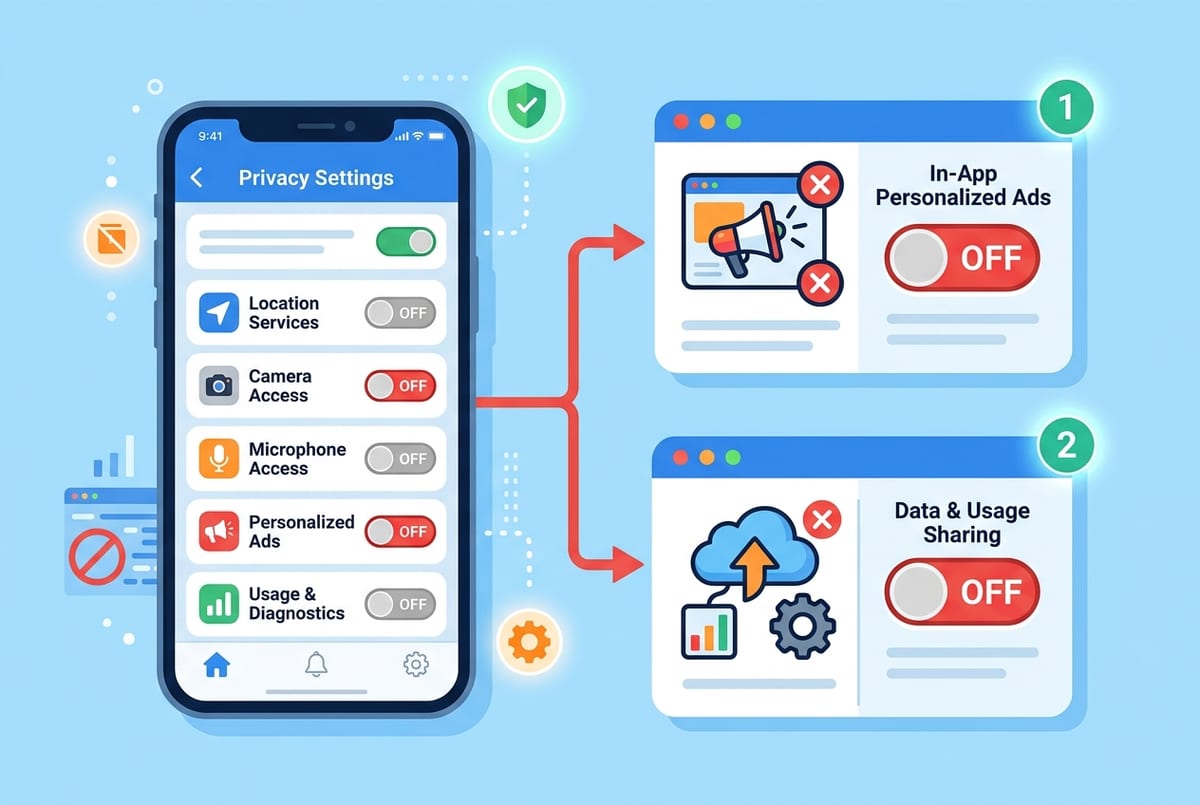
Once you’ve cleaned up Apple-level settings, the next surprise is that most streaming apps still phone home on their own. You’ll see it the moment you install a new app: it asks to track, it wants location, or it offers “personalized” recommendations and ads inside its own settings.
Start with the lowest-risk changes. In Settings >'' Privacy >'' Tracking, disable Allow Apps to Request to Track, and turn off tracking for any app already listed. Then open each streaming app’s in-app settings and look for Personalized Ads, Marketing, Interest-based ads, and Share usage; disable those first. Keep sign-in working by leaving “essential” items alone, like account authentication and playback diagnostics, until you know what the app actually needs.
The limitation is time and inconsistency: every app hides these controls differently, and some features degrade quietly. If you turn off in-app personalization, expect weaker recommendations and more generic home screens, but playback should stay fine. If you’re ready for the next step, the biggest gains come from limiting the network traffic you never see.
A “quiet network” approach: limiting data you don’t see day-to-day
That “never see it” traffic is usually the constant background pings: app analytics, ad measurement calls, and device checks that happen whether or not you’re watching anything. A quiet-network approach is simple: keep your Apple TV online for streaming, but stop it from chatting to everything else by default.
Start with your router, not the Apple TV. Turn on any built-in tracker blocking (common on Eero, Asus, UniFi, and similar systems), and use a reputable DNS filter for the whole home (for example, NextDNS or Control D) to block known ad and telemetry domains. If you don’t want to manage lists, even enabling “Family” or “Ads &'' Trackers” presets can cut a lot of noise without touching playback.
The real-world difficulty is breakage that looks like “random” buffering: some apps bundle analytics and video delivery under the same domains. When that happens, whitelist only the specific domain your logs show was blocked, test for a day, then keep the block in place for everything else. If you want this to stay quiet after tvOS updates and new installs, a fast audit routine is the only thing that works.
Keep it that way: a 5-minute audit routine after updates and new installs
After a tvOS update or a new app install, the box often flips the script: a toggle reappears, a new prompt gets skipped, or an app quietly re-enables “personalization.” So set a timer for five minutes and run the same loop every time you change anything.
Minute 1–2: go to Settings >'' Privacy and re-check Analytics/Diagnostics, Apple Advertising >'' Personalized Ads, and Tracking (make sure apps can’t request to track, and nothing new is allowed). Minute 3: confirm Siri and Dictation still match your baseline, because updates can nudge you back toward voice features.
Minute 4–5: open the newest streaming app and hunt for Personalized Ads, Marketing, and Share usage, then play one video to confirm nothing broke. The nuisance is that “fixing” a blocked domain on your router/DNS can take longer than the audit, so keep a short notes list of what you’ve whitelisted and why.