5 Essential TV Apps Every Sports Fan Needs To Install
Kickoff is in 5 minutes: why you keep missing games (even with “all the apps”)
You’ve got the TV on, snacks ready, and the group chat says the game is live—then you bounce between apps while the clock keeps running. It’s not because you’re “bad at streaming.” It’s because the logo you see (ESPN, NBC, CBS) often isn’t the place you actually have to open on Roku or Fire TV.
Rights get split by league, by night, by market, and sometimes by device features like live channel guides. One week a matchup is on a regular channel you can get through a live-TV app; the next week it’s exclusive to a streaming service that looks optional until it isn’t. The cost shows up twice: wasted subscriptions and wasted time at kickoff.
The fix isn’t installing more apps. It’s picking a small starter stack that covers most nights, plus a quick way to confirm where tonight’s game really lives.
First decision: do you want one main “channel app” to carry most nights?
That “small starter stack” usually starts with one main channel app—the one you open by default when you just want to see what’s live. In real life, this is the moment you decide whether you want a cable-style grid (sports, locals, news, all in one place) or you’re willing to hop between league and network apps depending on the night.
If you watch a lot of national games across leagues, a live-TV streaming service can do most of the heavy lifting because it bundles the familiar channels in one guide. You open one app, search the team, and hit play. The catch is cost and confusion: the cheaper “skinny” bundles often miss a key channel, and the best price is frequently a promo that jumps after a month or two.
If you mainly follow one league or one team, a “no main app” setup can work, but only if you accept that some nights will be exclusive elsewhere. That’s when you pick a default anyway—either the app that carries your locals most reliably, or the one that makes it fastest to confirm where tonight’s game actually is.
Why the ESPN app still matters even if you already pay for sports
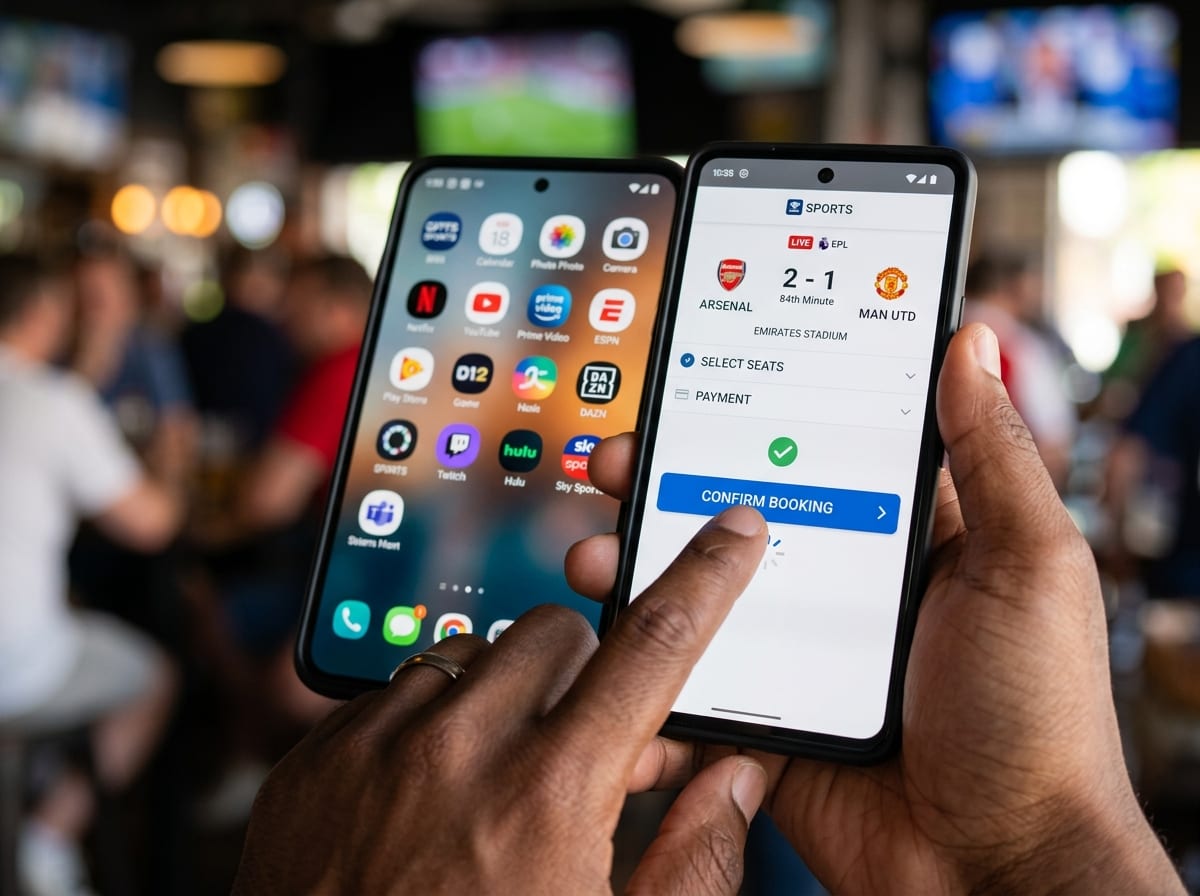
That “fastest to confirm” part is where the ESPN app earns its spot, even if you already pay for a live-TV bundle or a few league services. On a typical night, you’ll see “ESPN” attached to a matchup in a schedule or notification, and the quickest way to learn what that really means on your TV is to open ESPN and check the event page. If it’s included with your TV provider login, you’ll get a clean “Watch” path. If it isn’t, you’ll find out immediately—before you’ve burned three minutes bouncing between apps.
It also covers the messy middle: games that show up in ESPN’s programming mix, plus replays, highlights, and live scores when you can’t sit down for the full broadcast. The real downside is that ESPN won’t magically replace your other subscriptions; you’ll still run into moments where the stream is locked behind the right provider, and logging in on a smart TV can be annoying when passwords expire. Still, having ESPN installed turns “Where is this game?” into a 20-second check—setting you up for the nights when the logo on the screen isn’t the app you need.
When the game says ‘NBC’ but it’s actually on Peacock
That mismatch shows up fast with NBC games: you see the NBC logo on a schedule, open your live-TV app or antenna input, and the game isn’t there. A lot of big events still air on local NBC, but some matchups and shoulder programming push to Peacock, and the only “fix” at kickoff is having the Peacock app installed and signed in already.
The practical move is to treat Peacock like a rights check, not a “nice-to-have.” If an event listing says NBC but also mentions streaming or Peacock anywhere, assume you may need Peacock on the TV device you’ll actually use. The downside is simple and annoying: Peacock won’t help you for ESPN, CBS, or RSN nights, and the cheaper plan might not include what you expected—so you still have to confirm the specific event before you pay, not after.
Once you’ve got NBC/Peacock covered, the next confusion usually hits when the logo flips to CBS and the app you need isn’t CBS at all.
CBS games, March moments, and soccer weekends: the Paramount+ situation
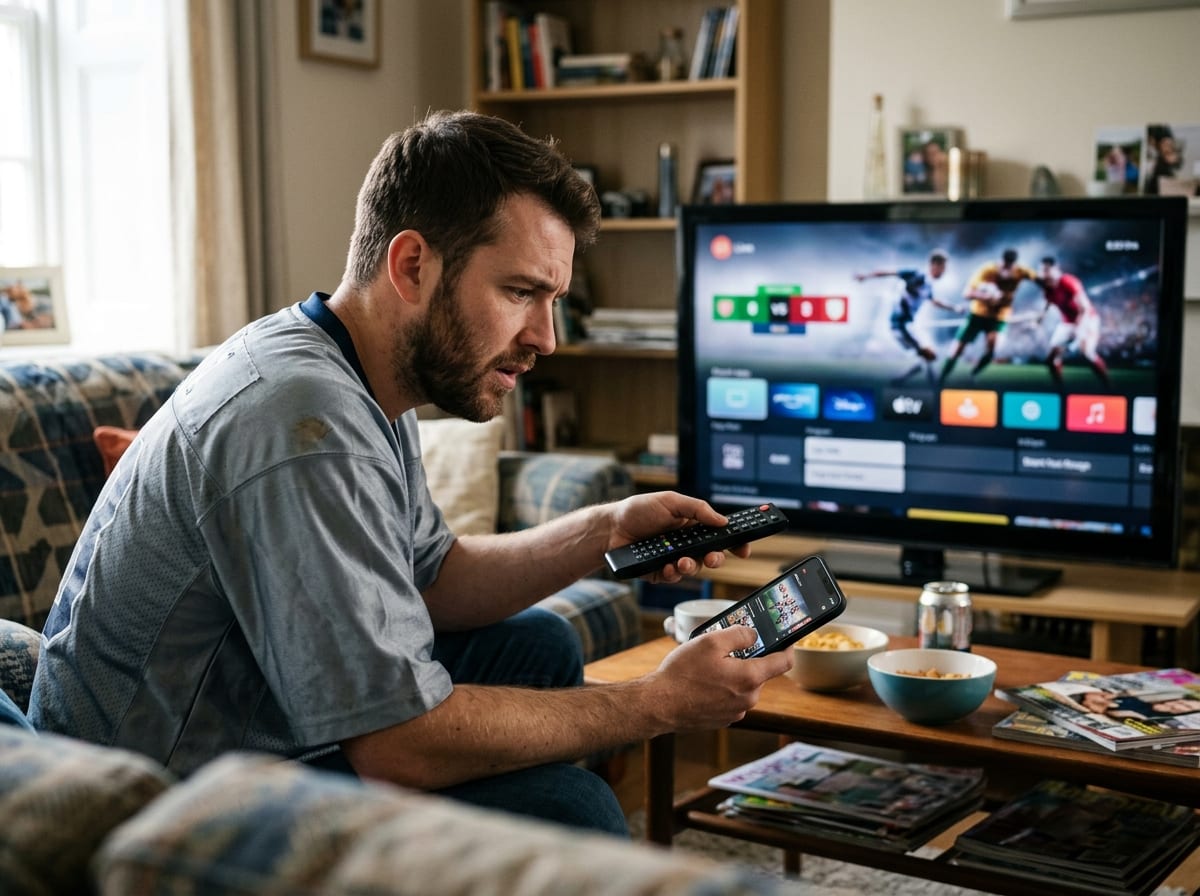
That “CBS” label is where a lot of people waste time, because the app you’re looking for is usually Paramount+, not a standalone CBS button on your home screen. You’ll hit your live-TV bundle, not see the game, then remember there’s a separate service tied to CBS sports—especially when March games, weekend soccer, or a random midseason matchup gets promoted as “streaming too.”
If you already have CBS through an antenna or live-TV app, Paramount+ still comes up as the backup path when the listing nudges you toward streaming, or when you’re away from your usual setup and just need a legal stream. The annoying part is the fine print: the plan level can matter, local CBS availability can vary, and you may still need a separate login for certain events. That’s why it belongs in the “installed and ready” pile, not the “I’ll download it at kickoff” pile.
Get Paramount+ settled, because the next service won’t wait for you—some big games simply won’t exist anywhere else once Prime Video has them.
Prime Video isn’t optional anymore—exclusive games will force the issue
That’s the moment you search your live-TV guide, try ESPN, try the league app—and nothing shows up because the game is exclusive to Prime Video. On paper, Prime looks like a shopping perk. In practice, it’s now a sports rights destination, and the only way to avoid the kickoff scramble is to have Prime Video installed, updated, and signed in on the device you actually watch.
The key is to treat Prime like you treated Peacock: not as your “main channel app,” but as a required detour for certain nights. If a schedule says “Prime Video” or “Amazon,” assume there is no backup stream inside your bundle. The real headache is account sprawl—family Prime accounts, different profiles, and forgotten passwords—so do the login once on Roku/Fire TV and make sure your payment method is current before game day.
Even with Prime covered, you can still hit the worst kind of miss: your local team is blocked, or the game lives on an RSN you don’t have.
Your local team is still missing: what to do when an RSN or blackout hits
That’s when you hit play everywhere you expect—and your local team still isn’t there. Either the game is on a regional sports network (RSN) your bundle doesn’t carry, or the league app shows a blackout message because you’re “in market,” even if you’re only a few miles from the border of the territory.
Start by checking the league’s official schedule or the team page in the league app to see the listed broadcaster, then match it to your options: your live-TV bundle, an RSN’s direct-to-consumer app (if it exists in your area), or a one-off add-on inside a bigger service. If you use an antenna for locals, try that too—some games that feel “regional” still land on a local over-the-air channel in certain weeks.
The hard part is cost and dead ends. RSN apps can be pricey, some don’t support every device, and blackouts don’t bend because you’re paying. Set a rule: if you can’t confirm “Watch” on the device you’ll use before the first quarter, switch to radio, highlights, or the replay window—and save the subscription decision for a calm night.
Before next weekend: a quick ‘find the game fast’ routine you’ll actually use
That “calm night” is when you set up a 60-second routine for game day. When the matchup pops up in your feed, don’t open your TV apps yet—open the league schedule (or the ESPN event page) on your phone and look for the exact home: ESPN/ABC, NBC/Peacock, CBS/Paramount+, Prime Video, or an RSN name. Then open only that app on the TV.
Before next weekend, do three quick fixes: sign in on your TV device to ESPN, Peacock, Paramount+, and Prime Video; pin them in the top row; and run each once so they don’t need an update at kickoff. The real annoyance is login friction—expired passwords and mismatched family accounts—so write down which email you used for each service and keep it with your router or TV remote.
When you still can’t confirm “Watch” in under a minute, stop. Flip to antenna/live-TV if you have it, then choose radio or highlights and decide on any RSN add-on later.