How to Remotely Access a PC From Your iPhone or Android Device
You need your PC right now—what exactly are you trying to do from your phone?
You’re away from your PC and the clock is running: a file is on the desktop, a Windows-only app has the data, or you just need to check one setting and move on. Before you pick an app, pin down what “access” means for you—view and control the whole desktop, grab a single file, or approve a login prompt—because each points to a different setup.
Be honest about constraints. Some options won’t wake a sleeping PC, won’t work without admin permission, or will feel painfully slow on hotel Wi‑Fi. The fastest way to choose correctly is answering one question: are you on the same Wi‑Fi as the PC, or truly away from it?
First fork in the road: are you on the same Wi‑Fi as the PC, or truly away?
That one detail—same Wi‑Fi or truly away—changes what “remote access” even means. At home, it’s common to be on your phone, connected to the same router as your Windows PC, and just want a quick desktop view to drag a file into email or kick off an export. In that case, your connection stays inside your local network, so speed is usually better and setup can be simpler.
When you’re off-network—cellular, office-to-home, hotel Wi‑Fi—you’re crossing the public internet. That’s where you hit the usual surprises: your home internet IP changes, your router blocks incoming connections, or your work laptop is behind a corporate firewall you can’t touch. If you’re not sure, turn off Wi‑Fi on your phone and try on cellular; if it only works on Wi‑Fi, you’re still “local-only” today.
Decide which you need before installing anything: local access for convenience, or internet access for the moments that actually matter.
Which route fits your situation: Windows built-in options, a remote-access app, or a work-approved solution?

Once you know whether you need local-only access or internet access, the “right” tool usually narrows fast. If you mainly need to grab a file or check one thing while you’re on the same Wi‑Fi, start with the lightest option: a simple file sync/share you already trust, or a quick local remote-control tool. You’ll spend less time on accounts, approvals, and troubleshooting when you’re in a hurry.
If you need to control the full Windows desktop from anywhere, a dedicated remote-access app is often the most reliable path for personal PCs, because it handles the connection without you configuring your router. The practical cost is ongoing: you’re trusting a third party, you may hit paywalls for the features you actually want (like easy file transfer), and performance can drop hard on weak hotel networks.
If this is a work PC, default to whatever your company supports (Remote Desktop, a managed remote tool, or a virtual desktop). It’s less flexible, but it avoids the real-world problem of getting locked out—or creating a security incident—because you installed something IT can’t approve. With that choice made, a few minutes of prep on the PC prevents most failures.
Before you leave: the 10-minute PC prep that prevents 90% of “it won’t connect” moments
Most “it won’t connect” moments come from the PC being unavailable, not the app being “bad.” Before you walk away, set the PC to stay awake when plugged in (sleep breaks remote sessions), and confirm you can sign in without being there. If Windows is set to require a fresh PIN after every wake, or your password recently changed, you’ll find out at the worst time.
Then do the boring checks that save you later: install updates and reboot once, so you’re not hit with a restart prompt mid-task. Make sure the remote tool you chose is allowed through Windows Firewall, and that you know which Windows account you’ll use (local vs Microsoft/work). If you need files, put them in a folder you can find fast, like a “Remote” folder on the desktop.
Finally, test once from your phone while you’re still near the PC—on Wi‑Fi and on cellular—so you know what actually works before you rely on it.
On your phone: what a ‘good’ first connection looks like (and what to skip)
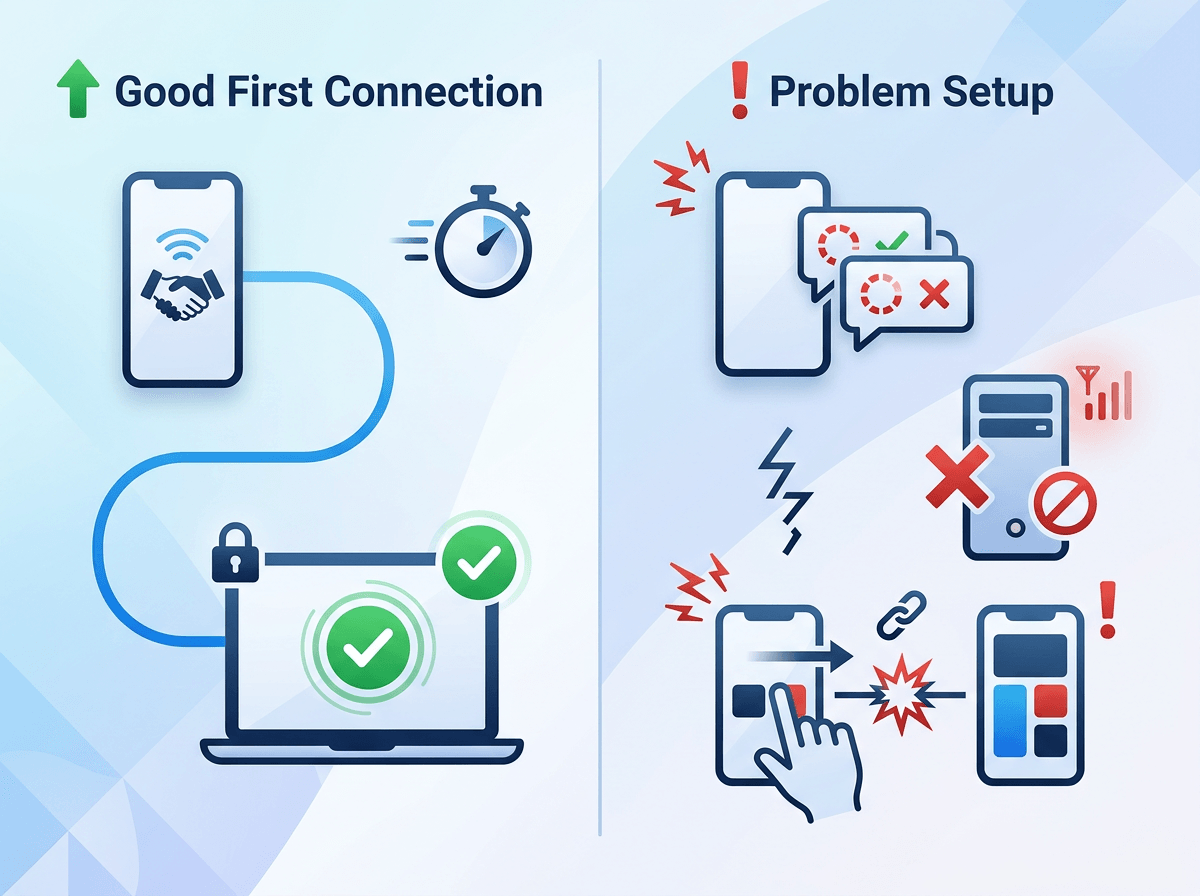
That quick Wi‑Fi and cellular test is where your phone setup either stays simple or turns into a time sink. A “good” first connection looks boring: you open the app, pick the right saved PC, and you land on the Windows lock screen in under 20–30 seconds. If it asks you to re-pair every time, can’t find the PC unless you’re on Wi‑Fi, or drops as soon as you switch apps, treat that as a setup problem—not something you’ll “deal with later.”
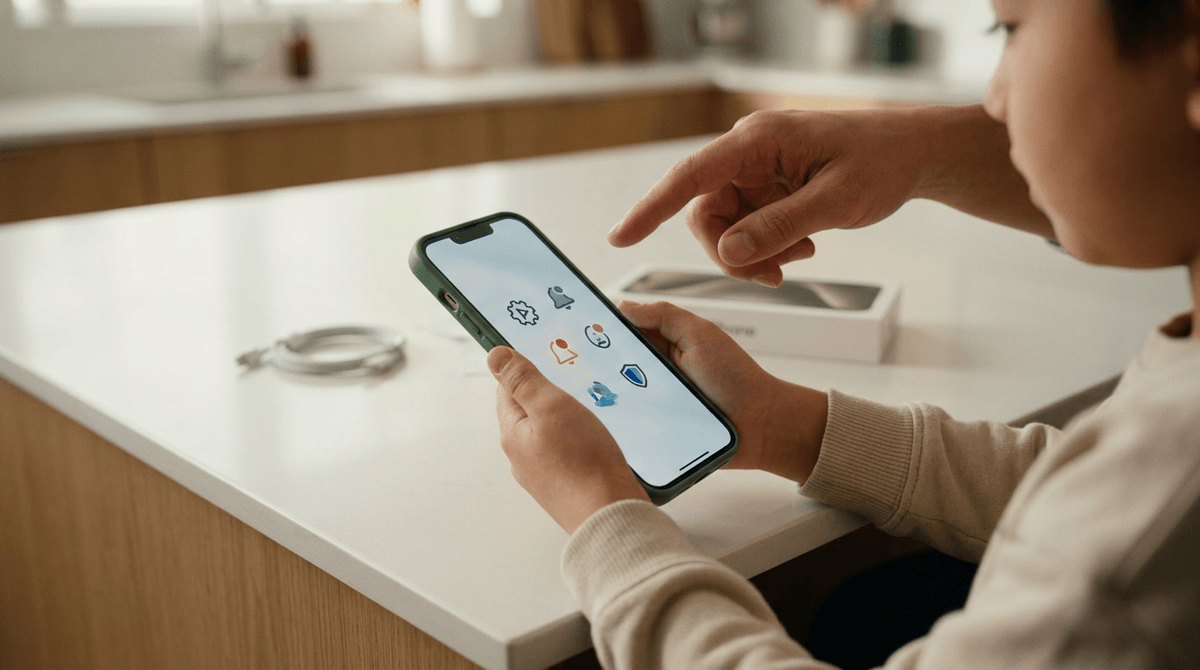
On iPhone/Android, prioritize three checks before you touch any advanced options: confirm you’re signed into the correct account (personal vs work), the PC name matches what you expect, and the permission prompts are enabled (notifications/“allow local network” on iOS; battery optimization exceptions on Android). Then make the session usable: set “tap as click,” enable pinch-to-zoom, and turn on the on-screen keyboard toggle.
Skip the stuff that burns minutes for small gains: custom display scaling, high frame-rate mode, and “remote audio” unless you truly need it. They increase data use and can make hotel Wi‑Fi feel worse. If your first session is stable and readable, you’re ready to test the harder case: off-network access.
When it works on Wi‑Fi but not on the road: a quick decision checklist for internet access
That “harder case” usually fails in a predictable way: it connects instantly on home Wi‑Fi, then times out on cellular or hotel internet. Treat it like a checklist, not a mystery. First, confirm you’re truly off-network: turn off Wi‑Fi and retry on cellular. If it only fails off-network, you have a reachability issue, not a phone setting issue.
Then sort the cause by what you’re using. If you’re on a third-party remote app that claims “works from anywhere,” sign out/in and verify the PC shows as online; if the PC looks offline, it’s often sleep, a pending reboot, or the host service not running. If you’re using Windows Remote Desktop or a local-only tool, assume it won’t work without a router changes. In that case, your fastest safe fix is usually switching to a tool designed for internet relay, not opening ports on your home router in a hurry.
One more practical constraint: office networks and some remote protocols. If it fails only on that network, switch to cellular or a different Wi‑Fi, then decide whether you need a work-approved path for next time.
Keep it simple—and safe—so you don’t have to redo this next week
If you had to switch networks, sign in twice, or hunt for the “right” PC entry, that’s your signal to simplify while you still remember what broke. Pick one primary path (work-approved if it’s a work machine), remove the extra apps you won’t use, and rename the saved connection so it’s obvious on a small screen (for example, “HOME-PC (relay)” versus “HOME-PC (Wi‑Fi)”). Keep the “Remote” folder habit so you’re not digging through Downloads at midnight.
Then lock down the basics: turn on multi-factor login for the remote tool, keep Windows updated, and don’t leave your session running. The annoying part is maintenance—password changes, new phones, and router swaps can quietly invalidate a setup—so put a quarterly calendar reminder to do a 30-second cellular test.