4 Useful Roku Features I Wish I Knew About Earlier
The tiny Roku annoyances that add up (and why they’re usually fixable)
You sit down to watch something and it’s the same small stuff again: the remote vanishes into the couch, the volume feels uneven, the “right” app isn’t the one that opens first, and searching turns into hopping from app to app. None of it is a big problem. It just keeps stealing a few minutes at the exact moment you want things to be easy.
Those annoyances usually happen because Roku’s default setup assumes you’ll do everything the basic way. But Roku also has a handful of built-in features that act like shortcuts—some on the TV itself, some in the mobile app. The only real catch is you have to know they exist, and where to tap when you actually need them.
Once you turn on the right few, Roku starts feeling less like a device you manage and more like one that stays out of the way. That starts with treating your phone as a backup remote when the physical one isn’t enough.
When the remote isn’t enough: using the Roku mobile app as your “second remote”
When the remote slips under a cushion or the batteries die mid-episode, the quickest fix is usually already in your pocket. Install the official Roku mobile app on your phone, connect it to the same Wi‑Fi as your Roku, then open the “Remote” tab. It gives you the basics—direction pad, Home, Back, volume on many Roku TVs—without digging for the physical remote.
The part you’ll notice most is typing. In the app’s remote, tap the keyboard icon and enter titles, names, or passwords without pecking across the on-screen letters. That also helps when an app forces a login again and you’re stuck entering a long email address.
One real-world snag: if your Wi‑Fi is down or your phone is on cellular, the app can’t reach your Roku. In those moments, the physical remote still matters—so it’s worth keeping one predictable “home” for it.
Watching while everyone else sleeps: Private Listening without buying new gear
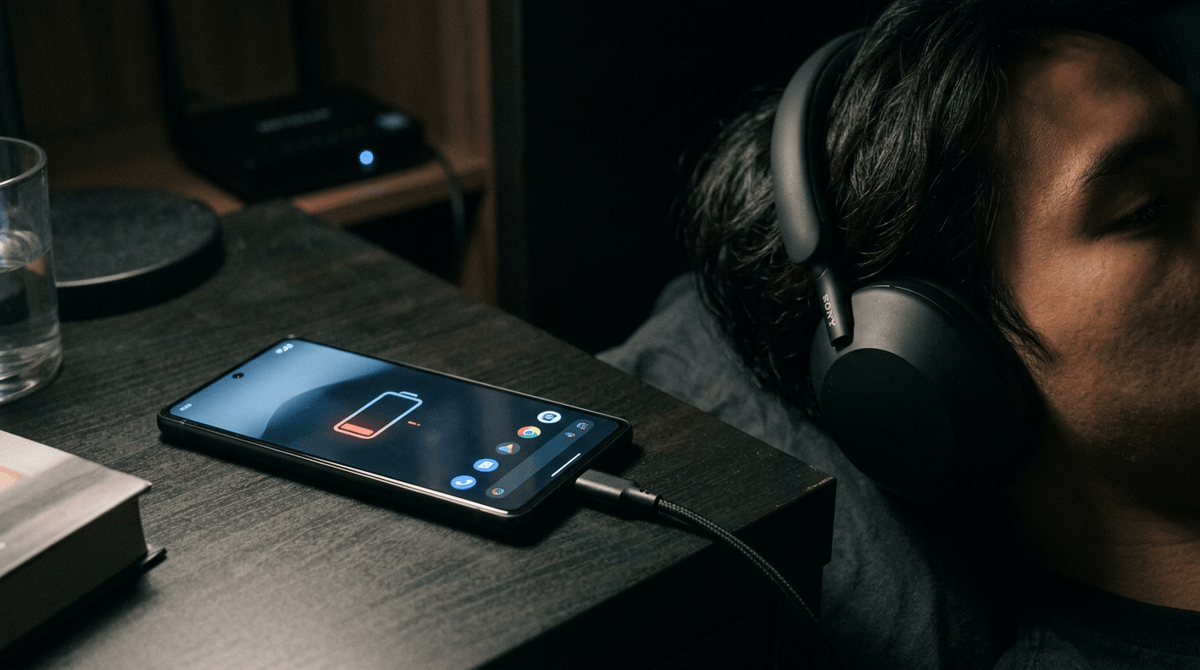
Keeping the remote in one “home” spot helps—until you want to keep watching and the room is already quiet. That’s where Roku’s Private Listening comes in. Instead of turning the TV up and down all night, you route the audio to headphones so everyone else can sleep.
The easiest way is through the Roku mobile app you already installed. Open the app, go to the Remote screen, then tap the headphones icon to start Private Listening. Plug wired headphones into your phone, or use Bluetooth headphones connected to your phone. Your TV can stay muted while the show keeps playing.
There are a couple of practical limits. Private Listening depends on a solid Wi‑Fi connection, so if your network is spotty you may hear audio lag or dropouts. And if your phone battery is low, a long movie can turn into a charging-session decision. Up next: using Roku’s search so picking something takes fewer steps.
“What should we watch?” becomes faster when Roku searches across apps for you
That “fewer steps” feeling shows up most when you’re trying to pick something and nobody wants to open four apps just to confirm where it’s streaming. The easy move is to start from Roku Search instead of guessing. From the Home screen, scroll to Search and type a title, actor, or genre. Roku will pull results from multiple services, so you can jump straight into the app that actually has it.
When it works well, it cuts out the familiar loop: open Netflix, strike out, back out, open Hulu, repeat. You’ll also see options like “Free,” “Rent/Buy,” or different seasons in one place, which makes the choice faster when you’re on a time limit.
A practical downside: search results don’t always show every service, and what’s “included” can change if an app’s catalog shifts. If a result looks off, treat it like a shortcut—not a guarantee—then confirm with one click. That’s also a good moment to set things up before other people start using your Roku.
Before guests (or family) use your Roku: Guest Mode as a stress-free switch
That “one click to confirm” moment is also when other people can accidentally start leaving a trail—logging into their apps, buying rentals, or changing what shows up on your Home screen. Roku’s Guest Mode is the clean way to hand over the TV without handing over your accounts.
Turn it on from the Roku Home screen: go to Settings → System → Guest Mode, then follow the prompts to enable it and set a checkout date. When Guest Mode is active, guests can sign into their own streaming services, and Roku will automatically sign them out on that date. That means you’re less likely to find someone else’s profile still logged in a week later.
One real-world snag: Guest Mode is a “switch,” not a lockbox. If you forget to turn it on before people arrive, you’re back to manual logouts and hoping nobody tapped “save password.” With that covered, the last step is deciding which two features to flip on today.
Which two features should you turn on today—and which can wait?
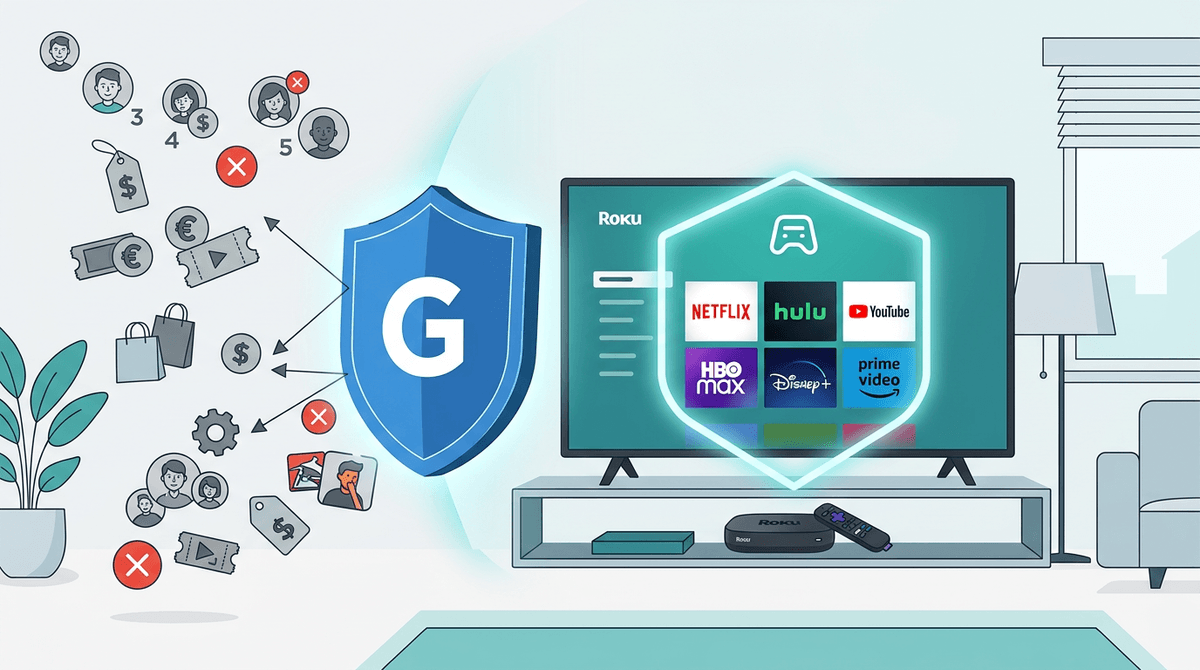
If you’re about to have people over, or you’re already tired of fixing the same little problems, two switches pay off immediately: the Roku mobile app and Guest Mode. The app turns your phone into a dependable backup remote and makes typing fast when a service asks you to log in again. Guest Mode prevents the bigger cleanup job later—random profiles left behind, surprise rentals, and a Home screen that no longer feels like yours.
Private Listening and Roku Search can wait if you’re trying to keep today simple. Private Listening is great when the house is asleep, but it leans on steady Wi‑Fi and a phone with enough battery to last a movie. Search is worth using, but it’s not something you “set and forget,” and results can be incomplete when an app’s catalog changes. If you stream most nights, a good rule is: turn on the protections first (Guest Mode), then turn on the convenience (the app).
Once those two are in place, the week-to-week feel of using Roku changes in a way you’ll notice fast.
A simpler Roku week: what changes once these four are in place
You notice it on an ordinary Tuesday night: the remote isn’t a single point of failure anymore, and “just sign in again” stops being a 10-minute chore. The phone app handles the scramble moments and the typing; Guest Mode handles the awkward moments when someone else wants to watch. You spend less time cleaning up after streaming and more time actually starting it.
Later in the week, Private Listening becomes the quiet default when someone’s asleep, and Roku Search becomes the fastest way to answer “where is it?” before anyone opens an app. The constraint is real: these perks lean on decent Wi‑Fi and a charged phone. But once they’re in place, the little frictions stop stacking.