5 Ways I Put My Thunderbolt Dock to Good Use (That Aren't Connecting a Display)
You bought the dock—so why does it feel like a fancy USB hub?
You plug in the dock, connect a couple USB devices, and… it still feels like you paid a lot for a heavier hub. That reaction makes sense because the obvious win—driving a monitor—usually hides the other benefits.
Without a display, a Thunderbolt dock earns its keep when it makes “sit down and start working” repeatable: one cable that charges the laptop, wakes up your keyboard/mouse, keeps audio from glitching, and stops the roulette of which port works today. It also unlocks the kind of external storage performance that doesn’t crawl when you copy a project or run a backup.
The catch is practical: you only feel this if your daily plug-ins are consistent. If you’re constantly swapping devices or using the dock as a temporary landing pad, it won’t feel cleaner—just bigger. The fix starts with a simple inventory of what you actually plug in every day.
Before you buy anything else: what do you actually plug in every day?
That “simple inventory” usually looks different once you stop thinking about ports and start thinking about habits. On a normal workday, what’s always connected—keyboard, mouse, headset, Ethernet, external SSD, webcam—and what’s only there sometimes, like an SD card reader or a game controller? Write down the daily list first, then the weekly “sometimes” list.
If a device lives on your desk, it belongs on the dock. That’s how you get the one-cable routine: you sit down, plug in, and everything is already where it should be. If something moves with you—like a portable drive you toss in a bag—forcing it onto the dock can add steps, not remove them.
The hard part is power and space. Bus-powered drives, USB mics, and dongles can pull more power than you expect, and some docks get picky when several things spin up at once. This is where you decide what must be “always-on” and what can stay as a grab-and-go accessory.
The ‘one cable’ moment: charging + keyboard/mouse + power stability
Once you’ve decided what stays “always-on,” the first payoff you should chase is boring: you plug in one cable and the laptop charges every time, while your keyboard and mouse work immediately. In practice, this is where a dock stops feeling like a hub. If your charger is still separate, you’re still doing the fumble—two cables, two chances to forget one.
Start by matching the dock’s power delivery to your laptop’s real needs. If your MacBook or ultrabook expects, say, 90–100W under load and the dock tops out at 60W, it may “charge” but still drain slowly during calls, exports, or gaming. The fix is either a higher-PD dock, or accepting that the dock is for peripherals while the OEM charger handles power.
Power stability is also why wired input devices feel better here. If-then rule: if your keyboard, mouse, and receiver are on the dock, then your laptop ports stay free and you stop the random “why didn’t it wake?” moments. The constraint is startup surge—several bus-powered devices can make a dock flake out—so give the dock its own AC outlet and move one power-hungry device to a powered USB hub if you have to.
When fast storage finally feels fast (and why Thunderbolt matters here)
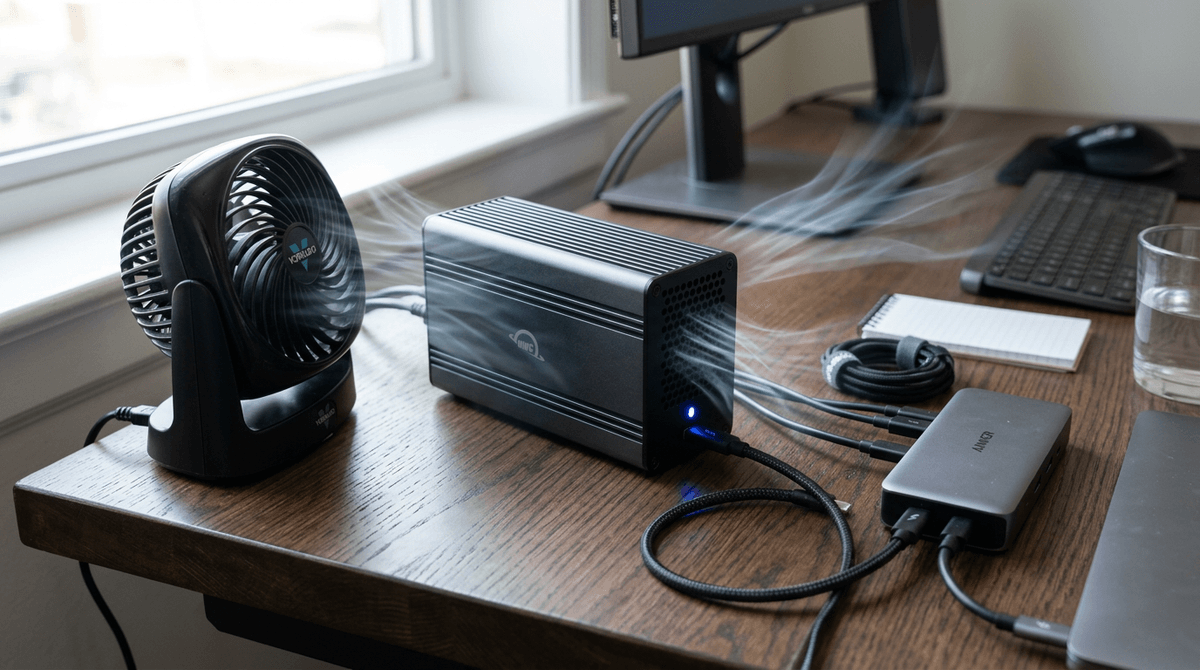
That “move one power-hungry device” decision often becomes easiest when the device is storage. A cheap USB drive works fine for tossing a few files around, but it feels terrible for real work: copying a photo library, cloning a laptop, or running a project straight off an external SSD. You watch the progress bar stall, the laptop gets warm, and everything else you’re doing slows down.
This is where Thunderbolt stops being theoretical. If you plug a Thunderbolt-capable SSD (or NVMe enclosure) into a Thunderbolt dock, you can get sustained speeds that don’t fall apart the moment you hit lots of small files. Backups finish in minutes instead of “later tonight,” and moving a big folder doesn’t interrupt a call. The practical rule: if the drive is your “always-on” workspace or backup target, put it on the dock; if it’s grab-and-go, keep it direct.
The downside is cost and compatibility. A USB-only SSD plugged into a Thunderbolt dock still behaves like USB, and some NVMe enclosures get hot enough to throttle in long copies. Check that the enclosure is actually Thunderbolt, and plan for a short cable and some airflow on the desk.
Once fast storage is stable, the next reliability upgrade is even less exciting—but you’ll notice it every day: Ethernet.
The underrated upgrade: wired Ethernet for ‘boring’ reliability
Ethernet is the kind of upgrade you only think about after Wi‑Fi wastes your time. A video call turns into “can you hear me?”, a big upload restarts at 92%. With a dock, wired Ethernet makes your desk the “it just works” zone: you plug in one cable, the laptop gets a stable connection, and everything else on the network stops competing for signal.
If your dock has Ethernet, use it for the boring stuff that punishes hiccups: meetings, remote desktop, large sync folders, and backups to a NAS. You’ll also feel it in latency-sensitive work like streaming a game from another PC or pushing code to a server. The real constraint is your network chain: a cheap cable, a flaky switch, or a router port stuck at 100 Mbps can erase the benefit, and some corporate setups still need IT-approved adapters or MAC registration.
Once the connection is locked down, the next “why was this flaky?” category is everything that acts like a headset: audio, webcams, and input devices.
Audio, webcams, and input devices: stopping the random dropouts
In a typical desk setup, the first thing that “randomly” fails isn’t storage or Ethernet—it’s the stuff that has to stay live in real time. Your USB mic pops, your webcam freezes mid-call, or your keyboard misses a wake-up and you start unplugging things like you’re troubleshooting a router.
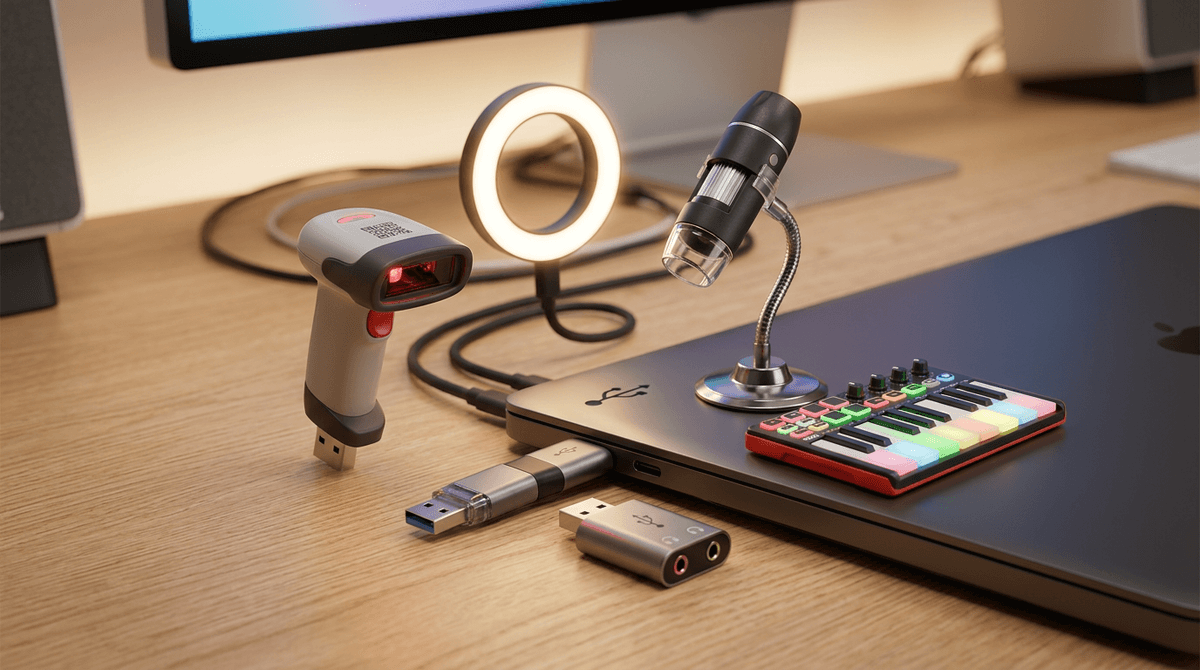
Put the always-on human-interface gear on the dock and leave it there: webcam, USB receiver, wired keyboard/mouse, and your primary audio device (USB headset or USB interface). If you do that, the laptop sees the same devices in the same order every time you sit down, which cuts the dropouts that come from loose ports and power-save weirdness. Avoid chaining a webcam through a monitor or a bus-powered hub if you can; plug it straight into the dock.
The limitation is power and bandwidth sharing. A high-res webcam plus a USB mic can push some docks into glitches, especially if a bus-powered drive spins up at the same time. If you hear crackles or see frame drops, move one device to a powered USB hub on the dock, swap the cable, or drop the webcam from 4K to 1080p so meetings stay boring—in the best way.
Quick media ingest without a mess: SD readers, phones, and ‘temporary’ devices
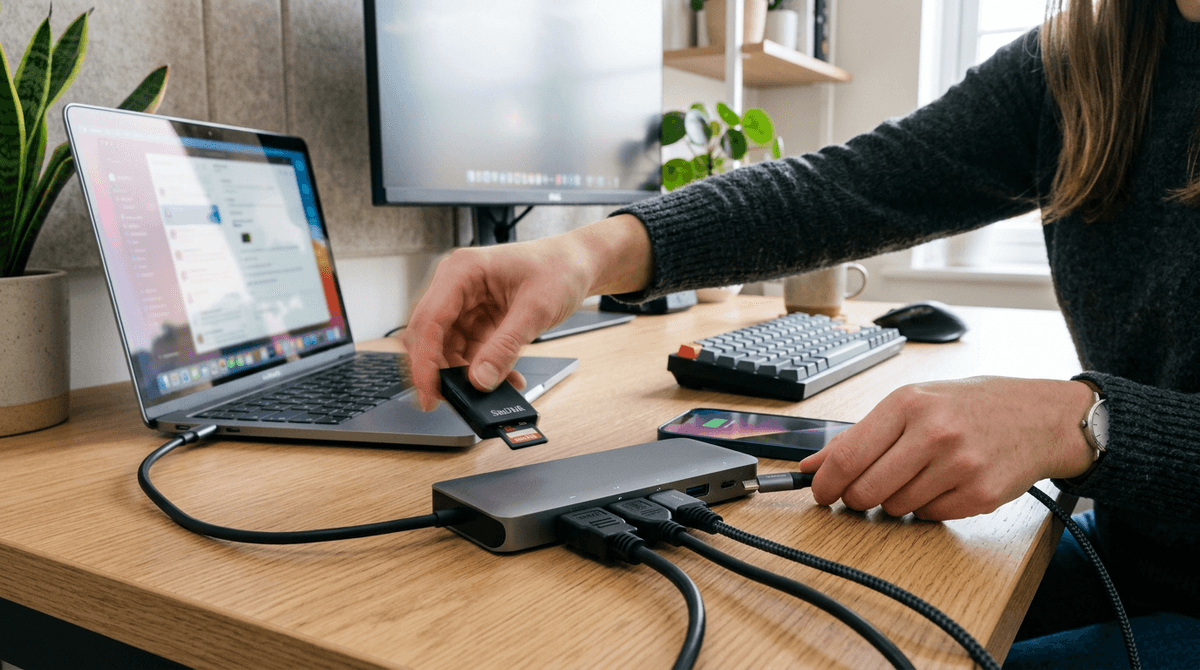
That same “meetings stay boring” goal is why media ingest needs a home, even if the devices don’t. The usual pattern is you’re back from a shoot or a trip, you plug an SD reader into whichever side is free, then you unplug it again and leave a short cable dangling for days. Phones are worse: you charge from one place, transfer files from another, and end up hunting for the “right” port when you’re in a hurry.
Make one dock port your “temporary device” slot and treat it like a loading dock: SD reader, phone cable, camera tether, thumb drive. If you do that, the rest of the dock stays stable—Ethernet, audio, input devices don’t get bumped—and you’re not constantly re-routing cables. If you ingest big batches (RAW photos, 4K video), use the fastest port you have, but don’t assume the dock fixes a slow reader; many SD readers top out well below Thunderbolt speeds.
The real annoyance is physical: front ports get crowded, rear ports hide behind the dock, and short cables don’t reach. A 1–2 meter cable and a reader you can leave on the desk solves most of it, and it sets up the last question: without a monitor, is this “one cable + stability” routine enough to justify the dock?
So is your dock ‘worth it’ without a monitor? A simple yes/no you can live with
If the dock makes your desk a one-cable routine—power that doesn’t sag, input devices that wake every time, stable audio/webcam, wired Ethernet, and an external SSD that’s actually fast—then yes, it’s worth it even without a monitor. You’re buying repeatability: sit down, plug in, work.
If you still plug in the charger separately, you don’t use Ethernet, your “fast” drive is USB-only, and most of what you connect changes day to day, then no—right now it’s an expensive hub. In that case, either commit to an “always-on” set (power + input + network + one storage target), or downsize to a simpler USB-C hub and put the money into the single thing you’ll feel every week, like a better SSD or a more reliable webcam.