7 Raspberry Pi Tips Beginners Should Know
You’ve got a Pi—what “success” looks like in week one
The first week with a Raspberry Pi usually looks like this: you plug it in, the screen stays black, the little LEDs blink in a pattern you don’t understand, and you start wondering if you bought a bad board. “Success” isn’t a fancy project yet. It’s a Pi that boots the same way twice in a row, stays up for hours, and you can reach it over your network without babysitting it.
A realistic week-one win is simple: pick a power setup that doesn’t brown out, choose storage you won’t resent re-imaging, install Raspberry Pi OS cleanly, and get SSH working so you can use it from your laptop. Expect one annoying snag—an underpowered phone charger, a flaky cable, or an SD card that acts fine until it doesn’t. Those small choices decide whether everything feels solid or fragile.
Before anything else, treat power and cables like part of the computer, not accessories.
Before you plug it in: power and cables that cause the weirdest failures
That “accessory” pile is where most week-one weirdness starts. A Pi can look dead with a black screen, random reboots, or a keyboard that cuts out, when it’s really just dipping below a stable voltage for a split second. Phone chargers are the usual culprit: many are rated for high amps on the label, but sag under load or negotiate fast-charging modes that don’t help the Pi.
Use a known-good Raspberry Pi power supply (or a quality USB-C/USB supply that matches your model’s requirements) and a short, thick cable. Long or bargain cables add resistance, so the board sees less voltage than the charger thinks it’s delivering. If your Pi boots and then flakes out the moment you plug in Wi‑Fi, a USB drive, or a camera, that’s a classic sign.
One practical annoyance: diagnosing power takes time because failures are “soft.” Swap the supply and cable early, then keep the rest of setup boring.
SD card vs USB SSD: deciding what you can trust with your time
Once power stops being the mystery, the next “it worked yesterday” problem is usually storage. You’ll install the OS, tweak a few settings, then a sudden unplug or a noisy power moment leaves the Pi stuck in a boot loop or showing a filesystem error. That’s why SD cards feel unpredictable: they’re easy and cheap, but many aren’t built for lots of small writes, like logs, package updates, and databases.
An SD card is still fine for quick experimenting, especially if you buy a known-good brand and keep a spare. It’s also the simplest path if you’re using a Pi model that boots from SD by default. The downside is time: when a card gets flaky, you can waste an evening blaming cables, the OS image, or “bad luck.”
A USB SSD costs more and needs a good USB-to-SATA adapter or enclosure, but it’s usually the “set it and forget it” option for home server projects. If you plan to run Pi-hole, Home Assistant, or anything that updates often, an SSD is the quickest way to make the Pi feel like a small, reliable computer.
Imaging the OS without mystery settings (and the one checkbox that saves headaches)
That “set it and forget it” feeling starts with an OS image you can recreate on demand. Most people grab a random download, use whatever flashing tool a video shows, and hope the defaults match their board. When the Pi won’t boot, you’re left guessing whether it’s power, storage, or a bad write.
Use Raspberry Pi Imager and keep the choices boring: pick Raspberry Pi OS, pick the right target drive, and write. Before you hit Write, open the settings (the gear icon) and set your hostname, Wi‑Fi, and enable SSH so first boot doesn’t depend on a screen and keyboard. The checkbox that saves headaches is “Eject media when finished.” It forces a clean finish, so you don’t pull the card or SSD right after your computer cached writes.
If you’re imaging an SSD, budget time for a slow adapter or a finicky USB port; a “successful” write can still hide read errors. Then boot once and watch for the simplest signal that matters: steady power and a storage device that stays connected.
First boot reality check: reading the LEDs, video issues, and ‘why won’t it start’ triage
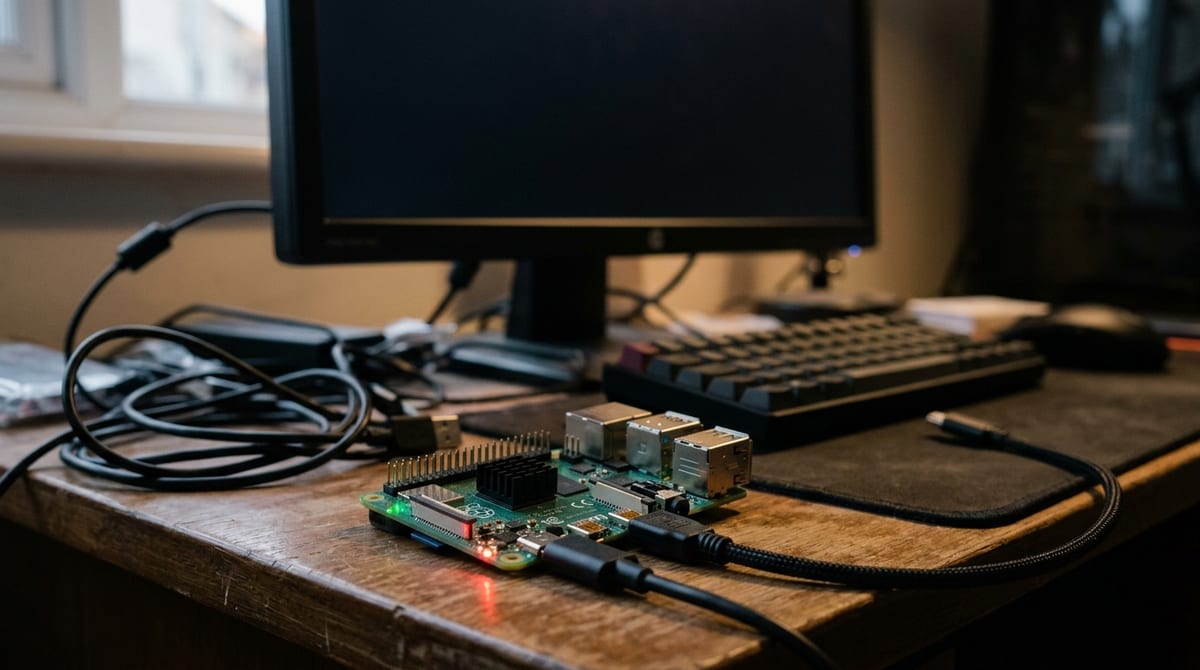
That first boot is where you learn whether your “steady power” and “stays connected” assumptions were real. A common scene: the power LED is on, the activity LED blinks, but your monitor stays black. Don’t start re-imaging yet. Watch the LEDs for 20–30 seconds: if the activity LED never blinks at all, suspect the card/SSD isn’t readable or isn’t seated; if it blinks for a while and then goes quiet, the Pi may have booted and your problem is just display.
Video issues are boringly common. Try a different HDMI cable, a different monitor input, and (on dual-HDMI models) the other port. Some monitors won’t sync at the Pi’s default mode, especially through adapters. If you’re using a case, also check that it isn’t pressing on the micro-HDMI plugs just enough to break contact.
If it still won’t start, simplify on purpose: Pi + power + storage only. Unplug USB drives, cameras, and HATs. If that works, add one thing back at a time and you’ll find the piece that tips it over—often before you ever touch the network.
Getting onto the network on purpose: finding the Pi, SSHing in, and avoiding lockouts
Before you touch the network, you usually end up in the same spot: the Pi seems to be “on,” but you have no idea where it is. If you set a hostname in Imager, try that first from your laptop: ssh [email protected]. If it doesn’t resolve, log into your router and look for a new device, or run arp -a (Mac/Linux/Windows) and match the vendor name. Ethernet is the fastest sanity check because it avoids bad Wi‑Fi passwords and weak 2.4 GHz coverage.
Once you have an IP, connect with ssh username@ip. If it prompts about a “host key changed,” stop and confirm you’re talking to the same Pi (re-imaging can cause this). Change the default password, then add an SSH key so one typo doesn’t lock you out mid-setup.
One real snag: some routers hide client lists, and guest Wi‑Fi or captive portals can block the Pi entirely. To keep access boring, set a DHCP reservation for the Pi’s MAC address and keep a wired option handy before you start plugging in more hardware.
What’s safe to plug in? USB power limits, GPIO mistakes, and simple protections

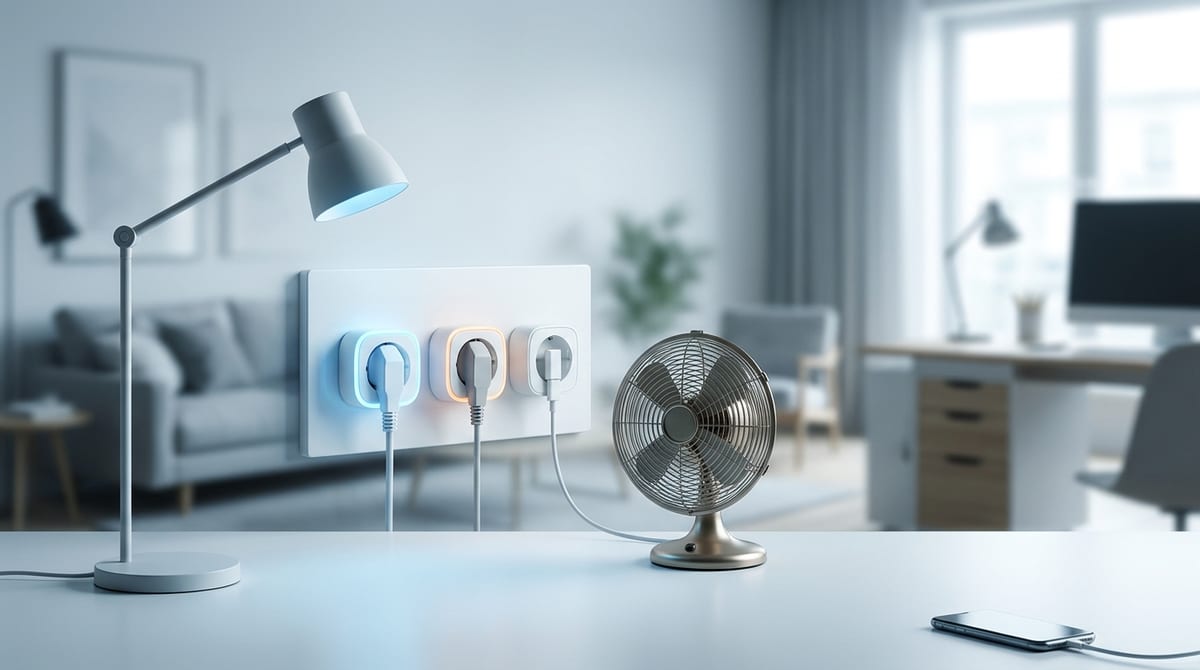
That “plugging in more hardware” moment is where a stable Pi suddenly starts acting haunted. USB ports can only supply so much current, and a drive, webcam, and a Wi‑Fi dongle stacked together can pull the voltage down even if the Pi’s main supply is decent. If a device works alone but not together, use a powered USB hub for the hungry peripherals, and avoid cheap “Y” cables that try to feed power back into the Pi through USB.
GPIO is less forgiving. Many sensors are 3.3V-friendly, but some modules output 5V signals; one wrong jumper can damage a pin fast. If you’re unsure, add a level shifter or a simple resistor divider for inputs, and start with a cheap breakout, not a motor driver.
It costs a little time and a few parts, but it keeps your setup boring—so you can freeze a clean baseline next.
Lock in a reusable baseline: updates, backups, and the ‘golden image’ mindset
Once your setup feels boring, the fastest way to keep it that way is to capture it. Do a full update while things are still clean (sudo apt update, then sudo apt full-upgrade), reboot, and confirm SSH still works. If you plan to add services later, install only the basics now (like git and ufw if you’ll use it), then stop. The more you pile on, the harder it is to tell what broke.
Now make a backup you can actually use. For an SD card, the simplest habit is keeping a second, freshly imaged card and periodically cloning your working one on your computer. For an SSD, plan for a real backup target, because an image can be large and slow to create over USB.
Think “golden image”: one known-good install you can reflash in 10 minutes when something goes sideways. Then your next project starts with copying a baseline, not rebuilding trust from scratch.