The 5 Best Music Apps For Apple CarPlay
Why “works with CarPlay” still isn’t good enough
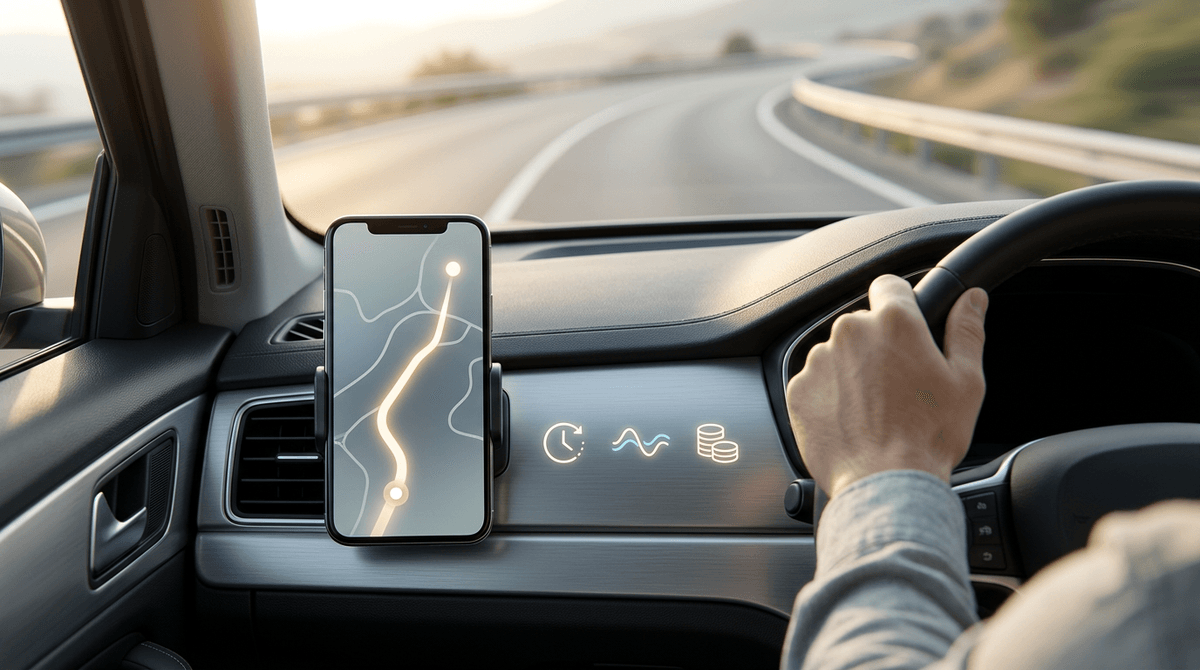
You plug in, CarPlay appears, and the App Store listing was right: the music app “works.” Then you try to change albums at a stoplight and realize the buttons you need are buried, the list feels cramped, or the “Up Next” view behaves differently than on your phone.
CarPlay support mostly means the app passes Apple’s basic rules. It doesn’t guarantee fast navigation, predictable queue control, or clean handoffs between touch, steering-wheel buttons, and Siri. Those gaps show up when you’re driving and can’t afford extra taps.
The real question isn’t whether an app runs on CarPlay—it’s whether it stays low-effort when you need music to just start and stay out of the way.
The moment your music app becomes distracting
That “low-effort” promise usually breaks the first time you try to fix something small while the car is moving: you skip a track, don’t like what comes next, and suddenly you’re hunting for “Up Next,” “Queue,” or “Play Similar.” If the app makes you open two screens deep just to see what’s coming, it turns a quick glance into a longer look.
Distraction often comes from inconsistency. If tapping a playlist starts shuffling sometimes but not others, or Siri adds a song but doesn’t place it where you expect, you keep checking to confirm what happened. The same goes for lag: a one-second pause after each tap pushes you to tap again, then you’re undoing mistakes.
Even the best CarPlay layout can’t fix a messy home screen. If your go-to mixes and playlists aren’t pinned, you’ll scroll more than you think.
Are you mostly streaming, mostly downloading, or mixing both?
If your go-to mixes and playlists aren’t pinned, you’ll scroll more than you think—unless the app can still “just work” when your connection doesn’t. That’s where your listening style matters. If you’re mostly streaming, you’re betting on quick loads and steady playback. In practice, you’ll feel every weak spot: parking garages that cut out, rural stretches on road trips, or a busy commute where the network slows and album art spins.
If you mostly download, CarPlay becomes simpler. Taps respond faster, and you can start music without waiting for a signal. The cost is upkeep: you have to remember to refresh playlists, manage storage, and deal with “This item isn’t available” when a track disappears from the service.
If you mix both, prioritize apps that make offline status obvious and don’t hide downloads behind extra menus. Then decide which view you live in—Downloads, Library, or Home—because that’s what you’ll reach for at speed.
When your ‘library’ matters more than recommendations
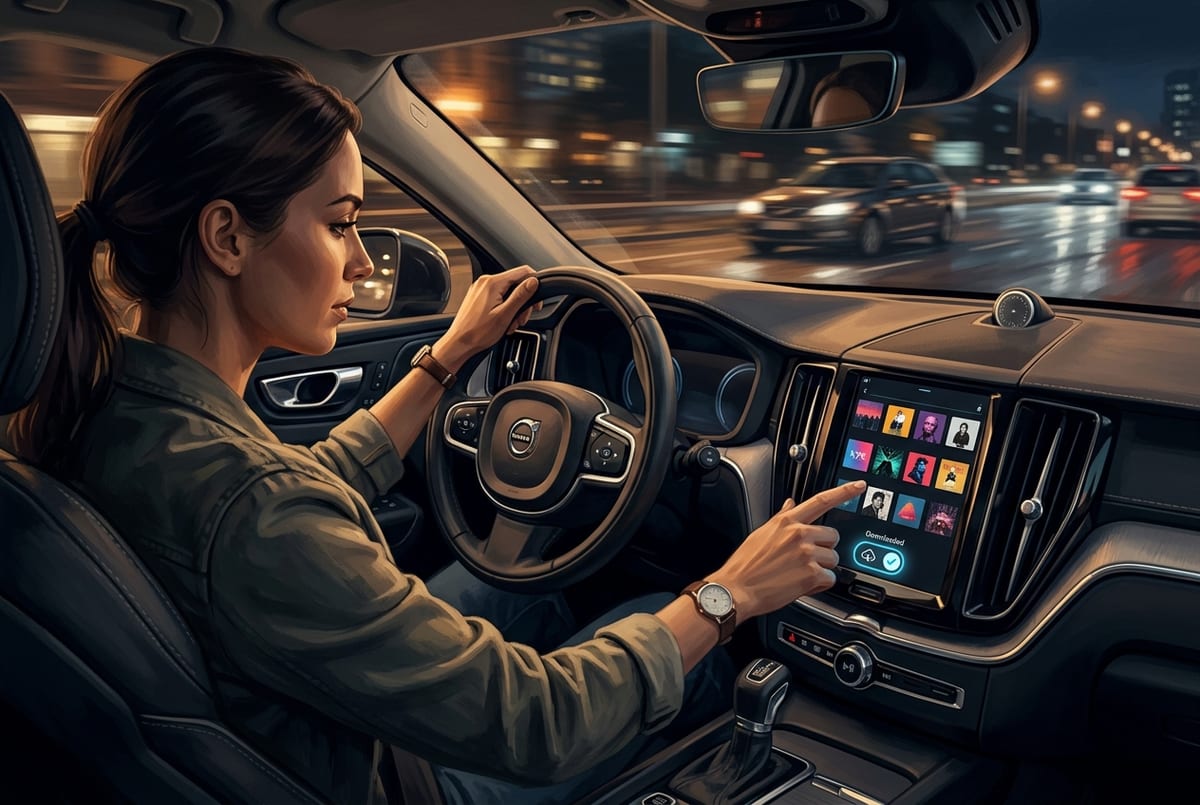
That “view you live in” becomes make-or-break when you’re not hunting for new music—you’re trying to land on a specific album, artist, or playlist you already know. In that moment, a recommendation-heavy Home screen can slow you down. If the app buries Library behind a small tab, forces extra filters, or won’t remember that you last used “Downloaded,” you end up doing more screen work than you planned.
If you’re the type who organizes by album, keeps long playlists, or relies on saved artists, look for a CarPlay Library that’s complete and predictable: clear A–Z lists, recent items that actually reflect what you play, and an “Up Next” you can edit without guessing. The real-world downside is setup and cleanup. A library-first app only stays easy if you maintain it—fixing duplicates, cleaning old downloads, and re-saving music that disappears or changes versions.
Once your library is the center, the next question is how you want it to behave on different days.
Commute mode vs road-trip mode: playlists, radio, or ‘just play something’
On a weekday commute, most people want a known start point: one playlist, one station, one recent album—tap once and you’re done. If that’s you, the best CarPlay experience is the app that puts those shortcuts on its CarPlay home screen and resumes reliably. If you have to dig through Home recommendations to find your “Morning Drive” playlist, you’ll do it at the exact moment you shouldn’t.
Road trips flip the priority. You’re more likely to want “just keep it going,” which usually means radio-style stations, autoplay, or “play similar” after a playlist ends. That’s where apps differ: some build a clean, predictable queue; others jump genres, repeat tracks, or make it hard to see what’s coming. And if your trip crosses dead zones, that hands-off mode can fail fast unless you’ve downloaded enough to bridge gaps.
Decide your default behavior—playlist-first or radio-first—then check whether the app can switch modes without making you re-learn the path. The steering wheel and Siri will force that reality check.
The steering-wheel + Siri reality check
That reality check usually happens the first time you try to do everything without touching the screen: one hand on the wheel, eyes forward, and you’re relying on “next,” “previous,” and Siri to fix whatever the app gets wrong. If the app handles queue logic cleanly, those basic controls feel enough. If it doesn’t, you’ll notice fast—skips jump to odd versions, “play next” becomes “play later,” or the wrong album starts because Siri matched the clean edit instead of your saved one.
Test this on a normal drive, not once in your driveway. Try four commands: “Play my playlist ___,” “Play ___ by ___,” “Play more like this,” and “Play next.” Then watch what actually changes in Up Next. Some apps won’t let you see or edit the queue from CarPlay, so you can’t verify without picking up your phone.
Also expect failure modes. Siri needs signal for most streaming requests, and accents, similar artist names, and kids’ voices in the car can cause repeat prompts. If that friction annoys you, prioritize an app that resumes a pinned download with one tap.
The 5 best CarPlay music apps—and who each one is for
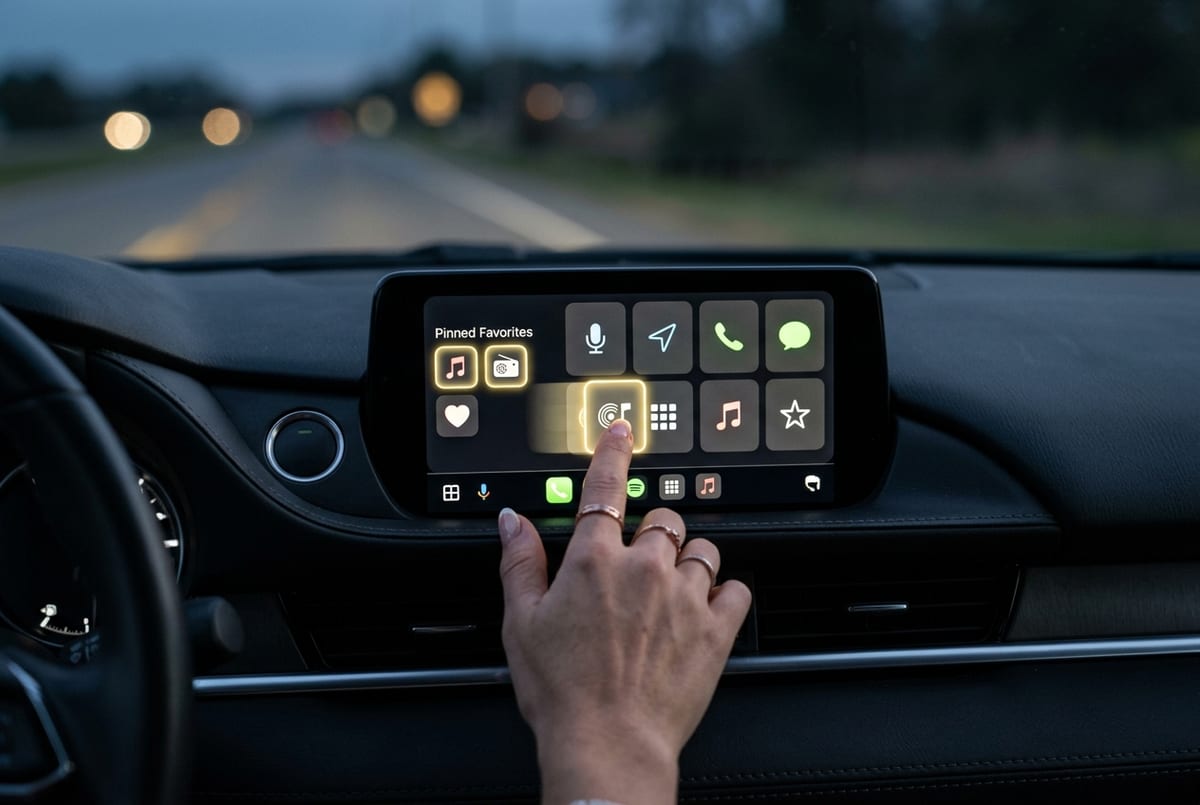
If Siri is unreliable for you, the safest “best” app is the one you can start with one tap and then ignore. Here are five that tend to stay low-friction on CarPlay—and the driver each fits.
Apple Music: best if you want the most consistent CarPlay feel, tight Siri support, and a real Library view (including downloads). Spotify: best if playlists and “keep it going” mixes are your default, and you value quick discovery over album-accurate library control. YouTube Music: best if your listening revolves around mixes, live versions, and the YouTube catalog—less ideal if you want strict, saved-album workflows. Amazon Music: best if you’re already in Prime/Unlimited and want broad catalog + downloads without switching ecosystems.
Pandora: best if you truly want radio-first listening—pick a station and let it run. The practical catch across all five is setup: you’ll need to pin your go-to playlists/stations, enable downloads if you use them, and confirm the CarPlay home screen shows the shortcuts you actually reach for.
Pick your default, then set it up so it stays friction-free
That setup work is what turns a “good” app into the one you can trust when you’re already rolling. Pick one default for 90% of drives, then build your CarPlay start path around it: pin 3–5 playlists/stations, download one “no-signal” set, and make sure the app opens to the screen you actually use (Library/Downloads/Home).
Then lock in the boring reliability. Turn on Background App Refresh, allow Cellular Data, and disable data-saving modes that stall playback. If you use Siri, run your four test commands again after setup. The downside is maintenance: downloads expire, favorites drift, and a big library slows search. Schedule a quick cleanup, or friction comes back.
Once that default is stable, you’ll stop shopping for features and start driving with less screen time.