I Have Too Many Ebooks. Here's How I Manage My Amazon Kindle Devices and Content
Your Kindle library isn’t “messy”—it’s outgrown default views
You open your Kindle library to grab “that book you started last week,” and the list feels longer every month. Sort by Recent helps until you bounce between devices, sample a few titles, or reread an older favorite. Then “Recent” stops meaning “useful,” and Search only works if you remember the exact words in the title.
Nothing is wrong with you. The default views were built for a small shelf, not hundreds of purchases, loans, and documents spread across an e‑reader, a phone, and maybe a tablet.
The annoying part is practical: storage runs out, downloads pile up, and it’s hard to tell what’s on the device versus sitting in the cloud. A simple setup fixes this, but it starts with a quick reality check.
First, a 10‑minute reality check: what’s purchased, what’s downloaded, what’s duplicative
That quick reality check starts the same way most cleanups do: you stop guessing and look at what you actually have. On each Kindle/app, switch your Library filter to show only “Downloaded,” then scroll for a minute. If you see dozens of “just in case” titles, you’ve found why storage feels tight even when you’re “not reading that much.”
Now flip the filter to “All” (or “Cloud”) and sanity-check what’s purchased versus what’s merely on-device. This is where duplicates hide in plain sight: the same book in two editions, an author’s “boxed set” plus the individual volumes, or a sample sitting next to the real copy. If you’re unsure, open the item’s details and confirm before deleting anything.
Finish by picking three piles: reading now, reading soon, and not soon. Download the first pile, keep the second small, and send the rest back to the cloud. Then you can decide which device should carry which pile.
Which device is for what—reading now, reading next, or deep library browsing?
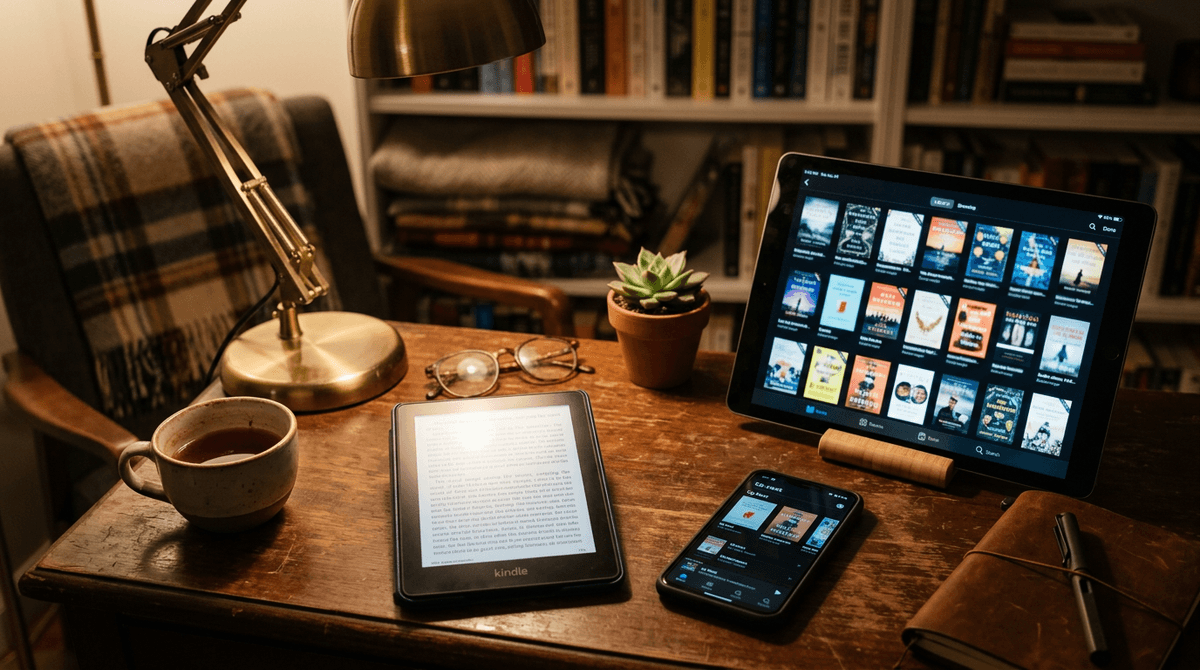
That “which device should carry which pile” question usually answers itself when you notice where you get annoyed. The e‑reader is great for long sessions, but scrolling a 900‑book list with slow filters is a bad time. Your phone is always with you, but it’s easy to end up with random downloads you never open. A tablet sits in the middle: good screen, decent browsing, and usually more space.
So assign jobs. Put “reading now” on the e‑reader and keep it tight—single digits or a small page or two. Use your phone for “reading next”: a short queue you can start anywhere, plus a couple of comfort rereads for dead time. Use the tablet (or the Kindle desktop/web view if you prefer) for deep browsing: searching your whole library, checking editions, and deciding what to download.
The limitation is friction: you’ll occasionally want a book that’s not on the “right” device, and downloading over spotty Wi‑Fi can break the moment. That’s why it helps to be deliberate about when Collections enter the picture.
When “Collections” help—and when they quietly make finding books harder
That deliberate moment is usually when you try to keep your “reading next” queue small but still want a way to park a hundred “someday” titles without losing them. Collections can do that well: a few buckets you actually browse (like “Series in Progress,” “Nonfiction to Dip Into,” or “Rereads”), plus one “To Sort” collection for new purchases you haven’t placed yet.
They start making things harder when you use them like folders on a computer. If a book can only be found by remembering which of twelve collections you used, you’ve recreated the same problem with extra taps. It gets worse when you put the same title in multiple collections “just in case,” because then you can’t tell whether you’re seeing one book or three different editions.
Keep collections broad and few, and let Search do the fine work. To make that search painless, a lightweight naming habit helps.
A lightweight naming habit that makes series and rereads painless to locate
That “fine work” is where most people get stuck: you type an author’s name, get ten near-identical hits, and tap the wrong volume because the series order isn’t obvious. The fix isn’t a full reorg. It’s one small naming habit you apply only when you touch a book.
In your own head (or in a simple note), store titles in a consistent pattern: Series Name — # — Book Title. “Murderbot — 02 — Artificial Condition.” “Stormlight — 04 — Rhythm of War.” If you do nothing else, the two-digit number makes Search results and sort lists behave. For rereads, add one short tag you can search: “(RR)” or “(Comfort).” Then typing “RR” shows your reliable picks without another collection.
The catch: Kindle won’t let you rename most purchased books inside the library. So keep the pattern in one place you control (a pinned note, a Reading List app, even a spreadsheet), and use it when you decide what to download. Next up is the decision that keeps every device from filling up again.
The core decision: what stays in the cloud vs. what gets downloaded on each device
That “every device filling up again” moment usually happens because downloaded becomes your default. You finish a book, start another, and nothing ever gets removed—so your Kindle starts to look like your entire purchase history. The simplest rule that holds up is this: keep the cloud as your archive, and treat each device as a small, rotating shelf.
If you’re reading it this week, download it on the e‑reader. If you might start it soon, keep it on your phone as a short queue. Everything else stays in the cloud until it earns a spot. For example, don’t download a 12‑book series “so it’s there.” Download book one (and maybe the next), then pull the rest as you go.
The real constraint is timing and connectivity. If you commute through dead zones, preload a few extras before you leave—because “I’ll just download it later” fails fast on a train platform. Once you pick these default shelves, sync starts to feel predictable again.
“Why didn’t that change show up?” Understanding how Kindle sync really behaves
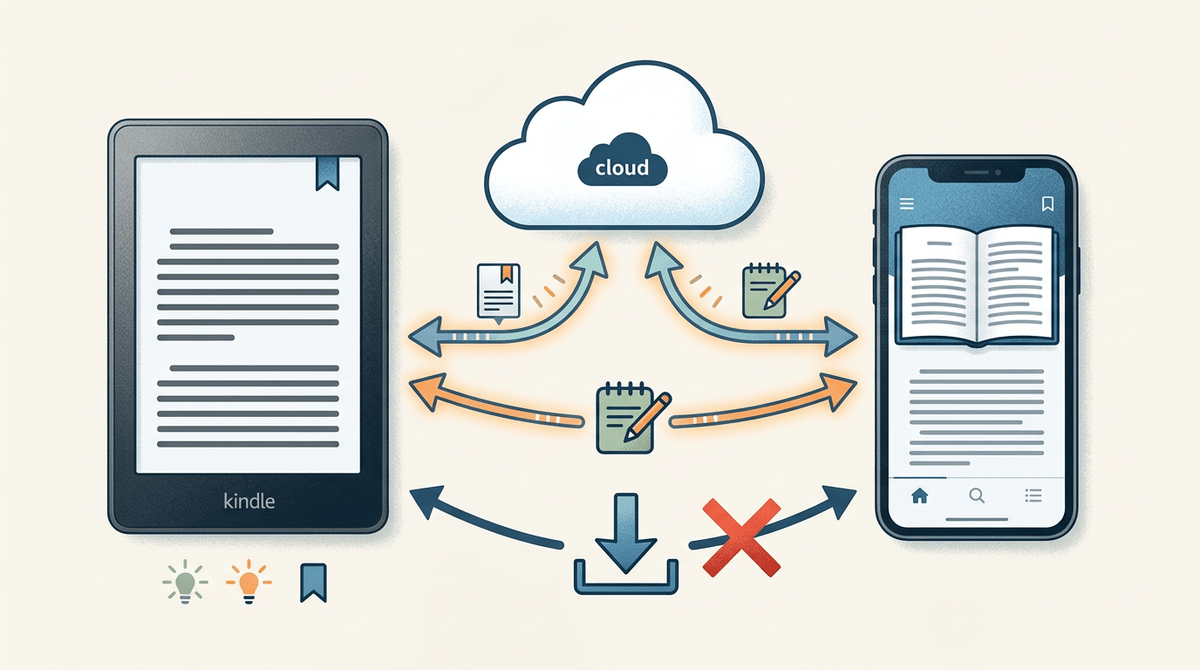
That “predictable again” feeling usually breaks the first time you remove a download on one device and expect it to disappear everywhere. It won’t. Kindle sync mainly shares your reading position, notes, and whether a title is in your account; it does not reliably mirror “downloaded vs. not downloaded” across devices. So if you want your e‑reader to stay lean, you still have to remove downloads on that specific device.
The other common surprise is a change that should be universal—like a new Collection assignment—not showing up. In practice, sync needs two things: the device has to be online, and it has to do a fresh sync after the change. If you’re on spotty Wi‑Fi, airplane mode, or a captive hotel network, your phone can accept the change locally and never push it. Then your Kindle looks “wrong” until it reconnects and syncs.
When something doesn’t match, use a quick check: confirm you’re in the same Amazon account, pull to refresh or tap Sync, and wait a minute on real internet. The annoying cost is attention—you’ll sometimes have to babysit sync at the exact moment you want to read. That’s why a small maintenance loop beats relying on memory.
The maintenance loop that keeps your library usable even as it keeps growing
That “babysit sync” moment is when a tiny routine saves you. Once a week (or every 10 finished books), take two minutes on each device: filter to Downloaded, remove anything you’re not actively reading, then force a sync while you’re on stable Wi‑Fi. If you bought a few new titles, drop them into a single “To Sort” collection or your note list so they don’t vanish into All.
Once a month, do the slower pass on your “browsing” device: spot duplicates (boxed sets, new editions, samples), and fix the record—delete the sample, decide which edition you’ll keep, and archive the rest in the cloud. The real hassle is that this takes focused time when you’d rather read, but it’s cheaper than digging through a crowded library every day.
Keep the cloud as the attic, keep each device as a shelf, and treat sync as something you trigger on purpose.