12 Tips All Diehard Xbox 360 Fans Should Know
You’re back on 360—what still works today (and what’s worth setting up first)?
You plug in the Xbox 360, the blades or tiles show up, and most of what you remember still works: discs boot, controllers pair, local saves load, and couch co-op feels the same. The friction usually starts the moment you try to “make it like it used to be” online—sign-ins fail, downloads stall, or your old profile doesn’t appear where you expect.
Start with a clean baseline. Update the console if it offers one, set the correct date/time, and confirm your storage device is recognized and has free space. Then test one thing at a time: launch a disc game, load a save, and only after that try signing into Xbox Live. If you change multiple settings at once, you won’t know what fixed it—or what broke it.
The more you lean on online features (cloud, redownloads, storefront access), the more you depend on credentials and a network setup that may not behave like it did years ago. That’s why the next priority is keeping your profile and purchases accessible without turning every session into a sign-in fight.
Sign-in headaches: keep your profile, purchases, and saves accessible
That sign-in fight usually starts with one simple mistake: mixing up an “offline profile” with a downloaded Xbox Live profile. If your Gamertag shows but purchases or Achievements look wrong, check whether the profile has a little Xbox Live badge. If it doesn’t, don’t delete anything yet—try downloading your profile again from the sign-in screen. If it does, but it won’t sign in, re-enter the password slowly and confirm any app password or two-step sign-in settings on the Microsoft side before you keep guessing.
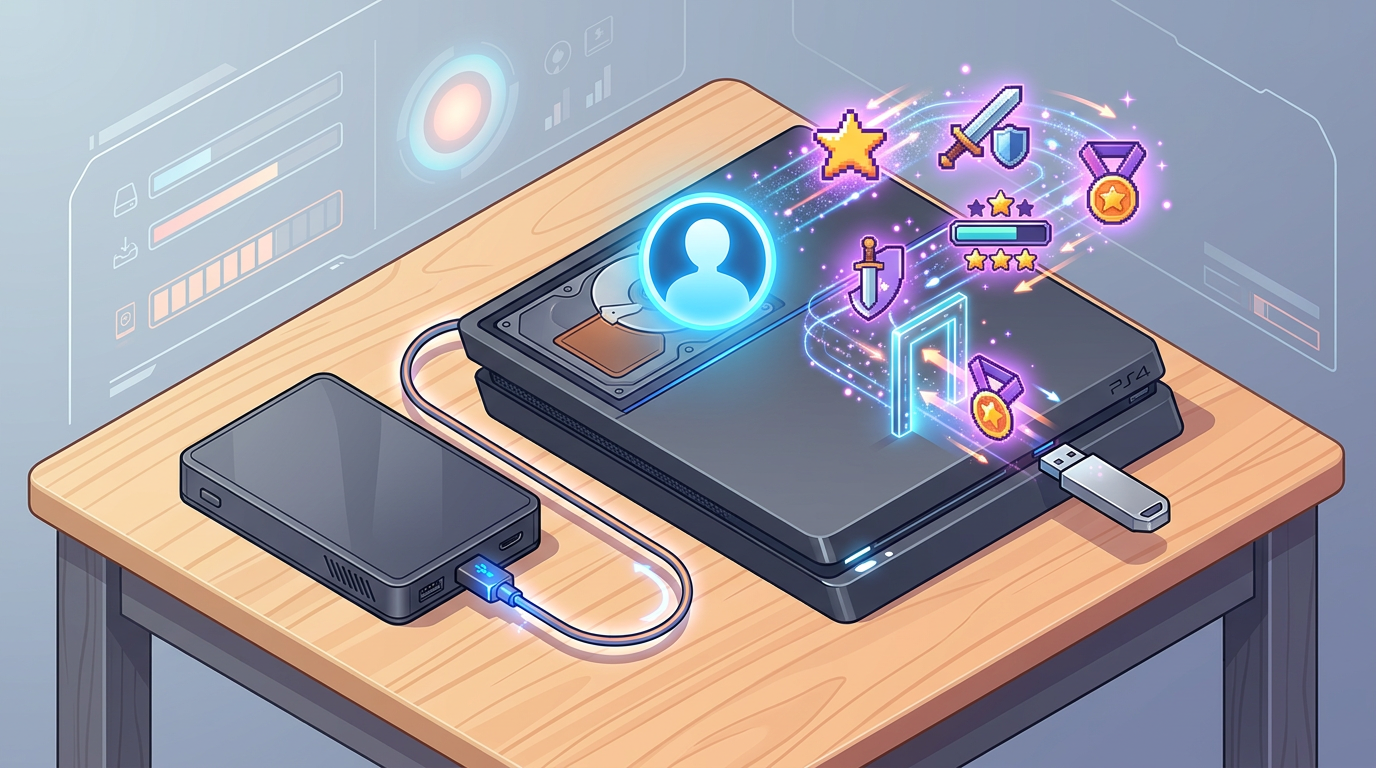
On the console, protect your access in two places: storage and account. In Storage, make sure your profile and saves live on the hard drive (not a random USB you might pull later). In Account settings, set a passcode so a guest can’t “help” by recovering a different profile over yours. Passcodes add a step, but they prevent the kind of overwrite that turns a 5-minute session into an hour of recovery screens.
Once you can sign in, test a redownload of one small item and confirm your main save loads. Then you can tackle the next choke point: what to keep when storage starts filling up.
When storage fills up, what do you delete—and what should never be moved casually?
Storage fills up right when you finally have everything signing in cleanly. The quick temptation is to start moving things to a USB drive at random, but on 360 the safest win is usually deleting “easy to replace” content first: demos, old videos/music, and game installs you can reinstall from the disc later. Also check for duplicate items (a game with multiple title updates, or add-ons you don’t use) and clear system cache only if you’re troubleshooting—cache clears can force re-downloading updates.
What you should never move casually: your profile and your main saves. Keep them on the internal hard drive or a single dedicated USB that stays with the console. Bouncing saves between drives “just to make space” is how you end up with a missing save, a wrong device set as default, or a corrupted file after a bad unplug. If you must migrate, do it once, using the console’s storage transfer/copy options, then leave it alone.
Once storage is stable, you can deal with the next frustration: when a disc won’t read, is it the media, the drive, or something you can fix in minutes?
Disc read errors: is it the game, the drive, or just a dirty truth you can fix fast?
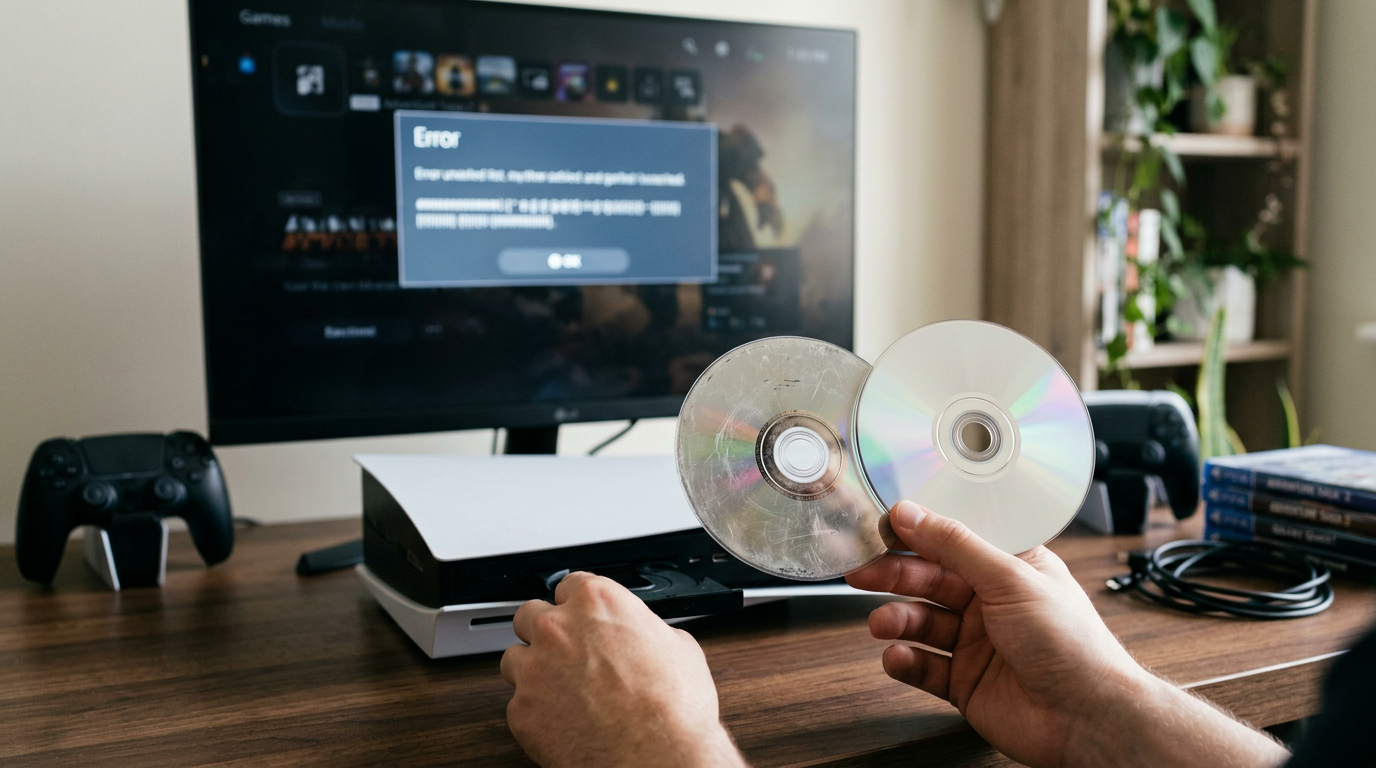
That “Open Tray” or “Disc unreadable” message usually hits right when you’re trying to jump into a game you’ve owned for years. Start by treating it like a quick sorting test: try the problem disc, then try a second known-good disc (any game or even a DVD). If only one disc fails, it’s almost always the disc. If several fail, suspect the drive or a dirty lens.
For the disc, wipe from the center straight out to the edge with a soft cloth. Don’t wipe in circles; that follows the data tracks and can make scratches matter more. Check for a cloudy ring or pinholes in the reflective layer—those won’t “clean off,” and you’re better off installing the game to the hard drive (if it reads long enough) or finding another copy.
If multiple discs struggle, skip canned “disc cleaner” gimmicks. Your practical trade-off is time versus risk: opening the console to clean the laser can fix it, but it’s easy to break plastics or cables. Before you go there, try repositioning the console flat, improving airflow, and re-testing the same two discs. If it still acts up, you’re choosing between a careful lens clean, a drive swap, or going digital where possible.
The console gets loud or hot—do you clean it, move it, or stop using it?
That same “try it flat and re-test” logic matters even more when the 360 suddenly sounds like a small vacuum or the air coming out feels too hot. Most of the time it’s not a mystery failure—it’s the console pulling harder because it can’t move heat away fast enough, usually from blocked vents, a cramped shelf, or years of dust packed into the fan and heatsinks.
Start with the no-risk fixes: stand it in a more open spot, keep it on a hard surface (not carpet), and give it a few inches of clearance on every side. Then power it down, unplug it, and blow short bursts of compressed air through the side and rear vents while holding the fan still with a toothpick so it doesn’t overspin. Aggressive blasting can push dust deeper, so aim to move dust out, not “sandblast” the inside.
If it still runs loud or hot after a better placement and a careful vent clean, stop long sessions until you decide whether you’re comfortable opening it. Heat-related shutoffs and random freezes don’t usually get better with time, and the next choice is whether you want to maintain this unit—or source a quieter replacement before it takes saves and installs down with it.
Online play and downloads feel unreliable—what’s the least painful network setup?
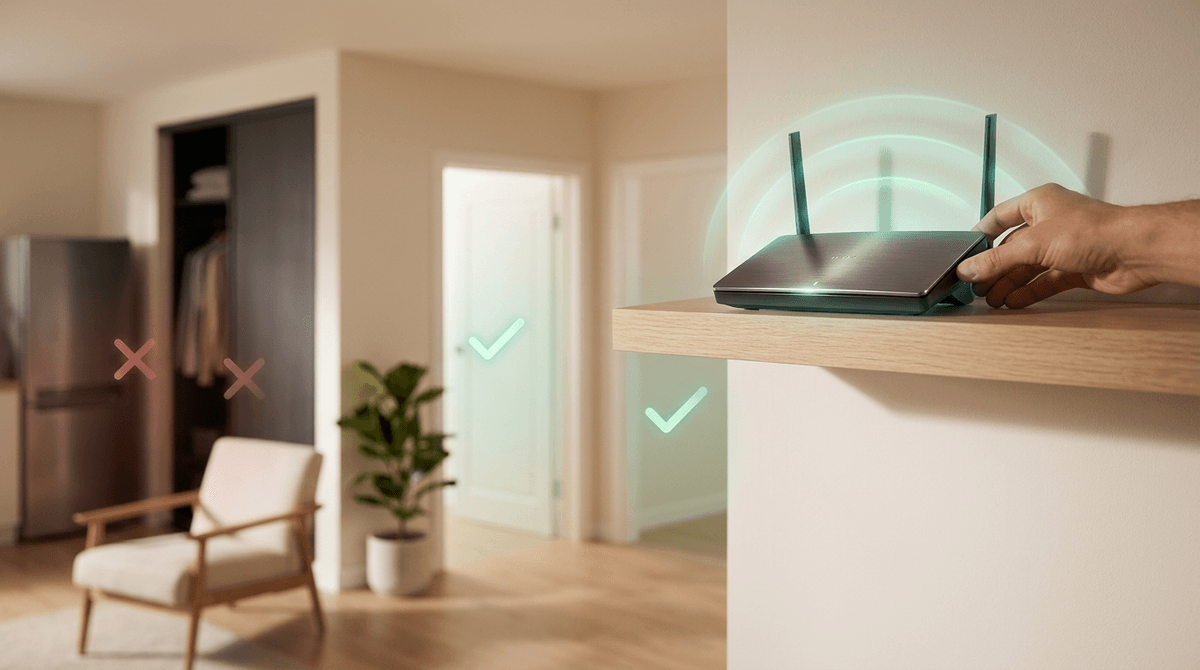
That “random freezes” feeling often shows up again as soon as you try to download an update or join a match: the progress bar hangs, you get kicked to the dashboard, or Xbox Live connects and drops. The least painful setup is the simplest one you can keep stable. If you can run Ethernet, do it. If you can’t, place the console in line-of-sight of the router and avoid Wi‑Fi extenders that add one more point of failure.
Then reduce variables. On the router, use WPA2 (not WEP), and if your network has both 2.4GHz and 5GHz, put the 360 on 2.4GHz for range. If downloads crawl, pause them, fully sign out, power-cycle the console and router, then try one small download again. Don’t stack fixes like port-forwarding, custom DNS, and DMZ all at once—you’ll make it harder to tell what actually helped.
The thing is convenience versus repeatability: a “perfect” network tune-up you can’t remember won’t beat a boring setup that works every time. Once your connection stays up, you can lock in a light maintenance rhythm so it keeps behaving.
Keep the 360 fun (and preservable) from here: a light maintenance rhythm
Once your connection stays up, the goal is keeping it that way without turning the 360 into a project. Leave the setup alone when it’s working: don’t bounce profiles between drives, don’t keep “optimizing” network settings, and don’t stack new accessories unless you have a reason. Most of the weird issues on 360 come from small changes you forget you made.
Give it a simple routine: every few weeks, clear the area around the vents, blow a little dust out, and check you still have free space so updates and installs don’t choke. If you’re a collector, keep discs in cases and handle them like they’re the only copy you’ll have. Five minutes of upkeep beats losing a save or a drive mid-session, and it keeps your options open if you ever need to migrate to another 360.